|
<< Click to Display Table of Contents >> Importing 278 Authorization Request Files |
  
|
|
<< Click to Display Table of Contents >> Importing 278 Authorization Request Files |
|
1.The "File" menu has a sub menu "Open 278" with which we can open the explorer and select a file.
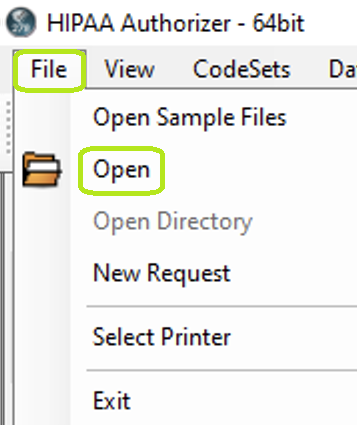
"Open 278" in main menu bar.
Alternatively we can use the "Open 278" toolstrip button to do the same.
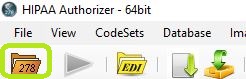
"276" folder in Task Menu bar.
2.Once a file is selected, we can decide what to do with it.
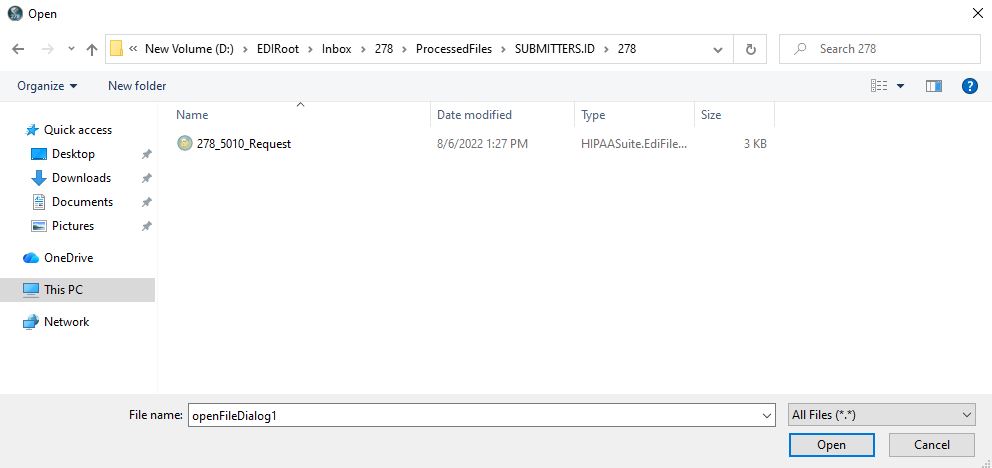
EDI file selection.
3.We have the option to print what we call a report to the printer, to view the request on screen, create an image file or load the requests into the workplace for further processing.
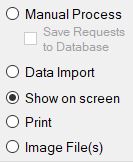
"Screen" option in "Output Mode."