|
<< Click to Display Table of Contents >> Updates |
  
|
|
<< Click to Display Table of Contents >> Updates |
|
The HIPAA Authorizer application constantly checks for updates. You can check for updates by looking at the bottom-right corner of the main menu window. Alternatively, you can go to the Help > Check For Updates in the main menu window (see next section.)

The bottom-right corner shows if there are updates available.
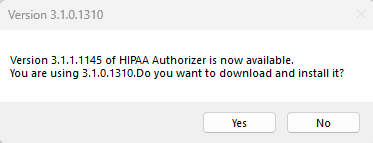
The "Changes in versions" window if there are updates available.
When a new version is out, you will see an update report on the "Changes in Versions" window when you open the application. It shows which changes have been made and displays all differences between versions. See the steps to update below:
1.Go to Help > Check For Updates in the main menu window.
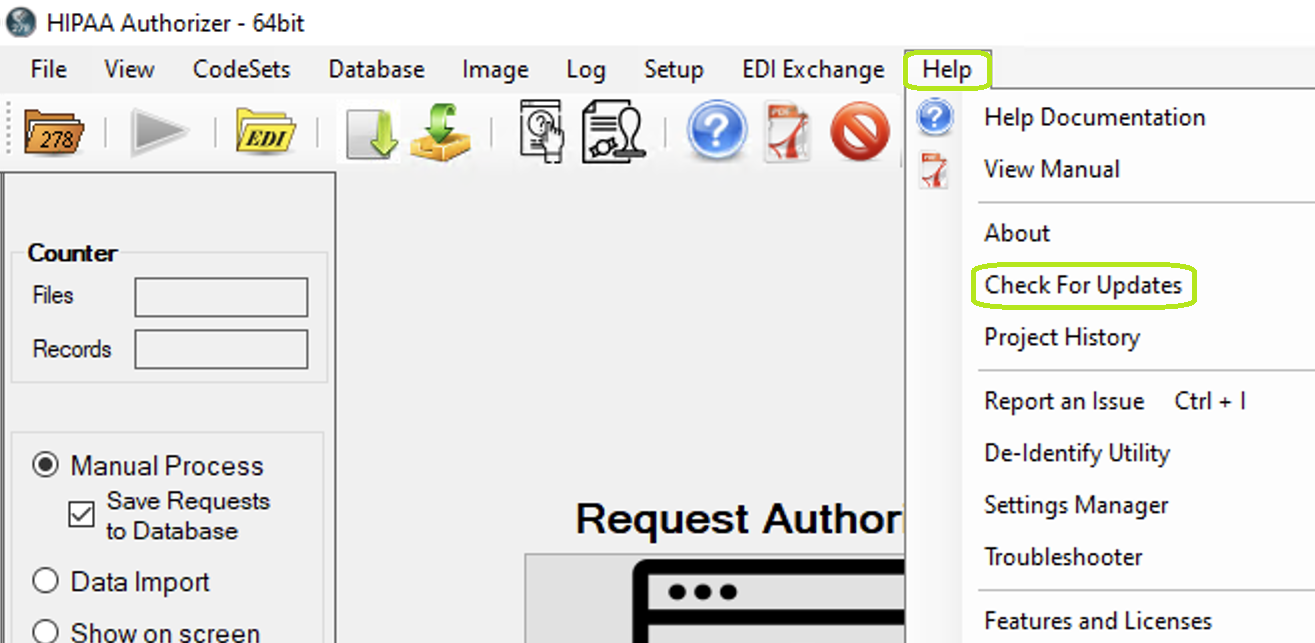
The "Check for Updates" option is under the "Help" drop-down menu.
If there are no updates, a pop-up window will inform you of this:
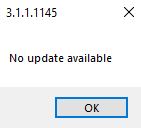
This pop-up window will show if there are no updates.
If an update is available, the "Changes in version" window will open.
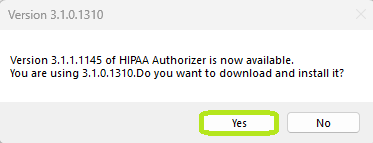
The "Changes in Versions" window.
2.To continue with the update, click the "Update" button. If you do not want to complete the update, click "Cancel." If you do continue, you will be prompted to select a folder to download the new version setup.

The default folder is usually "Downloads."
3.Click the setup application. A progress bar will open, and then the setup wizard will open.
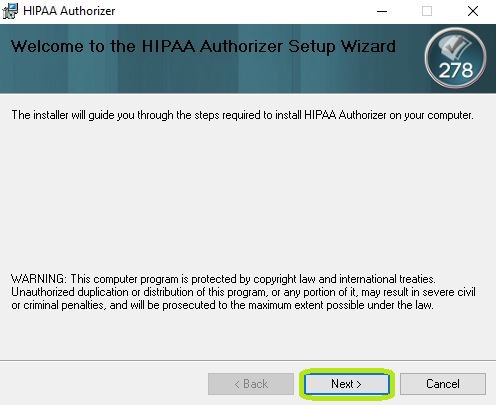
The "HIPAA Authorizer" window with the setup wizard.
4.Click "Next," then choose "I Agree" to the license agreement in the following window:
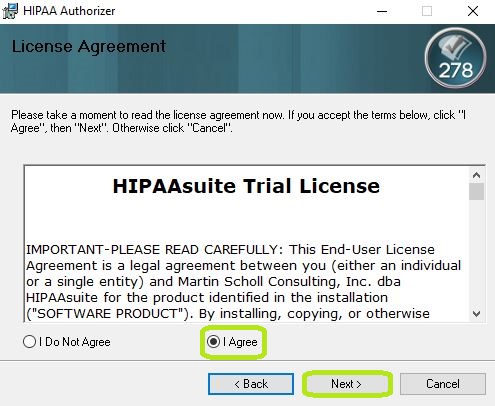
The "License Agreement" window.
Note: It is necessary to agree to the license agreement to ensure the proper updating of the application. Otherwise, the installation will not move forward.
5.After clicking "Next," the below window will open. You may continue with the pre-selected folder where the application will be installed or choose your preferred location by clicking "Browse." You may also decide if the installation will be for a single user ("Just Me") or all users on the computer ("Everyone"). Once you have selected the installation folder, you can click "Next":
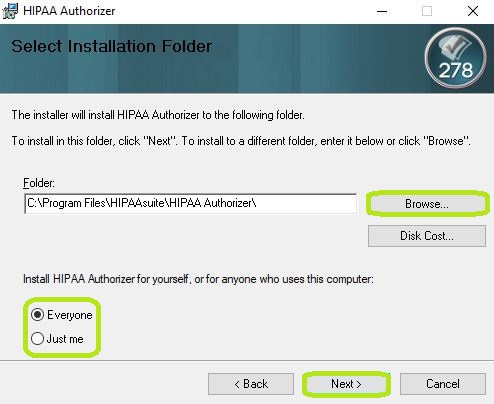
The "Installation Folder" window.
6.The window below will be displayed; if everything has been set up properly, you may click "Next." If you need to review any setting at any time, you may click on "< Back" to return to the previous window:
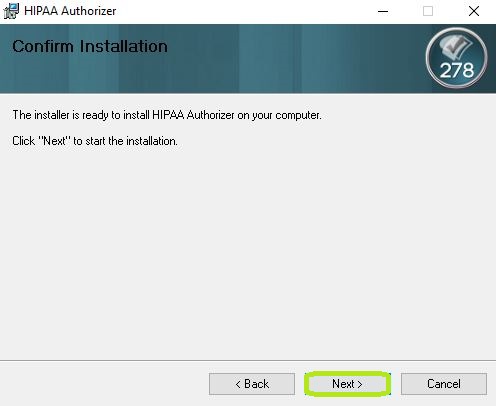
The "Confirm Installation" window.
Note: Once you click "Next >," you may be presented with a window asking "Do you want to allow this app from an unknown publisher to make changes to your device?"
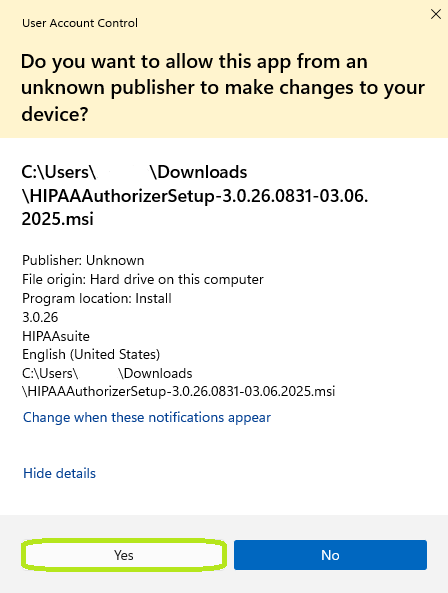
"Unknown Publisher" pop-up.
7.The application will begin downloading with the selected settings:
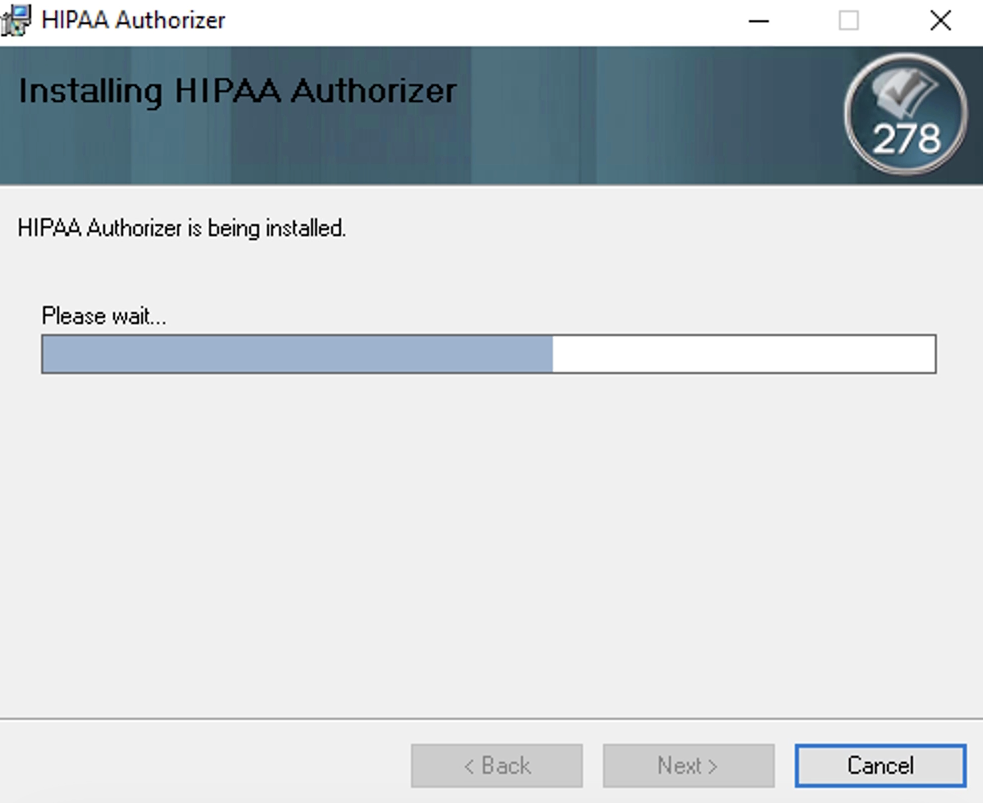
This window will show as the application update is being installed.
8.Once the installation is complete, the below window will open confirming if the application was successfully installed. You may choose to open the application as soon as you close this window by checking the "Launch HIPAA Authorizer" option before clicking on "Close":
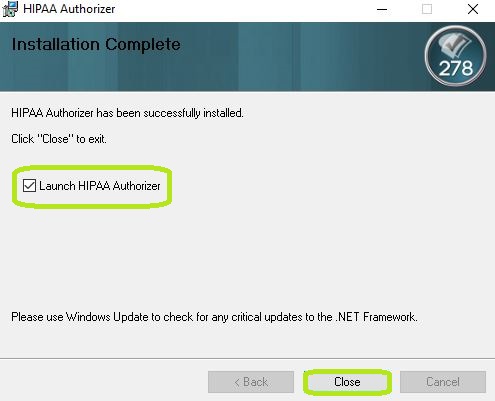
This window confirms the installation of the updated HIPAA Authorizer application.