|
<< Click to Display Table of Contents >> Selecting a Printer |
  
|
|
<< Click to Display Table of Contents >> Selecting a Printer |
|
In order to view a form on the screen, you must have a printer installed even if it is just print to PDF.*
The HIPAA Authorizer application will automatically have a default printer according to your computer settings. To select a different printer, follow the steps below:
1.Go to File > Select Printer in the main menu window.
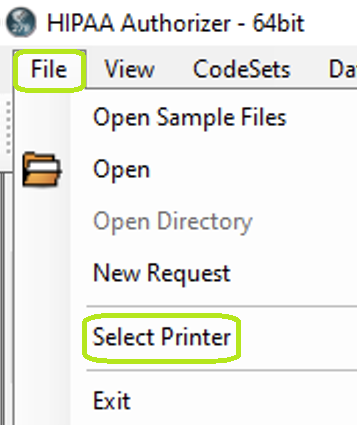
The "Select Printer" option from the "File" tab.
The following window will open:
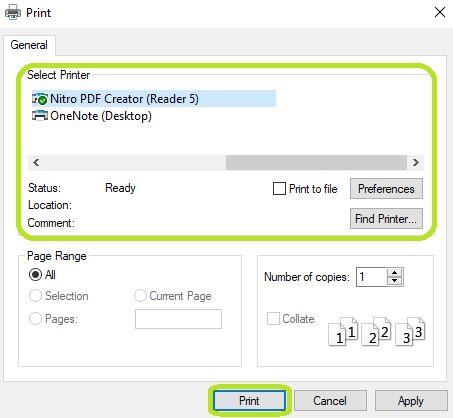
Choose your printer from the "Select Printer" box.
2.Select your printer, then click "OK." If you do not see your printer under the "Printer" box, click the drop-down. Once the correct printer is selected, you may click the "OK" button to print your documents.