|
<< Click to Display Table of Contents >> Trials and Trial Extensions |
  
|
|
<< Click to Display Table of Contents >> Trials and Trial Extensions |
|
We understand the importance of selecting the right tools for your needs. Though we are convinced of the great advantages HIPAAsuite may bring to your business, we have enabled the option for a 15-day trial.
How can I access the trial?
You may download any of the applications for a trial from the HIPAAsuite website (see Installing the Application and Registering for HIPAAsuite; an account is necessary for download.)
How can I request a trial extension?
If you need to continue your trial of the product before it expires or if it has expired already, follow the instructions below:
1.You may see a message stating that the trial has ended, as shown below:
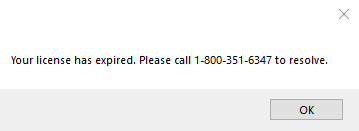
License expired message.
2.Once you try opening the software, the window below will open, indicating that no more trial days remain. To request an extension, click the "Ask for trial extension" button.
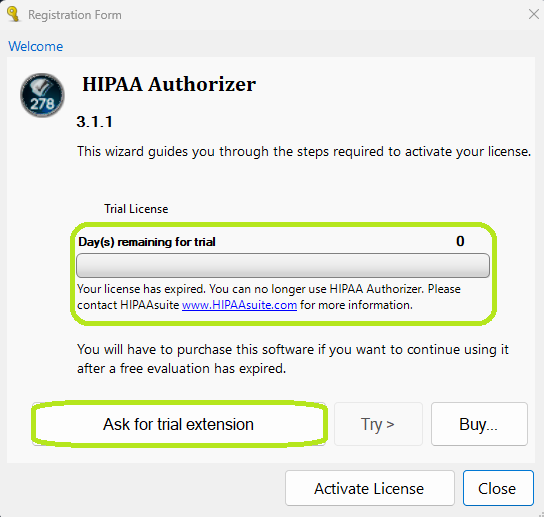
The “Registration Form” window shows an expired trial license.
3.The "Features and Licenses" window will open. Select the features you need by checking "On" or "Off" next to each, then click the "Authorization Request Trial License" button.
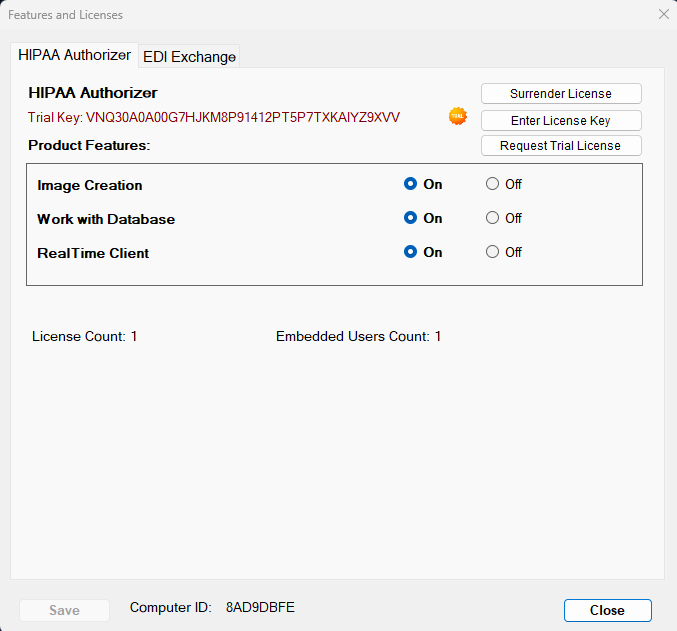
The "Features and Licenses" window provides different options to customize the application and add-ons.
4.The application will create an email for the HIPAAsuite support team.
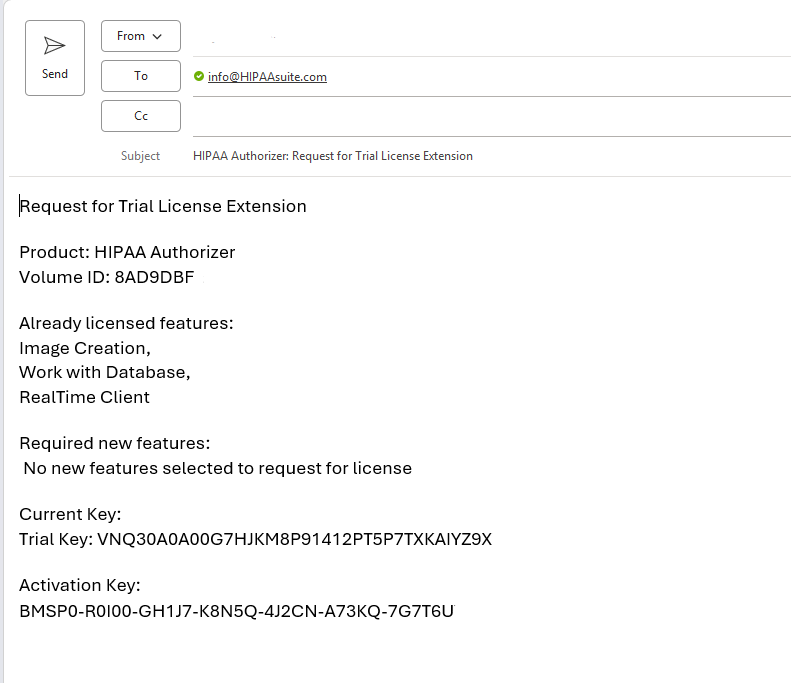
Email sample requesting an extension.
5.The response from the support team should include an activation key. Once you have the new extension key, re-launch the application and click the "Activate License" button. If you only need to validate your license, you may select the "Validate my license" option. Likewise, if you wish to deactivate a license, select the "Deactivate my license" option. Once you have made your selection, click on "Next."
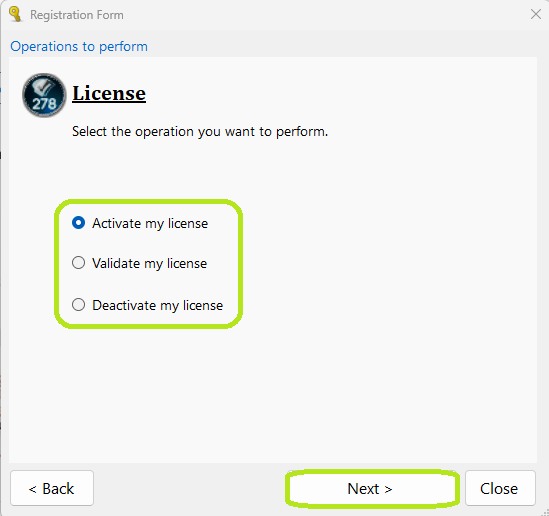
To renew your trial, select "Activate License."
6.You can activate the license with an internet connection (online) or without a connection (offline). For the latter, contact HIPAAsuite support to finish the process. Once you make your selection, click on "Next."
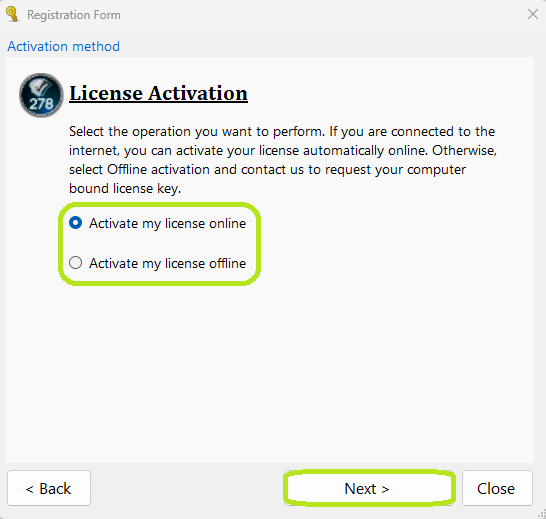
Choose between online or offline activation.
7.Paste the activation key you received in the HIPAAsuite support email into the field on the "Registration Form" window, then click "Activate."
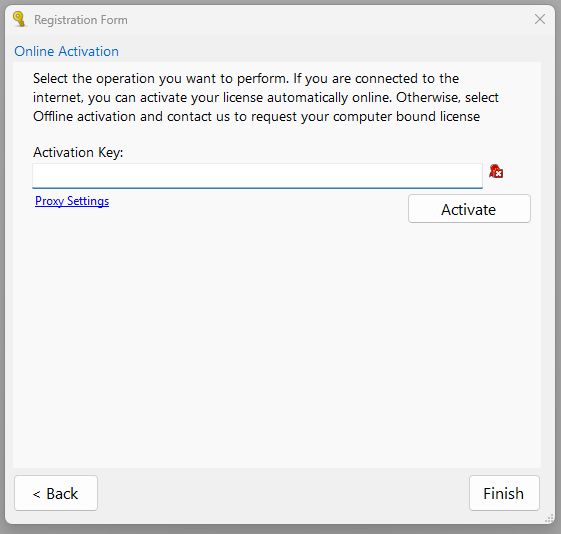
Paste your activation key into the text box.
Note: If you renew a product, your previous key might already be in the text box. This old key can be deleted and replaced with the new one.
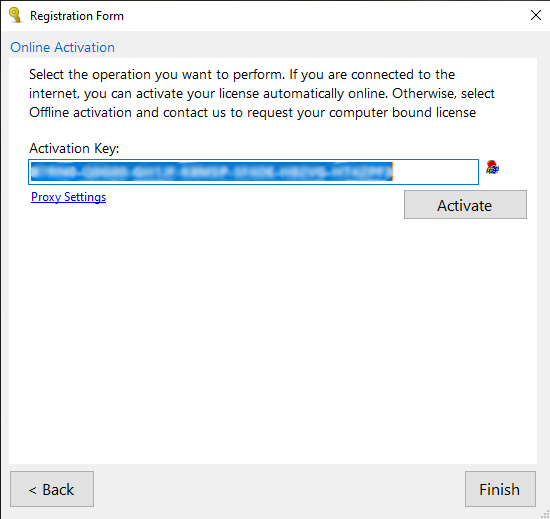
Replace the old key, if any, with the new key.
8.After clicking on "Activate," a message will show at the bottom stating whether the activation was successful and the components that are now active.
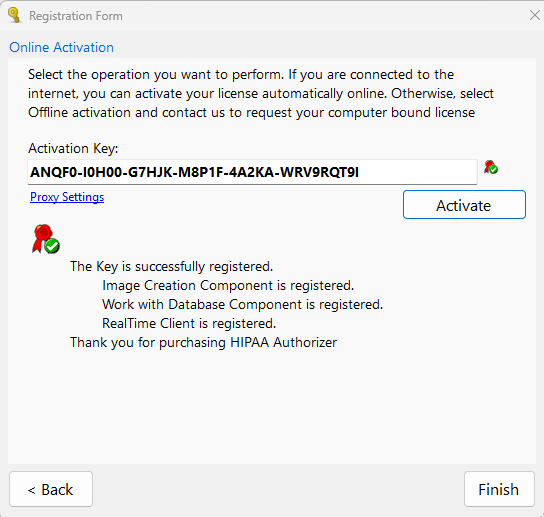
The "Registration Form" window with a successful key activation for a trial renewal.
After clicking finish, the application will open.