|
<< Click to Display Table of Contents >> Installing the Application |
  
|
|
<< Click to Display Table of Contents >> Installing the Application |
|
How to install the HIPAA Authorizer Application?
Download the HIPAA Authorizer application from our website, no need for a physical copy that could get damaged or lost. To begin processing claim files in a much more efficient manner, follow the steps below to install the application.
1.Open your web browser and access our website (https://www.HIPAAsuite.com/). Then, log into your HIPAAsuite account (if you do not have one, see Registering for HIPAAsuite). Once you log in, there are a few ways to download the application:
a.Clicking on the Authorizer 278 icon of the home page will take you to the HIPAA Authorizer information page where you can click on "Download Trial":
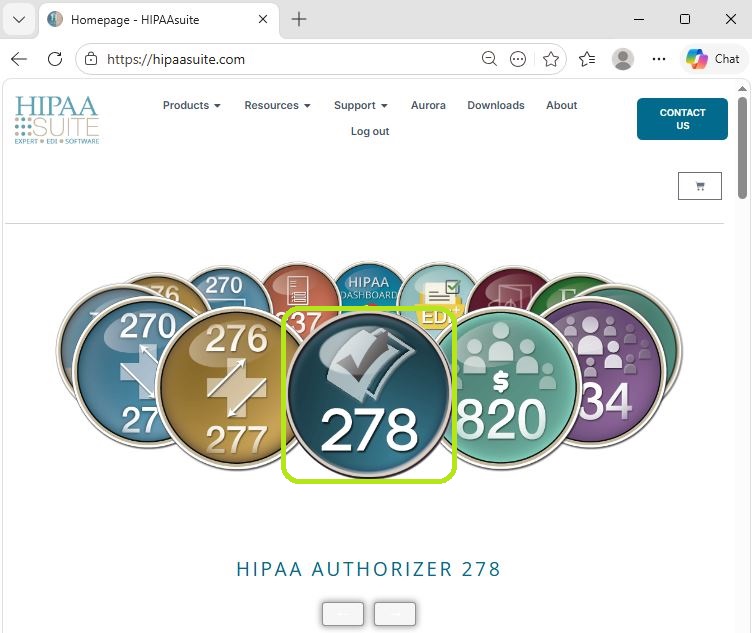
The Authorizer 278 Icon in the HIPAAsuite website homepage.
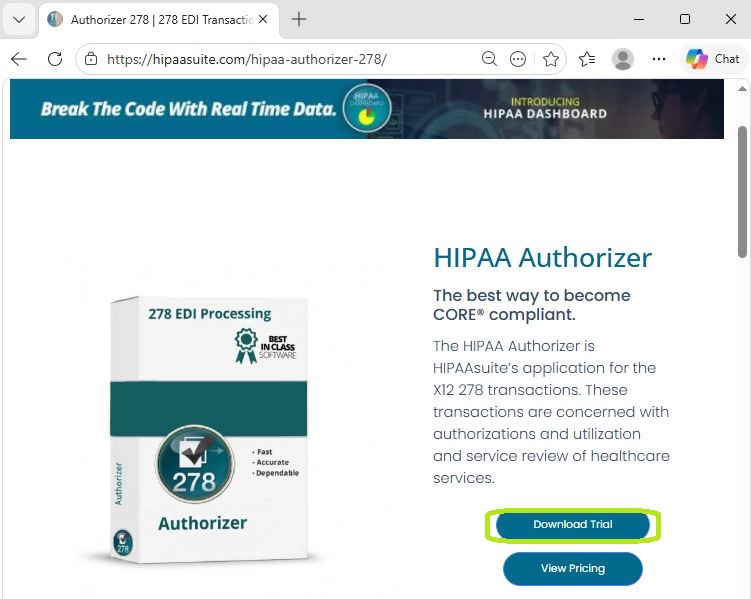
The HIPAA Authorizer information page.
b.Hovering over the "Products" tab at the top tab menu on the homepage, then clicking on the Authorizer 278 option under "Provider Specific," which will take you to the HIPAA Authorizer information page where you can click on "Download Trial":
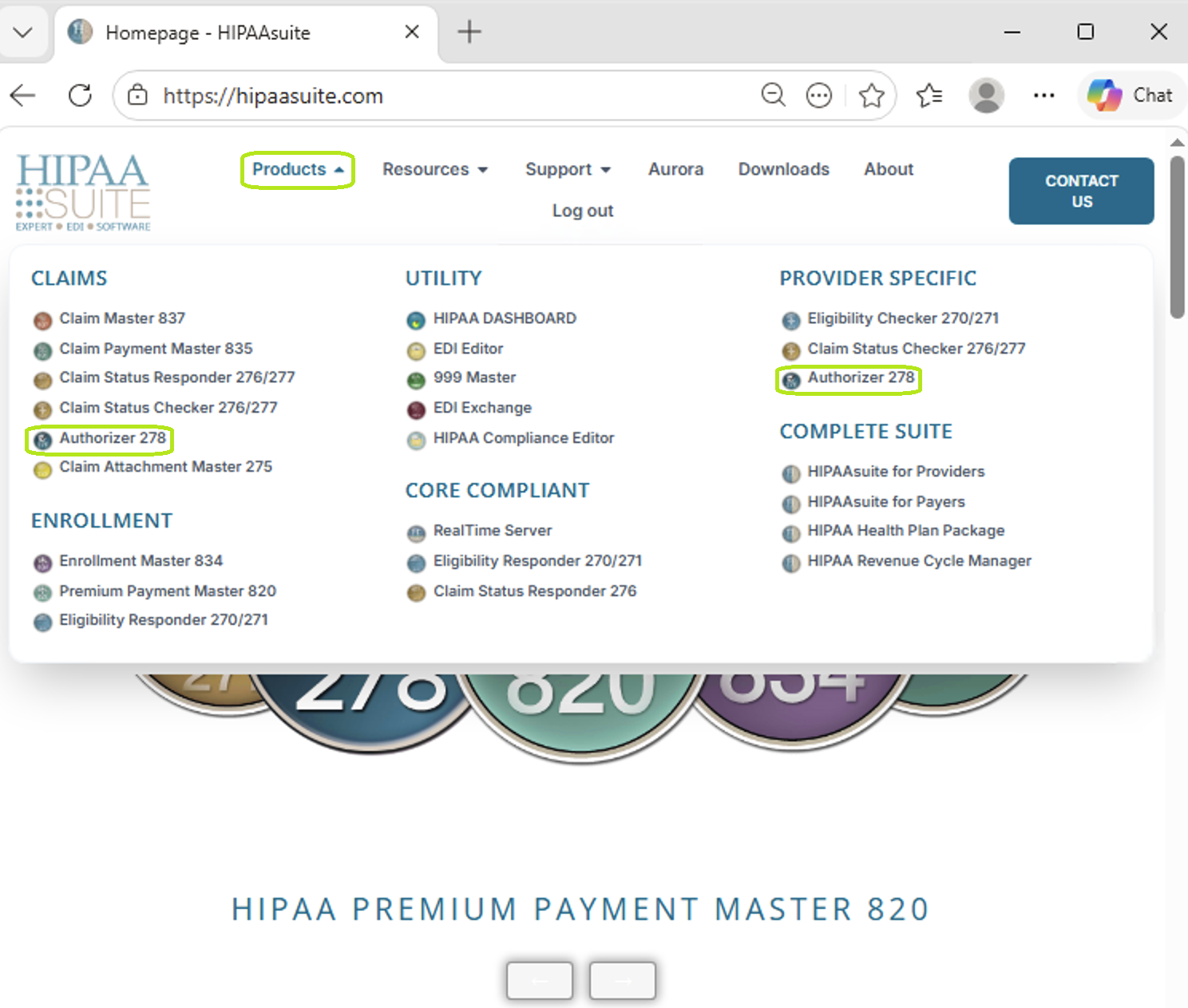
The "Authorizer 278" option is under the Products drop-down menu.
c.Clicking on the "Products" tab, then hovering over the Authorizer 278 icon:
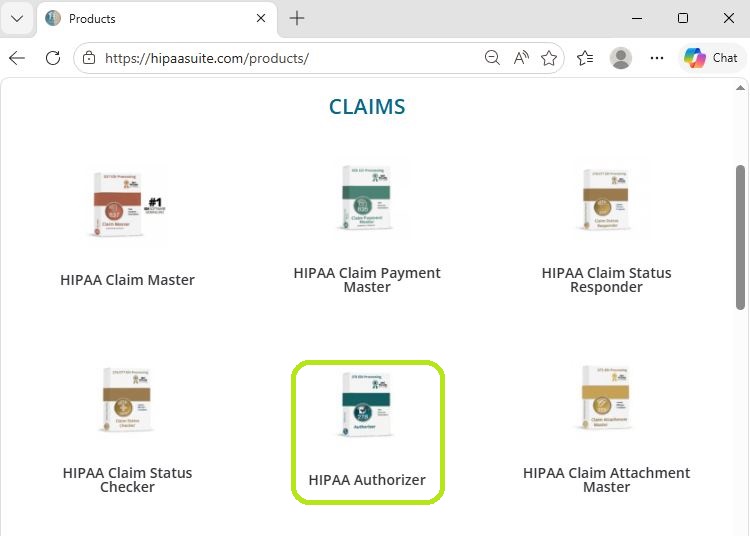
The Products page after clicking on the Products option at the top left of the website.
d.Clicking on the "Downloads" tab and then on the "Download" button next to the Authorizer option:
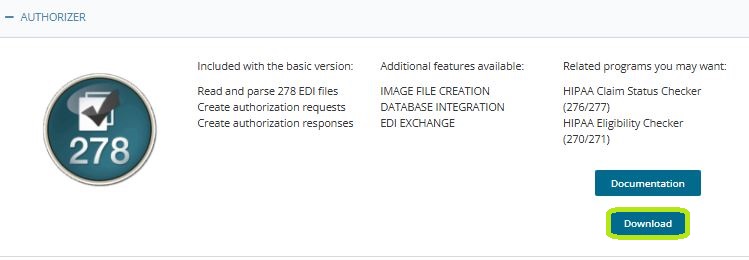
The "Downloads" page with the "Download" button next to the desired product.
Note: The "Download" option will only be present when you log into your HIPAAsuite account.
2.After clicking on the "Free Trial" button of any of the previous options, the download will begin. Once it is complete, you may open your downloads folder to find a ZIP file (you may need an extraction program to open the application setup). Double-click to open:
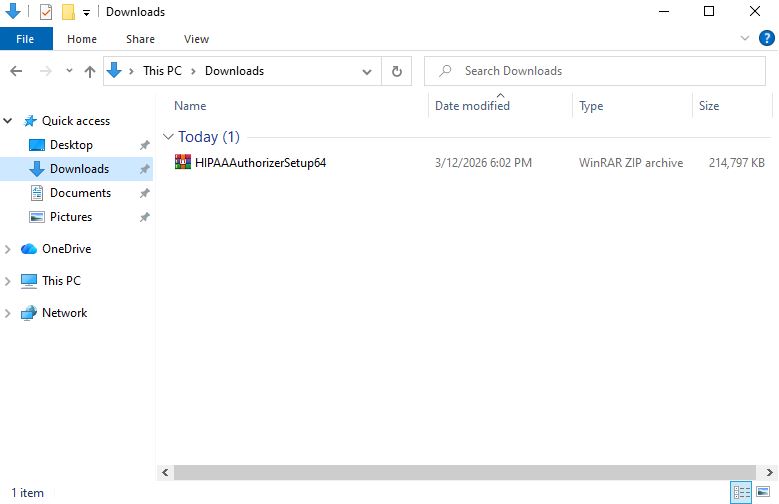
The ZIP file is in the "Downloads" folder.
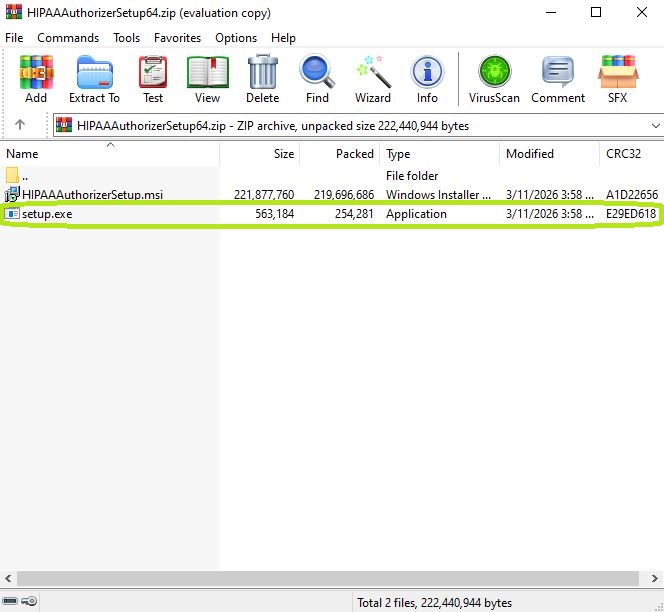
Double-click the "setup.exe" application to begin installation.
3.Double-click the "setup.exe" application. When you do, the following window will appear:
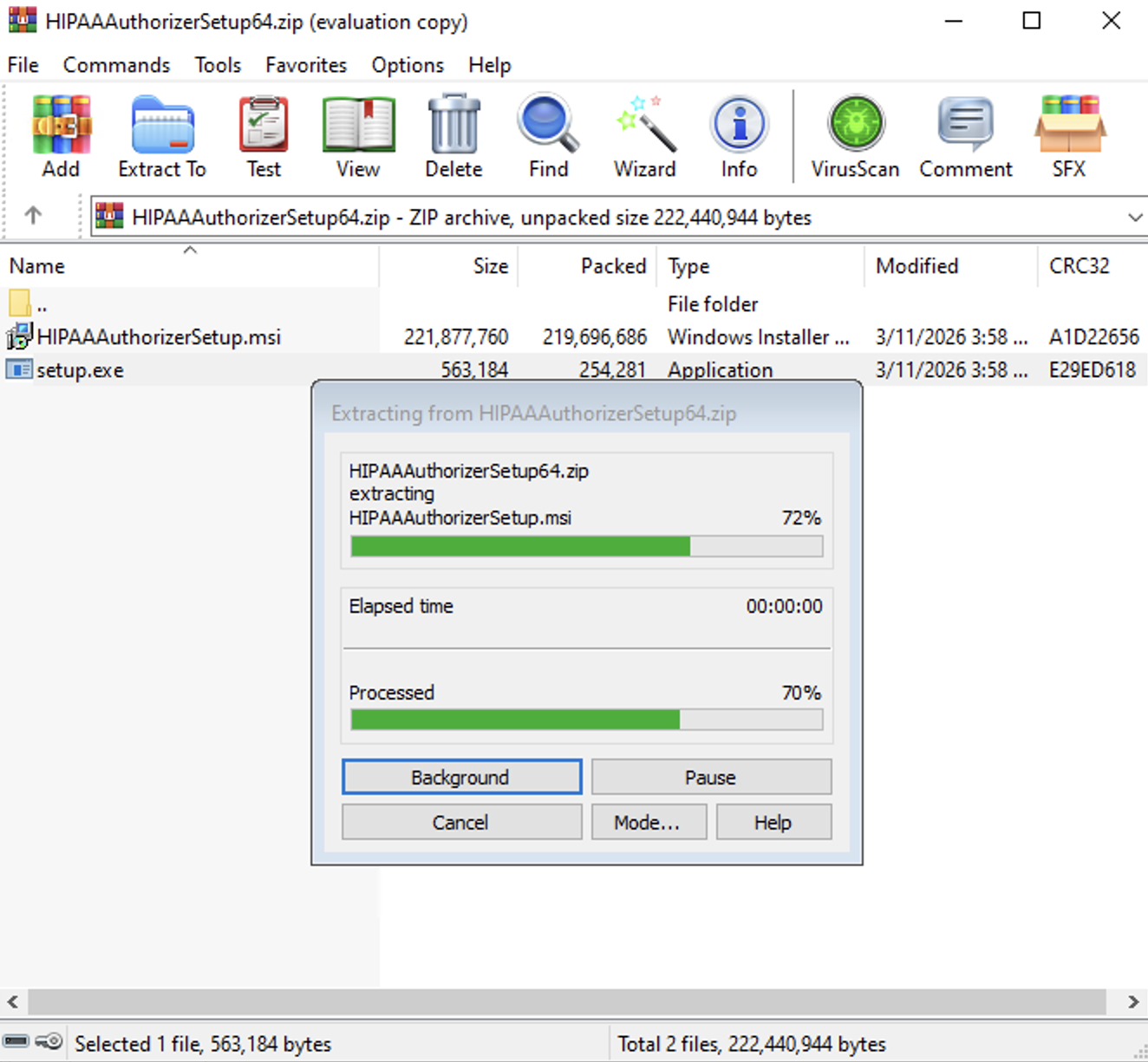
Extraction process window.
4.The window below will open. Click "Run." After this, the setup wizard window will appear:
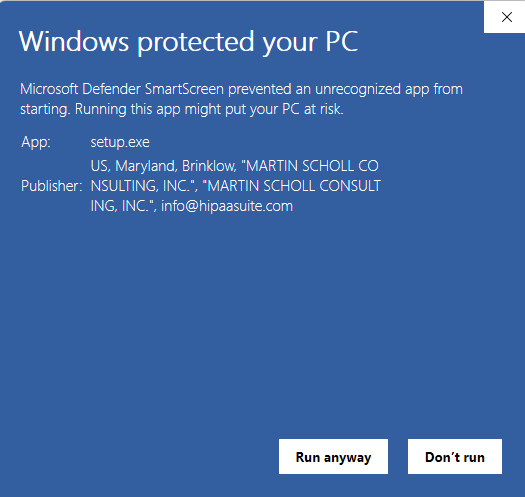
Click "Run anyway" to begin installation.
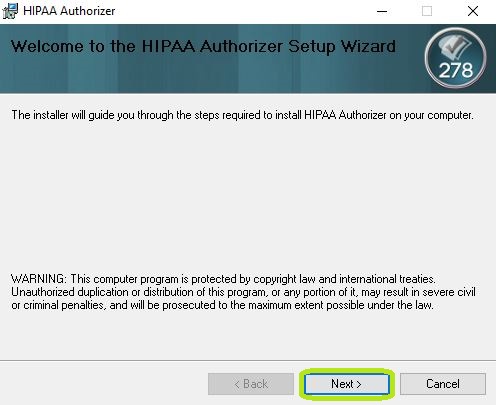
The HIPAA Authorizer Setup Wizard Window.
5.Click "Next," then choose "I Agree" to the license agreement in the following window:
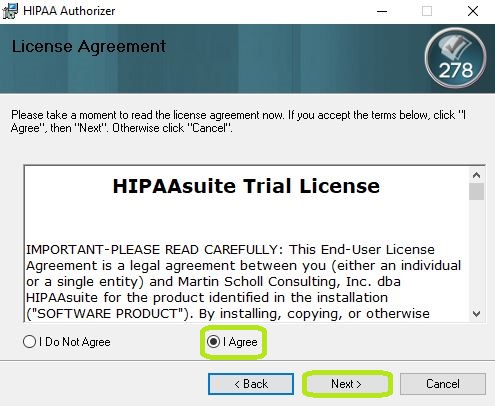
The License Agreement window.
Note: It is necessary to agree to the license agreement to ensure the proper use of the application. Otherwise, the installation will not move forward.
6.After clicking "Next," the below window will appear. You may continue with the pre-selected folder where the application will be installed or you may choose your preferred location by clicking "Browse." You may also decide if the installation will be for a single user ("Just me") or all users on the computer ("Everyone"). Once you have selected the installation folder, you click "Next":
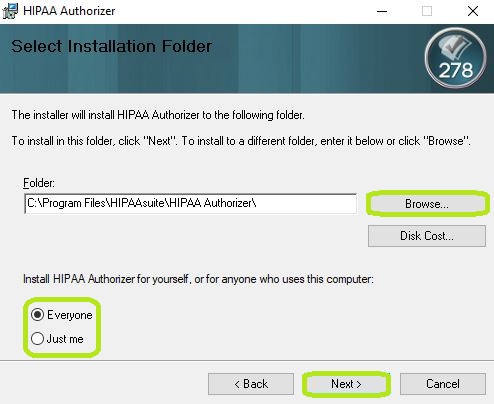
The Installation Folder Window.
7.The below window will appear; if everything has been set up properly, you may click "Next." If you need to review any setting at any time, you may click on "< Back" to return to the previous window. If you wish to stop the installation, you may click "Cancel" and this will stop the installation:
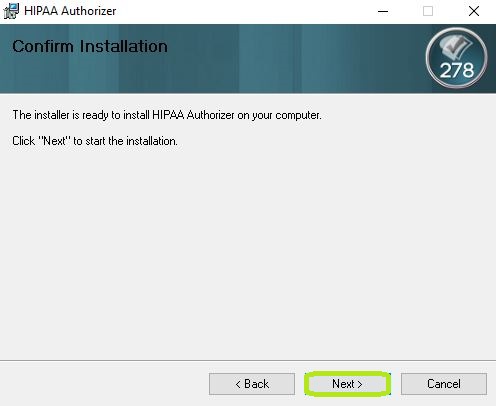
The Confirm Installation window.
8.The Setup.exe file contains prerequisite programs necessary to run the Authorizer properly. If you are missing any of these prerequisite programs, you will be prompted to allow them to be installed.
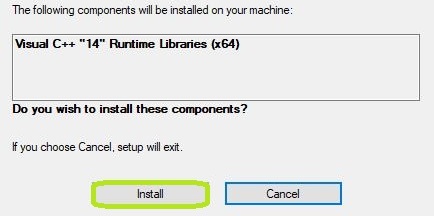
The HIPAA Authorizer setup window to begin the installation process. To start, click on the "Install" button. If you wish to stop, click on "Cancel."
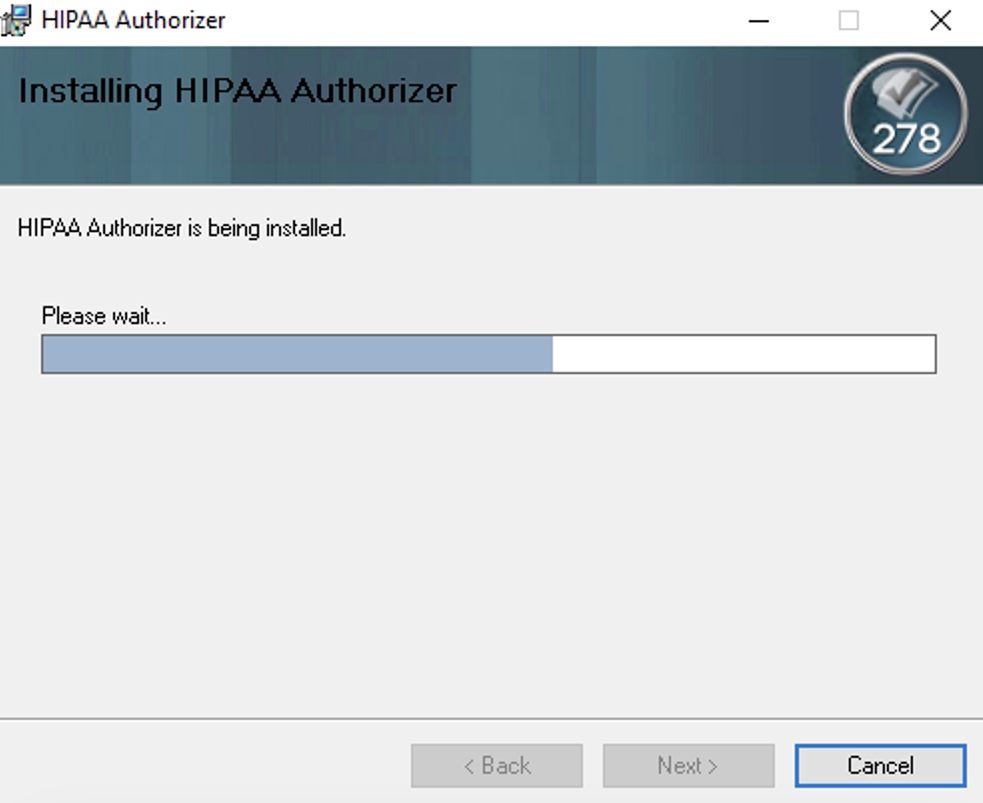
9.The application will begin downloading with the selected settings:
10. Once the installation is complete, the below window will appear confirming if the application was successfully installed. You may choose to open the application as soon as you close this window by checking the "Launch HIPAA Authorizer" option before clicking on "Close":
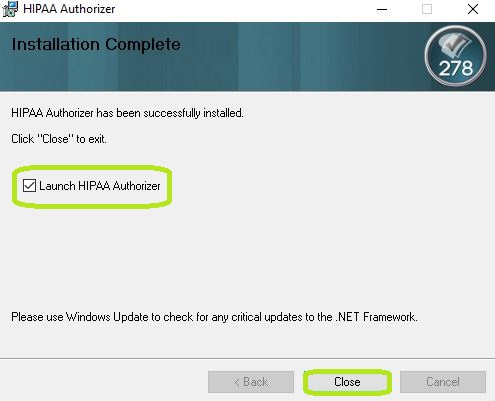
This window confirms the installation of the HIPAA Authorizer application.