|
<< Click to Display Table of Contents >> Registering for HIPAAsuite |
  
|
|
<< Click to Display Table of Contents >> Registering for HIPAAsuite |
|
To begin using our HIPAAsuite products to make your claim processing easier, you must first create an account with HIPAAsuite to access the multiple features offered to our clients. Follow the steps below:
1.Open your web browser and access our website (https://HIPAAsuite.com)
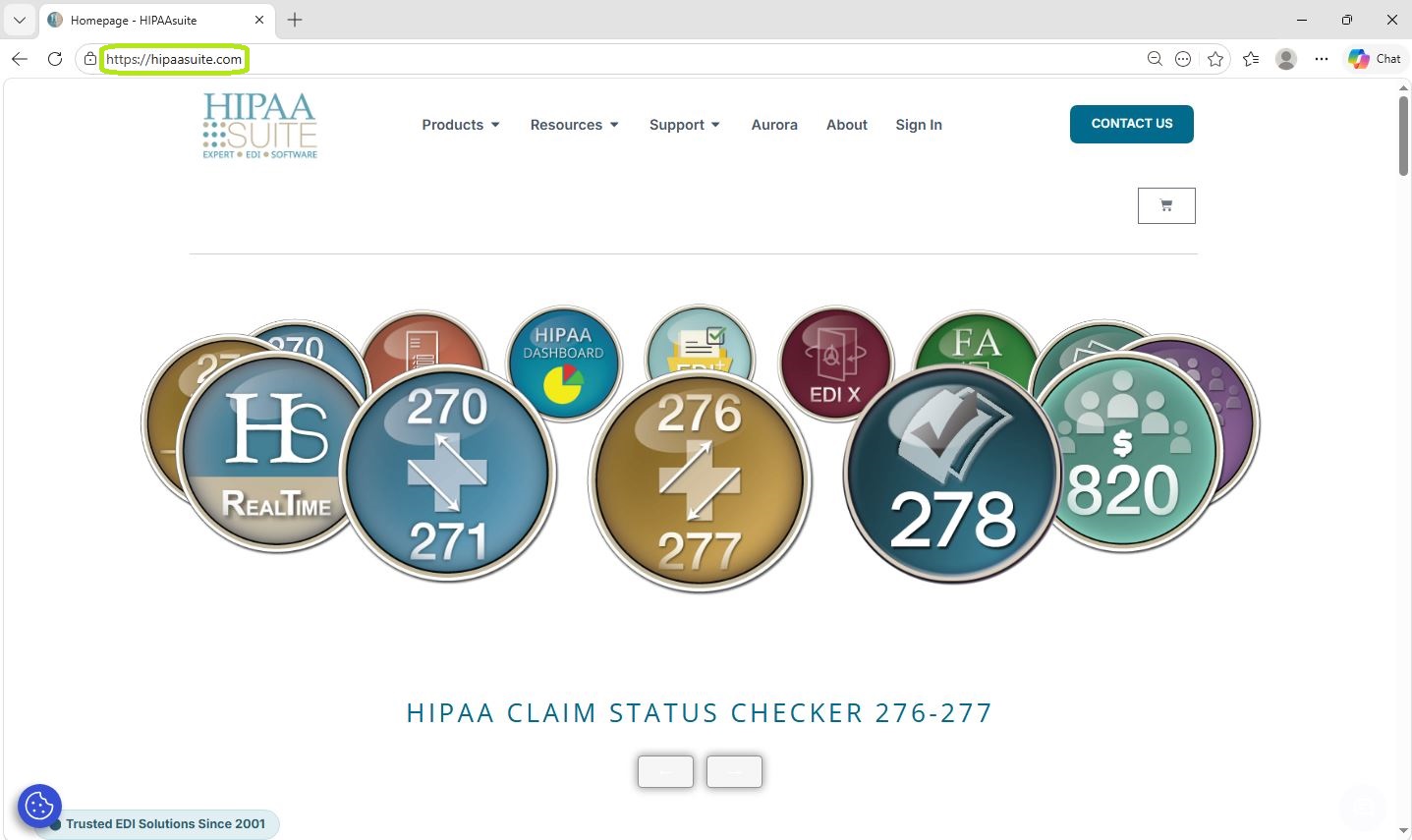
The HIPAAsuite website home page.
2.Click on the "Sign In" tab at the top of the home page, then, when the Sign In page loads, click on "Don't have an account?":

Sign In option in the top tab menu.
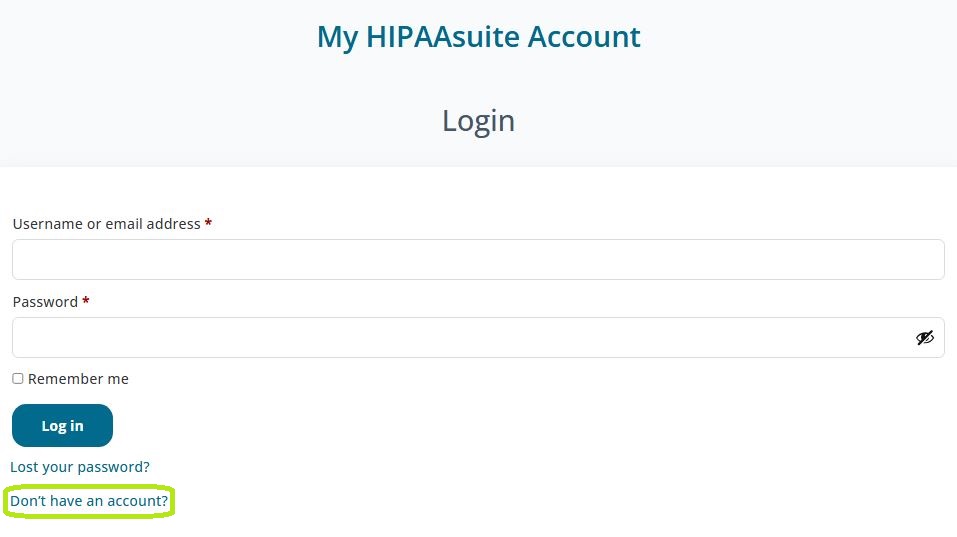
The "Don't have an account?" option is on the Sign In page.
3.You will be redirected to the registration page. Fill out the information requested, check the "I'm not a robot" box, then click on "Register":
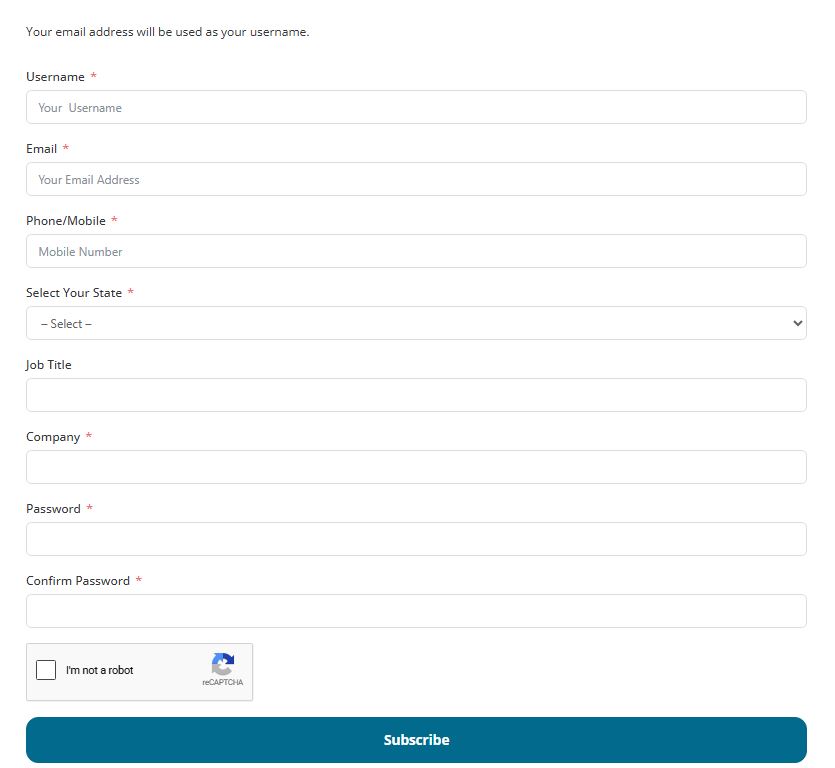
The registration section of the "Sign Up" page.
Note: Fields with a red asterisk (*) on top are required.
4.The website will redirect to the Sign In page. An email will be sent to the address provided in the registration form. Copy and paste the link provided to verify the email.
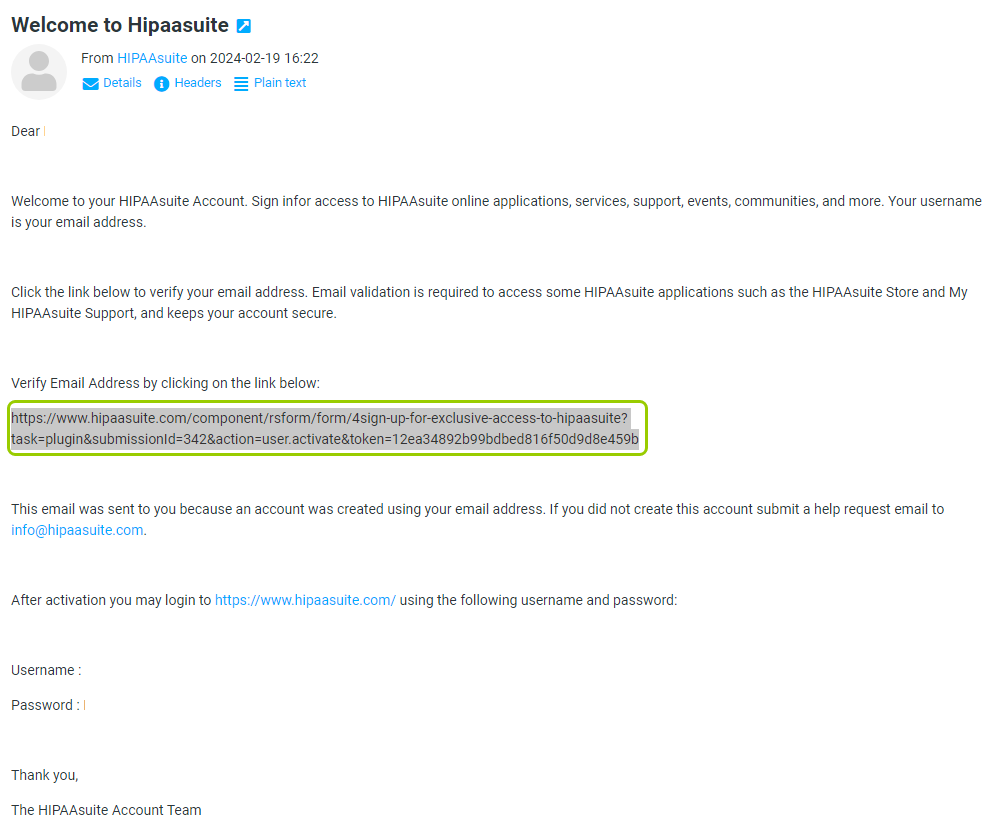
A sample email message with a verification link.
5.The link provided will take you once more to the HIPAAsuite Sign In page. Now, you may enter the email and password you included in the registration form. If you wish your computer to the remember your credentials, check the "Remember Me" box before clicking the "Log In" button.
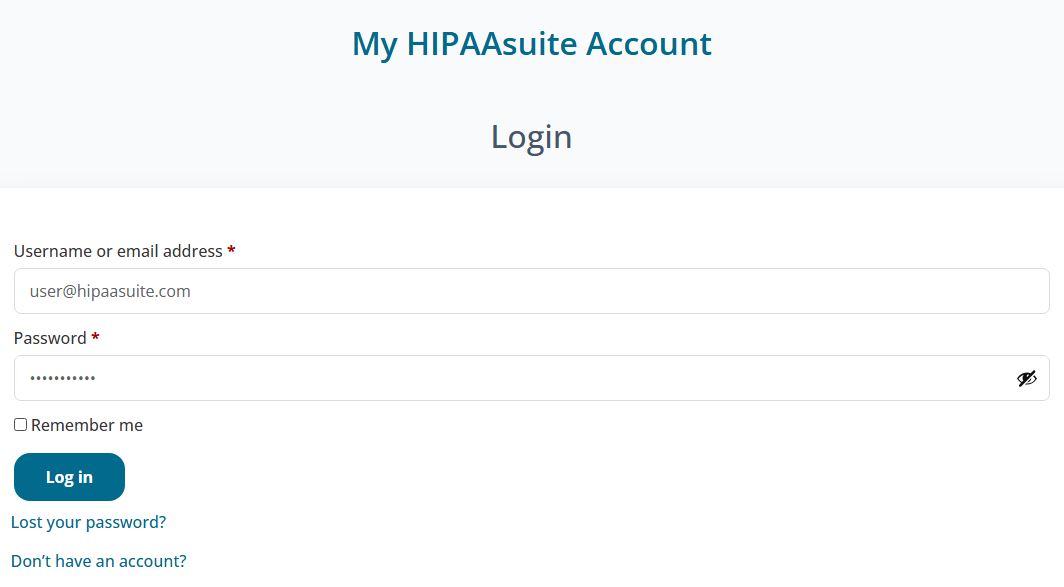
The "Sign In" box will show after the verification link is accessed.

The "Remember-Me" box.
6.After logging in, you will see the download page displaying all the HIPAAsuite products:
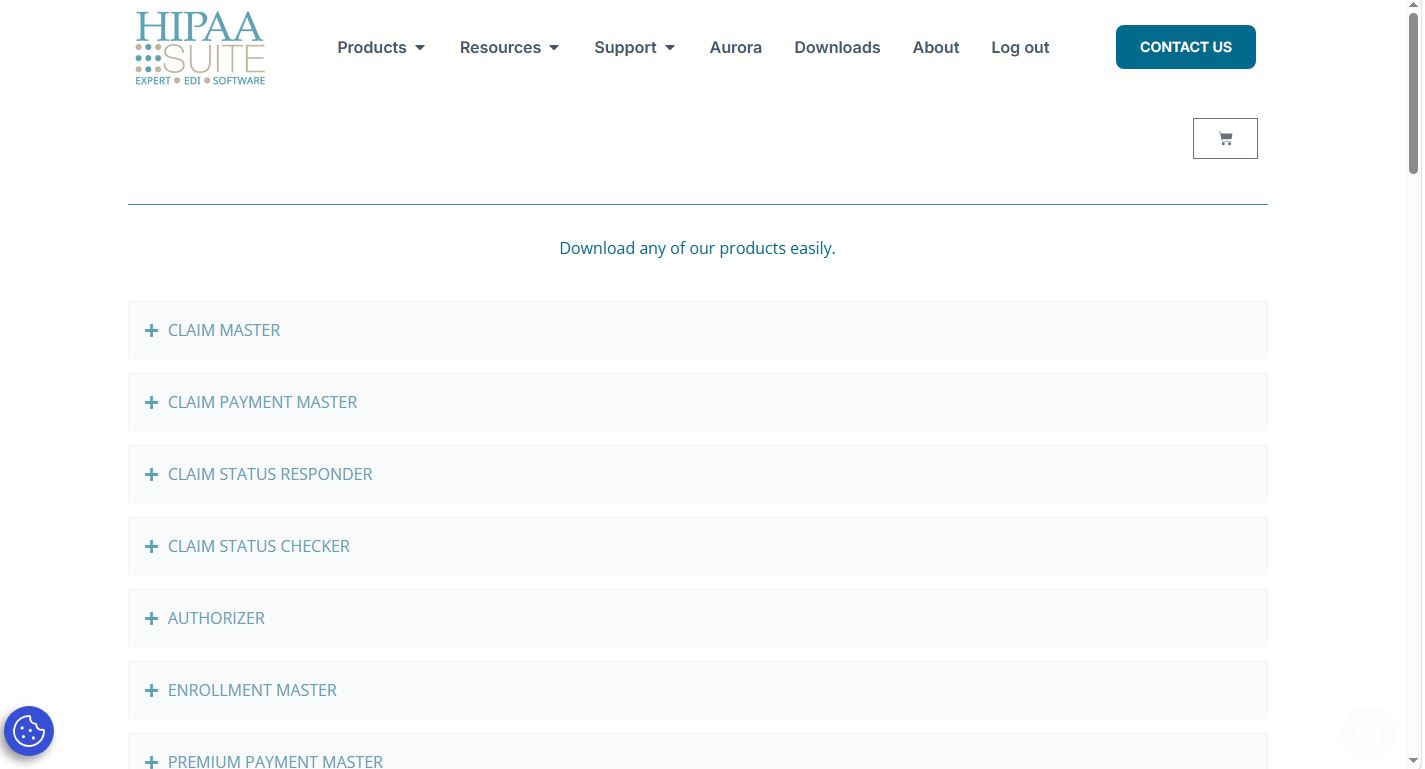
The list of products available for download shows after logging in.
See the options and details below:
oThe (+) sign before the product name will provide details of what the application includes:
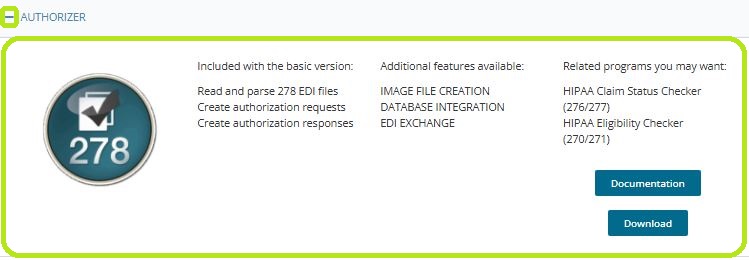
The "(+)" option displays the details of the application.
oThe "Documentation" button will open a PDF file showing the user manual of the selected application.
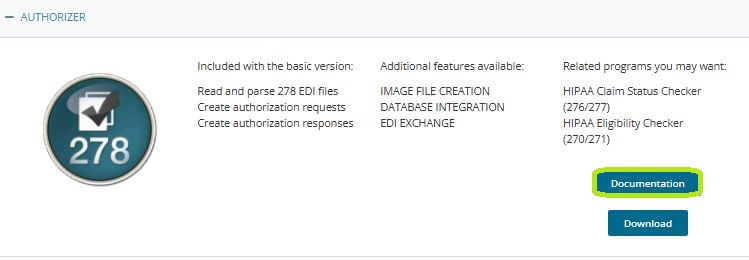
The “Documentation" button.
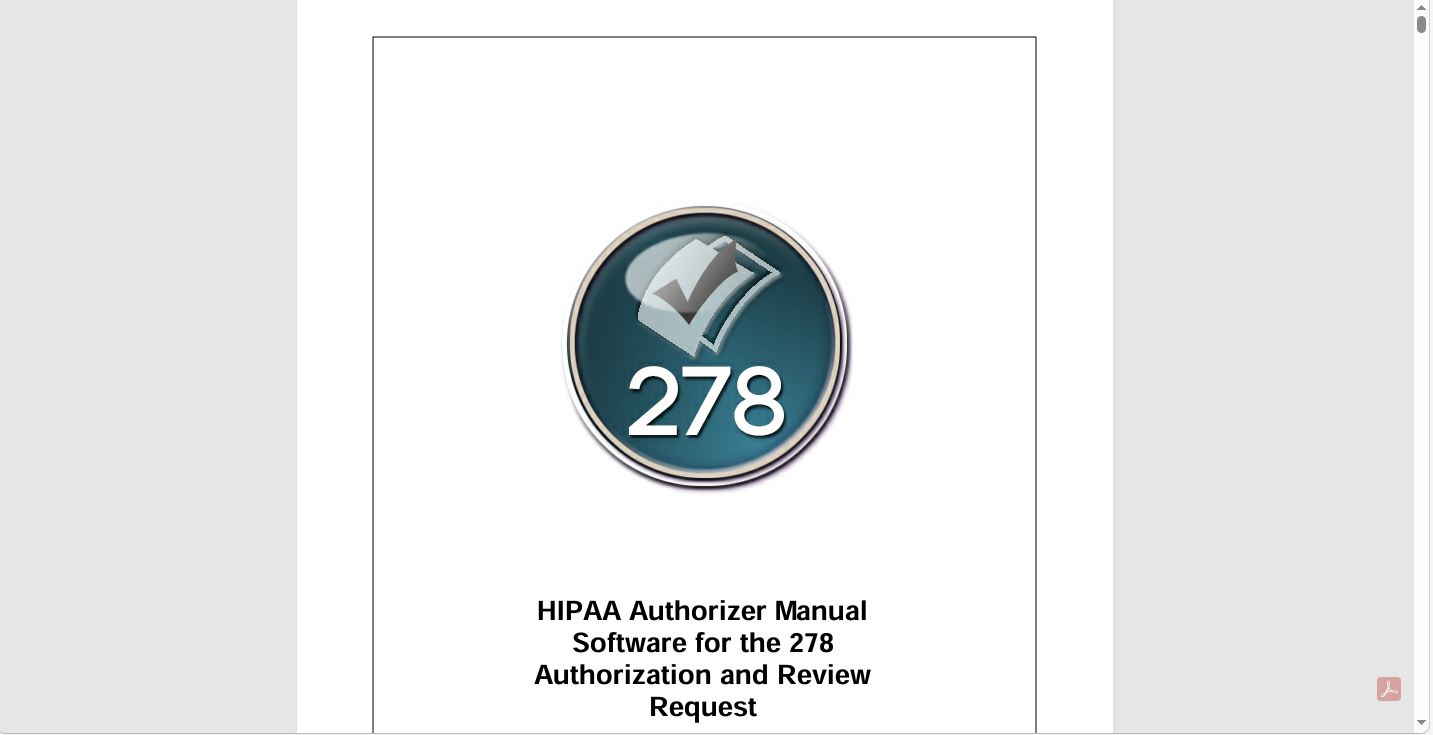
The user's manual opens after clicking "Documentation."
oThe "Download" button will take you to the download page to confirm the request. Select the option that fits your computer system best:
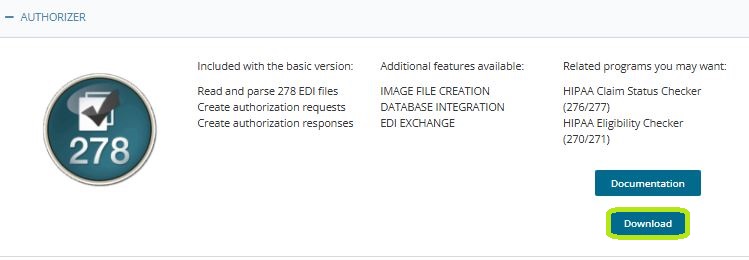
The “Download” button is next to the product.
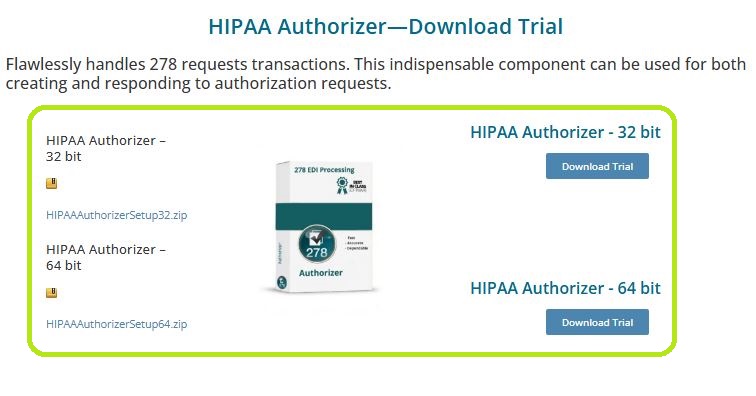
The download options you may select.
To install the application, see Installing the Application.