|
<< Click to Display Table of Contents >> Accessing EDI Logs |
  
|
|
<< Click to Display Table of Contents >> Accessing EDI Logs |
|
EDI Exchange has a file log where each processed file creates an entry in the Trans_Log table. You can access these logs to query this table and see what files came in or were sent out, and how they were processed. There are two logs: the Receive and Send. See the following sections to review each type in more detail and how to access them.
To access both logs, the application must be initialized. See Initializing EDI Exchange for more information.
Follow the steps in the next two sections to access the Receive and Send logs.
1.Go to EDI Exchange > EDI Receive Log from the main menu window.
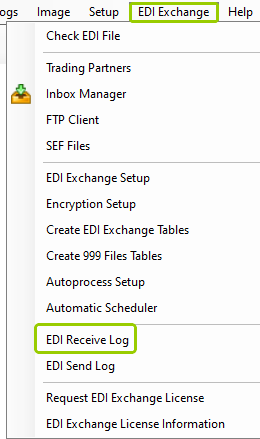
The "EDI Receive Log" option is under the "EDI Exchange" tab.
The following window will open:
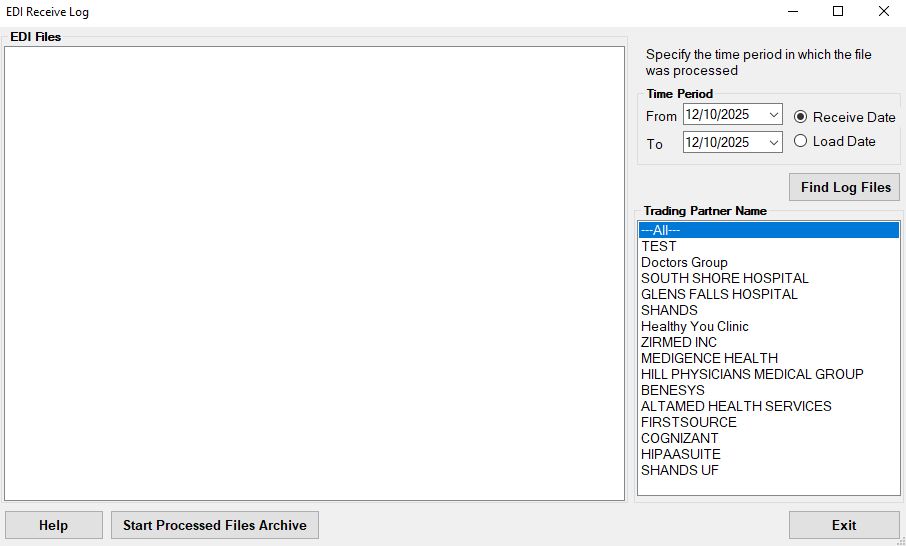
The "EDI Receive Log" window.
2.There are three sections to search for your receive logs and display the data. See the details for each below:
oEDI Files — In this box, you will see the query results.
oTime Period box — In this box, set the time range and whether you want to check the receive or load date.
oTrading Partner Name box — In this box, select your Trading Partner from the list. If you click "---All---," all your Trading Partners will be included.
3.After making your selections, click the "Find Log Files" button to see the list of log files corresponding to your query.
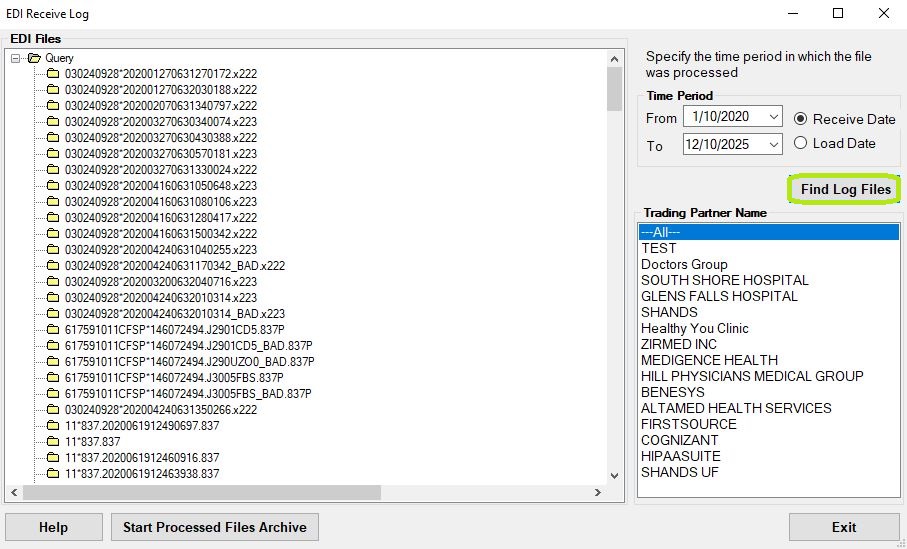
The displayed logs are within the "EDI Files" box.
4.You can open the folder icons and see details related to each file.
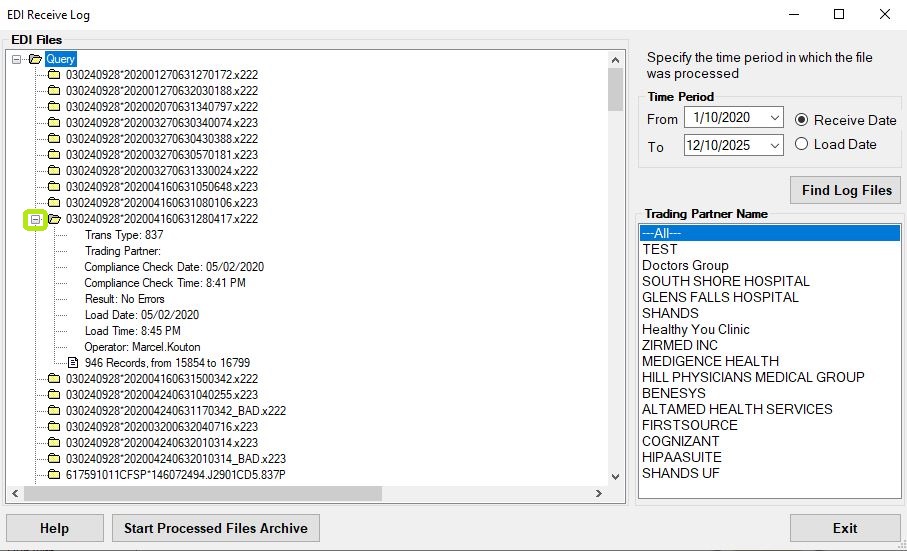
Details of the EDI Receive Log results will show by opening the folders.
5.After reviewing your logs, click "Exit" to close the window.
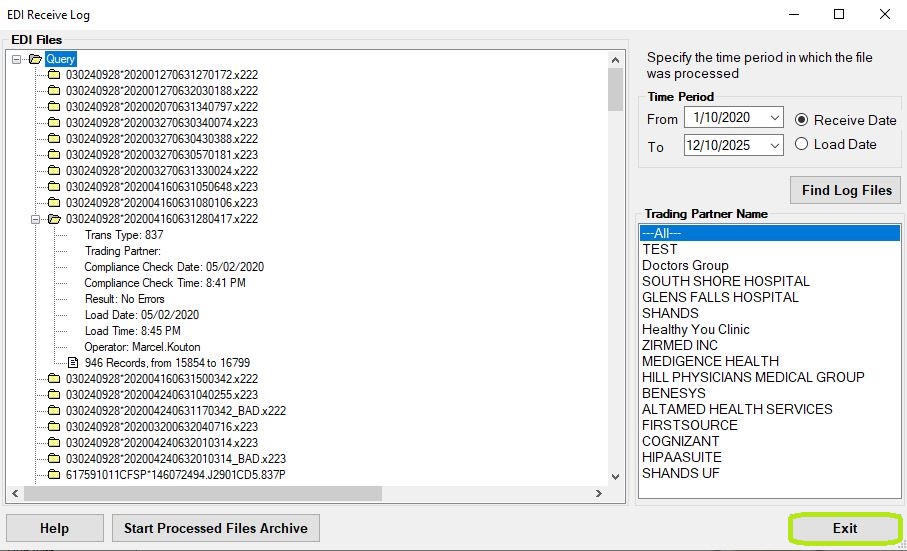
The "Exit" button.
Note: Start Processed Files Archive — This button stores away the already processed files.
1.Go to EDI Exchange > EDI Send Log from the main menu window.
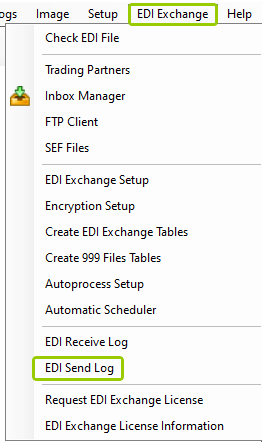
The "EDI Send Log" option is under the "EDI Exchange" tab.
The following window will open:
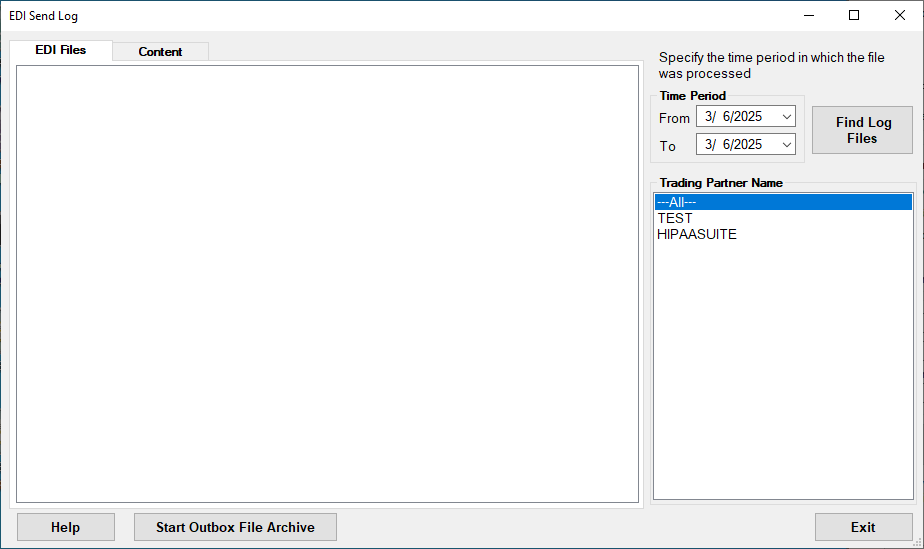
The "EDI Send Log" window.
2.There are three sections where you can search for your send logs and display the data. See the details for each below:
oEDI Files — In this box, you will see the query results.
oTime Period box — In this box, set the time range.
oTrading Partner Name box — In this box, select your Trading Partner from the list. If you click "---All---," all your Trading Partners will be included.
3.After making your selections, click the "Find Log Files" button to see the list of log files corresponding to your query. The log will be displayed in the form of a tree.
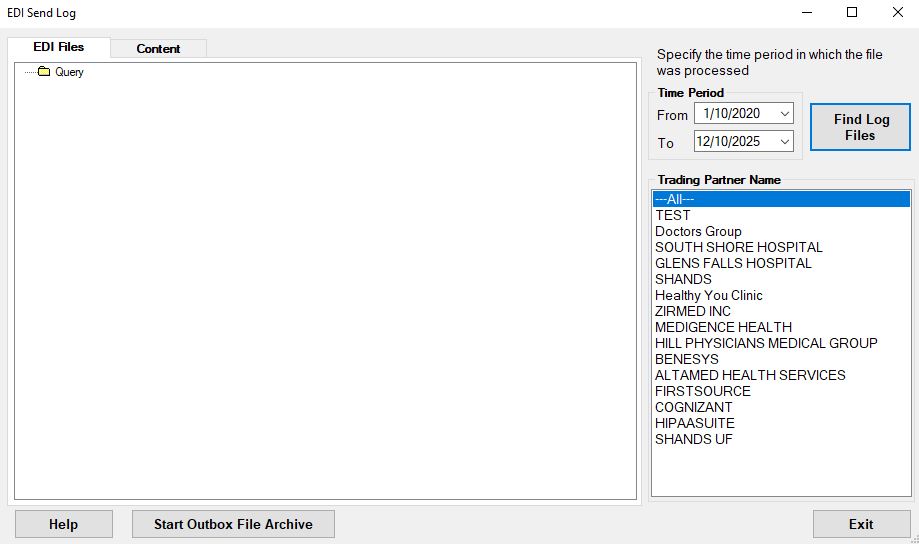
The displayed logs are within the "EDI Files" box.
4.You can open the folder icons and see details related to each file.
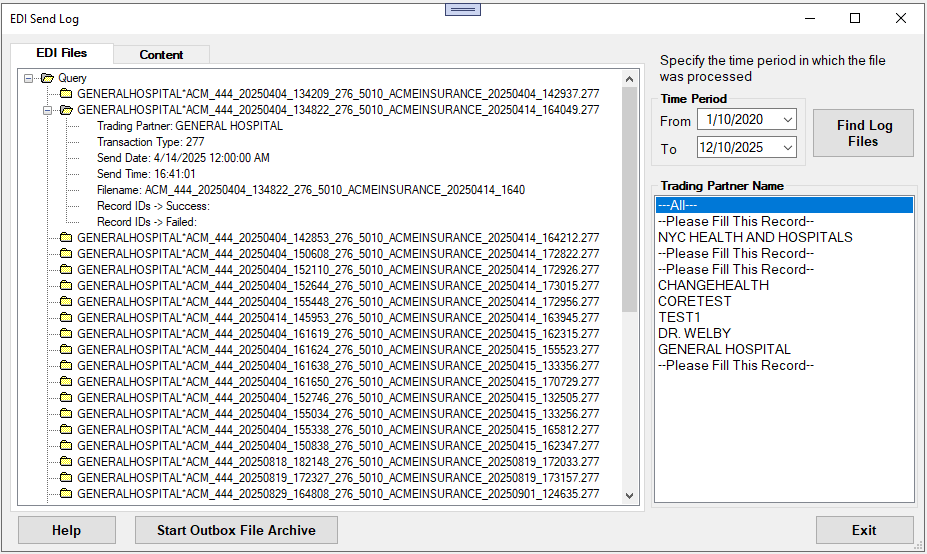
Details of the EDI Send Log results.
5.You can then proceed to the "Content" tab to see the file content.
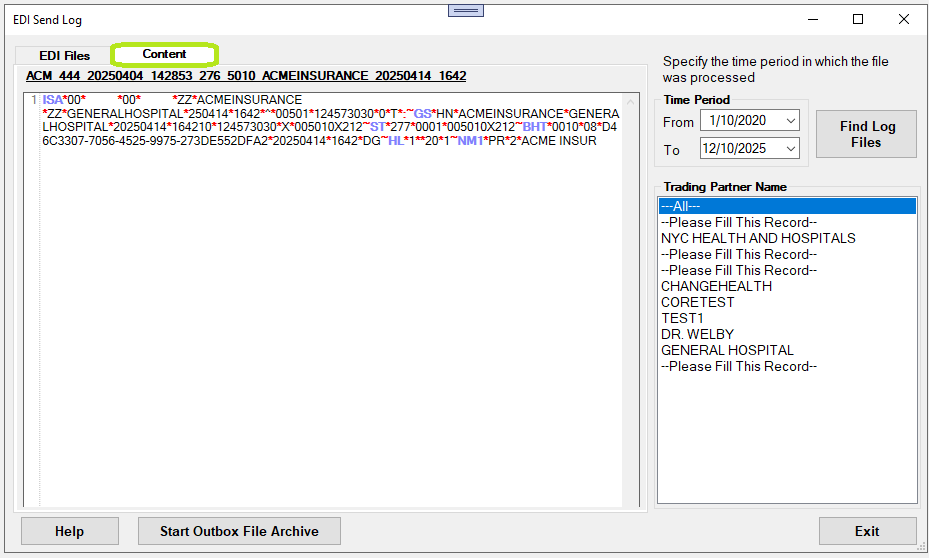
Content within the file.
6.Once you reviewed your logs, click "Exit" to close the window.
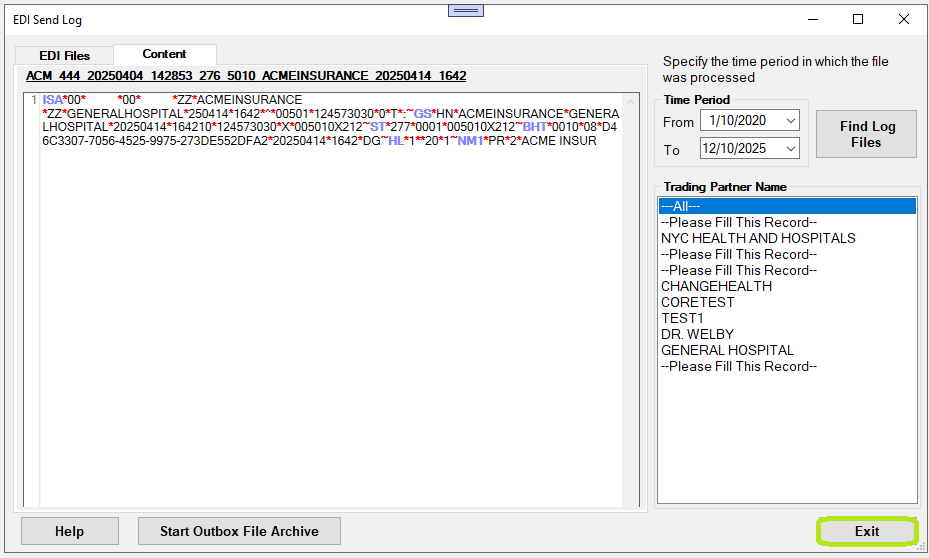
Note: Start Outbox File Archive — This button stores outgoing files.