|
<< Click to Display Table of Contents >> Understanding the "Create 278 Transaction Sets" Window |
  
|
|
<< Click to Display Table of Contents >> Understanding the "Create 278 Transaction Sets" Window |
|
In this chapter, you can find the descriptions for each of the 11 sections within the "Create 278 Transaction Sets" window. See Each section and its fields below.
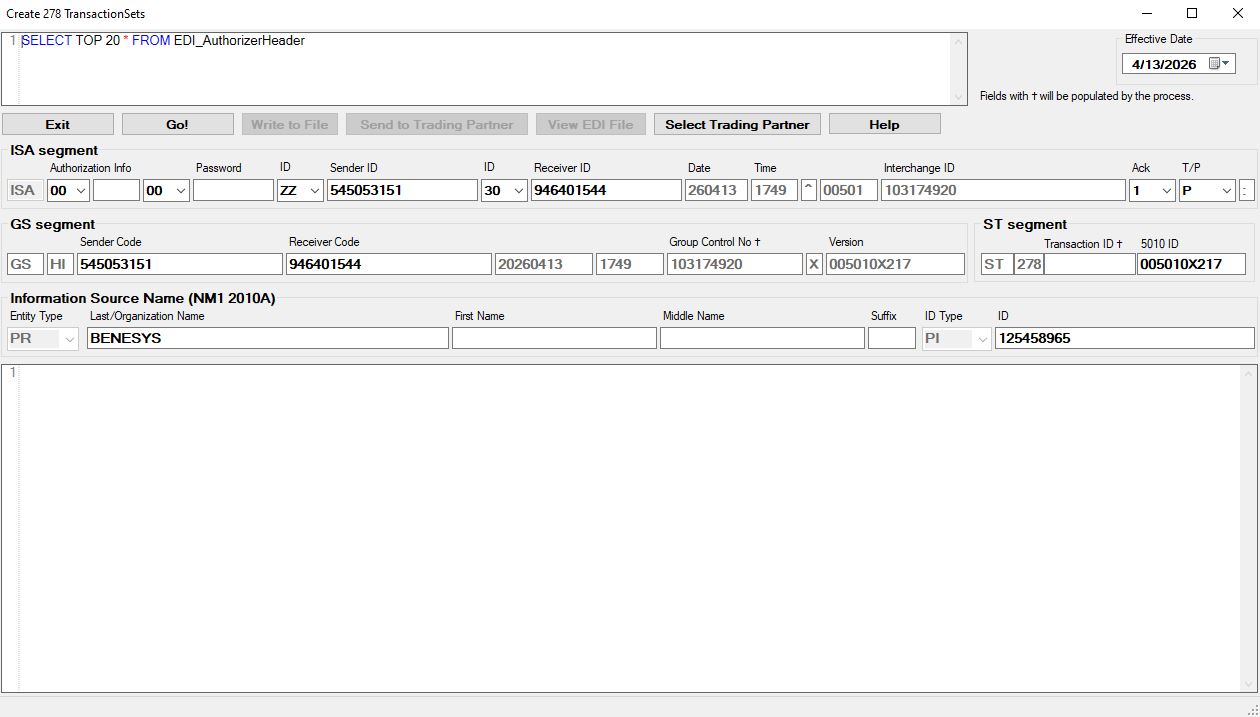
The "Create 278 Transaction Sets" window.

The "Query Field" box.
This field is located in the top left corner of the window. It is used to narrow down the records to be written to the EDI files. You can create your own query or you can use the query builder in the exported claims window.
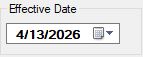
The "Effective Date" box.
The "Effective Date" box allows you to select the effective date of the file. By default, the current date is selected, but you may select another date as needed.

The "Action Buttons" area.
The "Action Buttons" area provide some actions you may take regarding the creation of 278 transaction sets:
oExit — This button will end any process and close the window.
oGo! — This button will begin the process of writing the 278 EDI files in the database.
oWrite to File — This button will bring a drop-down menu to determine the location in which to write the data. You have two options:
▪Use default path and names
▪Select path and names
oSend EDI File — This button allows you to send the EDI file to the selected Trading Partner using FTP as the EDI File Exchange Method.
oView EDI File — This button allows you to open EDI files within the EDI Viewer.
oSelecting Trading Partner — Once this button has been clicked, a pop-up window will open where you can select your defined Trading Partner.
oHelp — This button will redirect you to the user's manual if you need further assistance.
Note: If you have the EDI Exchange component licensed, you can select the Trading Partner and fill the form with a specific Trading Partner's information.

The different EDI segments available to fill out.
EDI Envelopes are segments that enclose various types of information within. Below you will see the different EDI Envelopes that conform each EDI file.
oISA Segment — The Interchange Control Header (ISA) segment contains the outermost envelope of the EDI file and it represents data that is required to read an EDI file. Listed here are the sender and receiver, the date and time, whether a response is expected and which characters to use as segment, and the element and sub-element separator. The data in black may be changed, while grayed-out data is determined by the Company Setup configurations.

The "ISA segment" box.
oGS Segment — The Group Start (GS) segment contains transaction-specific information, such as which transaction sets are in this file and also information on the creation (Sender code) and consumption (Receiver Code) of the EDI files. Group control number and version will be auto-populated since this information depends on the claim type.

The "GS segment" box.
oST Segment — The Start of Transaction Set (ST) segment lists the transaction set code and a unique identifier for the transaction.
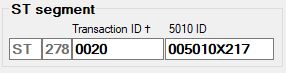
The "ST segment" box.
oInformation Source Name (NM1 2010A) Segment — The Information Source Name (NM1 2010A) segment lists the entity type for the trading partner.

The "EDI Text Box" area.
Within the EDI Text Box, you will be able to see the EDI text displayed. From here, you can write this into the database while still being able to view it.