|
<< Click to Display Table of Contents >> Loading the CORE Test Bed Data |
  
|
|
<< Click to Display Table of Contents >> Loading the CORE Test Bed Data |
|
You can load your own membership in the same format that the test bed data are in. Minus of course the fancy coloring. In fact if you can export your data in a tab delimited format that matches the layout of the test bed data spreadsheet, then that is all you need to get the Eligibility Responder to automatically create responses on your member's eligibility queries.
•Each Member is represented by a tab.
•The label of the tab should start with "Case #"
•You don't need to load group benefits as they are in the test bed data every time unless you wipe the covered membership tables.
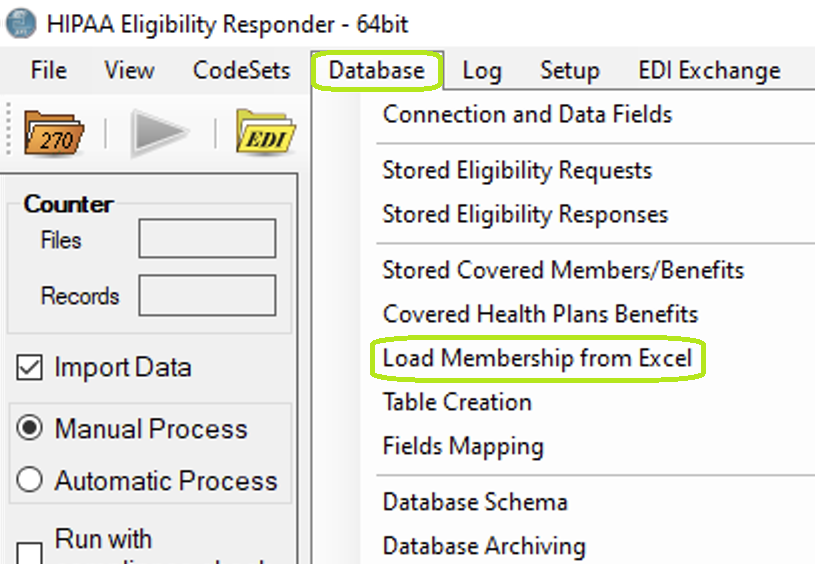
1.To load the CORE test bed data, go to Database > Load Membership from Excel in the main menu window.
The following window will open:
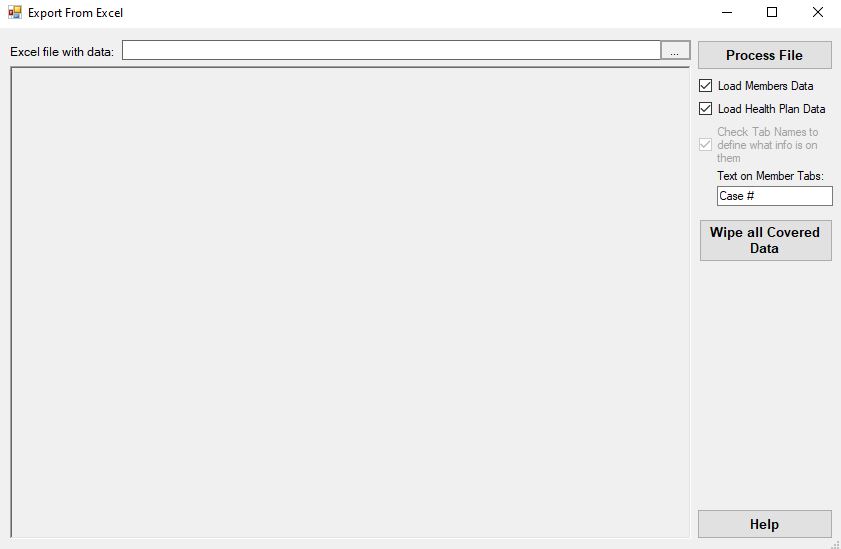
"Export From Excel" window.
2.To add a file, click the three dots and click either "Select File" or "Choose sample file."
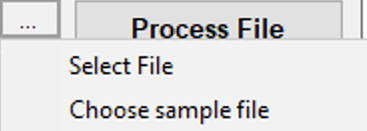
Import options.
3.When either option is chosen, click the "Process File" button.
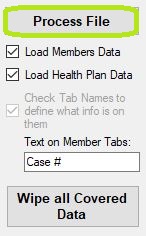
"Process File" button.
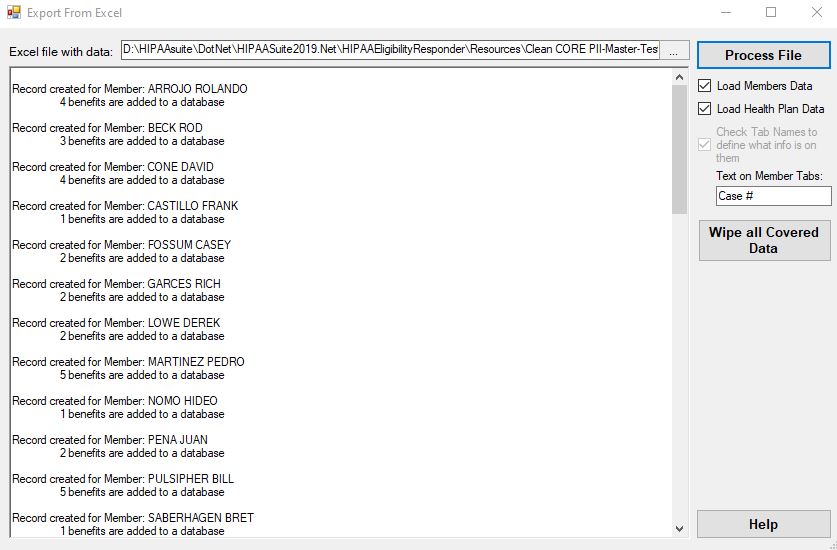
Imported excel file.
4.Once the file is successfully imported, a pop-up window saying "Import finished" will display.