|
<< Click to Display Table of Contents >> Database Archiving Setup |
  
|
|
<< Click to Display Table of Contents >> Database Archiving Setup |
|
The HIPAA Eligibility Responder application allows users to configure the way their data is stored within their database archives settings to personalize and streamline their processes. Follow the steps below to begin the general configurations:
1.Select Setup > Database Archiving Setup in the main menu window.
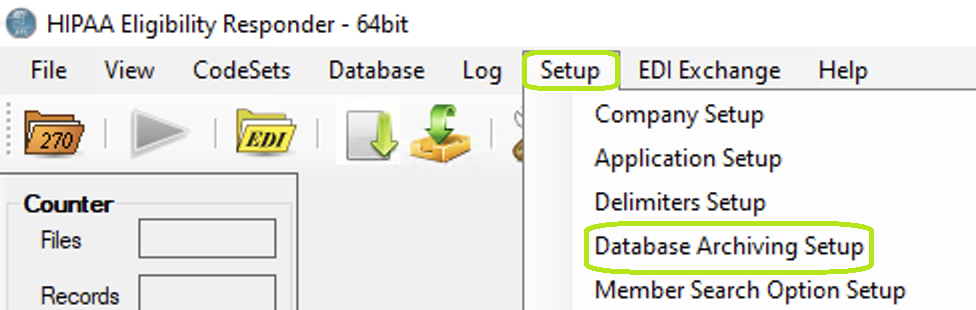
The "Setup" menu and "Database Archiving Setup" button.
The following window will open:
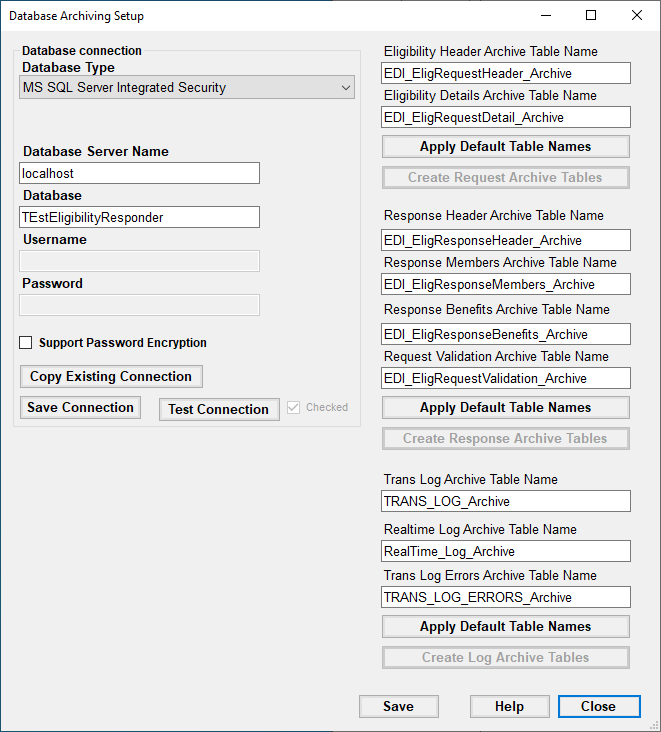
The "Database Archiving Setup" window.
2.There are four sections you can configure (see details below):
oDatabase connection box
oTable Names
In this box, you can determine the type of database and the respective configurations. These settings will vary per database type selected from the drop-down menu.
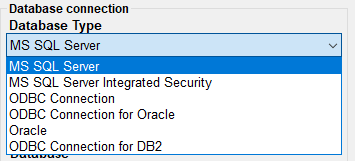
The "Database Type" drop-down menu.
After selecting the database type, you have four further actions:
oSupport Password Encryption — Checking this box allows you to enable password encryption. This further secures your database connection.
oCopy Existing Connection — This button copies any other existing connection to apply it to the database archive.
oTest Connection — This button will check that your connection settings work properly; if everything is correct, the "Checked" box will be automatically checked.
oSave Connection — This button will keep all the database connection configurations.
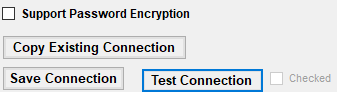
The four actions are in the "Database Connection" box.
In this section, you can determine the names for the different archive tables. For all the table names, you have four actions:
oApply Default Table Names — If you click this button in any of the previous table types, the default name will be applied. This will replace any previous name you may had used.
oCreate Request Archive Tables — This button allows you to create the eligibility archive tables.
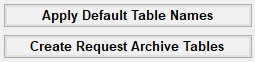
The "Apply Default Table Names" and "Create Request Archive Tables" buttons.
There are three types of archive tables to be named:
oEligibility Table Names
oResponse Table Names
oTrans Log Table Name
After you are done creating your archive table names, click "Save" to keep all your changes. If you need further details, clicking the "Help" button will open the user's manual. The "Close" button will close the window; if you close the window without saving your changes, the database archive settings will remain unchanged. ("Help" button brought up a pop-up message saying "Not implemented yet!")
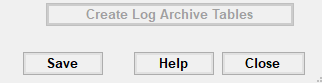
The action buttons of the "Database Archiving Setup" window.