Viewing Requests |
  
|
Viewing Requests |
|
EDI is notoriously hard to read and understand. For that reason we developed forms that show the complete content of the file, translate cryptic codes into their description and help even non EDI experts to read and understand the data.
1.When we open a 270 file we have as an output mode option "Screen."
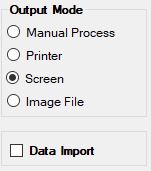
Screen output mode selected.
2.So when we select this mode and click on Run, the file is parsed and displayed on screen.
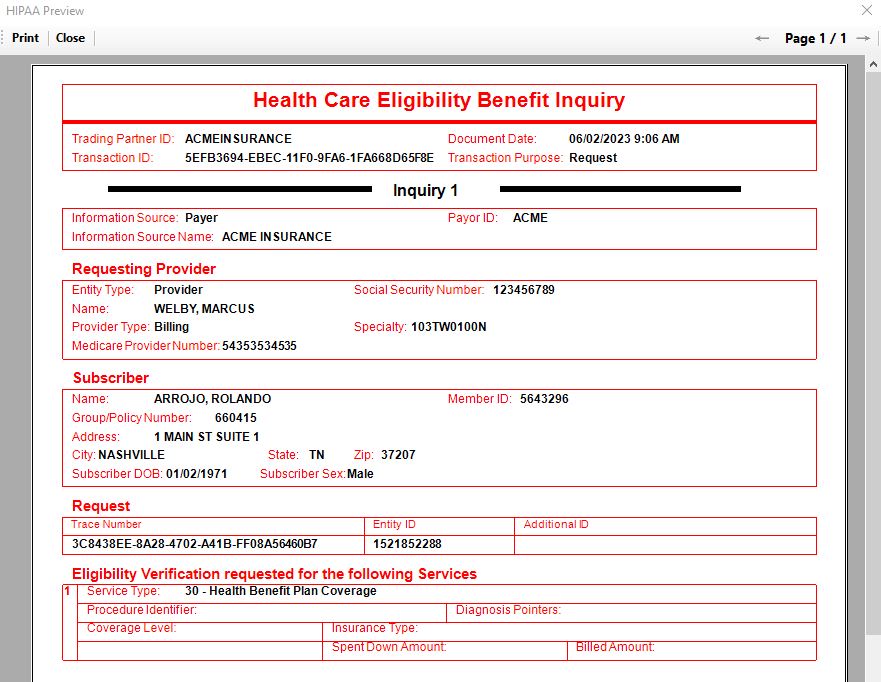
The result of the output mode "Screen" option.
3.Here we can see all the information in the file, from the file header to the requester, the payer, the subscriber and claim number for the requested claim's status.
Requests can also be viewed from the workplace. After opening the workplace, select the desired eligibility request and click the "View" button.

The workplace's "View Request" button will also lead you to the screen output mode for a selected request.