Background |
  
|
Background |
|
Most entities that process HIPAA transactions have a database engine on their premises. The most commonly used are Microsoft SQL Server and the open-source MySQL. Though the HIPAA Eligibility Checker application does not come with a database.
HIPAA Eligibility Checker uses two database tables:
oA request header table: EDI_EligRequestHeader.
oA request details table: EDI_EligRequestDetail.
oA response header table: EDI_EligResponseHeader.
oA response members table: EDI_EligResponseMembers.
oA response benefits table: EDI_EligResponseBenefits.
oA request validation table: EDI_EligRequestValidation.
oA covered members table: EDI_CoveredMembers_Audit.
oA covered benefits table: EDI_CoveredBenefits_Audit.
oA covered plans table: EDI_CoveredPlans_Audit.
Scripts are provided to create these tables for some database types. You might have to modify the scripts to suit your Structured Query Language (SQL) language.
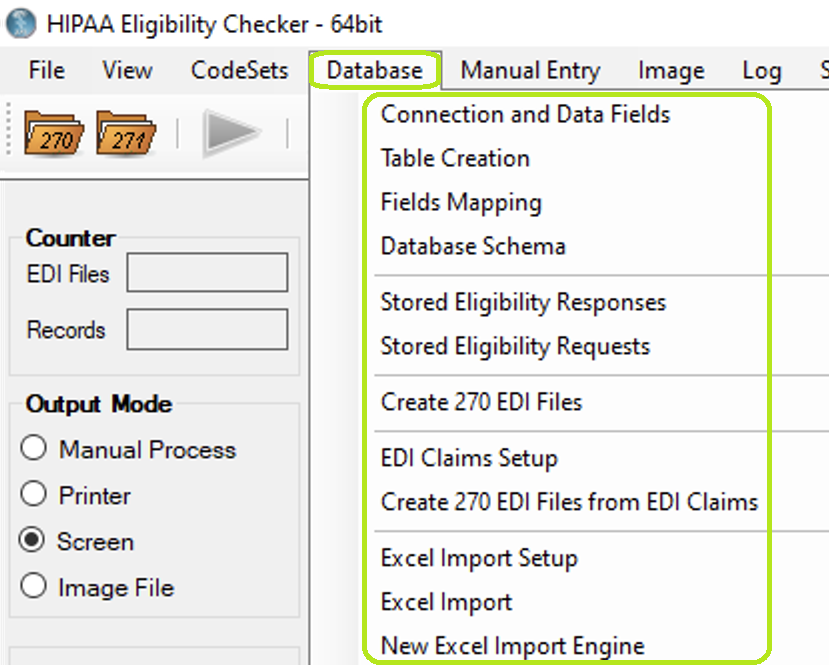
The "Database" tab and options in the main window.
The sequence of actions to configure the data import is the following:
oSetting up Database Connection
The HIPAA Eligibility Checker application provides the "Data Import" option. This allows the user to import 271 EDI files to a database. Under "Screen" mode, data import does not work since this can interrupt the viewing of EDI Eligibility Benefit files at any time; this might lead to incomplete data import.
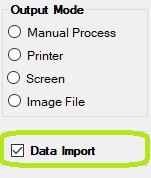
The "Data Import" check-box is in the main window.
The data is imported and written to the database once the user clicks on the "Run" button and only if the "Import Data" box is checked.
The "Processing Results" window will display a notification about the data import.
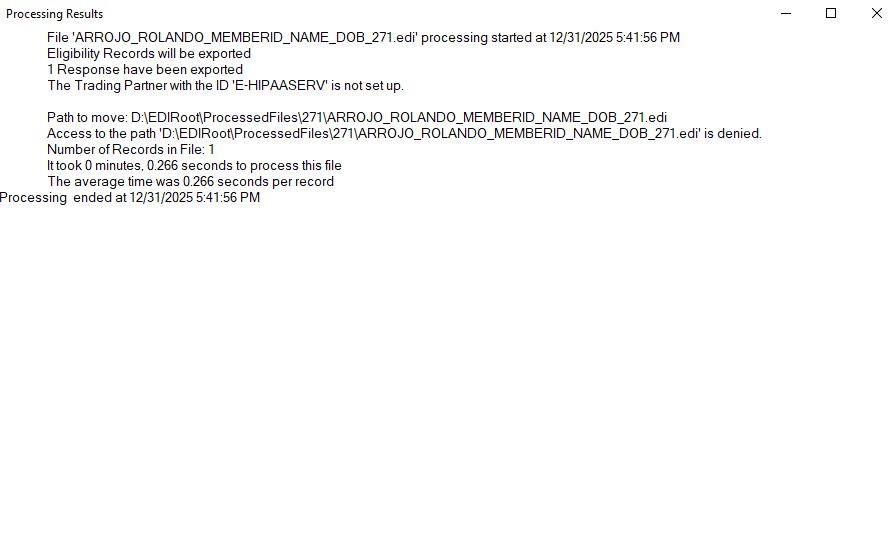
The "Processing Results" window after importing to the database.
After this message, the user can now browse imported data.