Creating From Query |
  
|
Creating From Query |
|
To create an EDI file from a database query, Go to Database > Create 276 EDI Files in the main menu window.
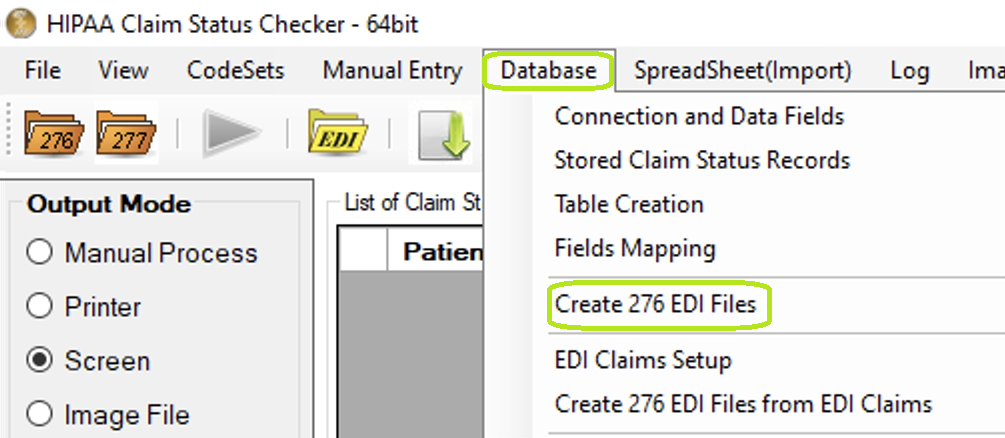
"Create 276 EDI Files" option under "Database" menu.
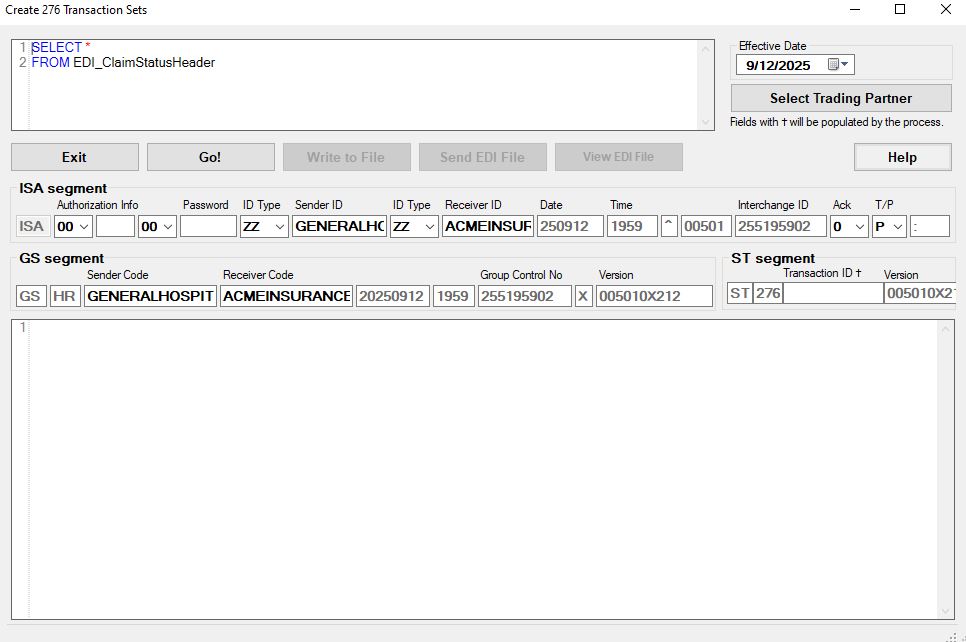
276 creator, blank.
If EDI Exchange is not initialized than screen is display as shown.
The query text to the top left will select all information in the Claim Status Header table by default. It is editable and will be used to build an EDI 276 request.

Query Text Box.
The ISA and GS segments can be filled manually or by selecting a trading partner in your Trading Partner table.
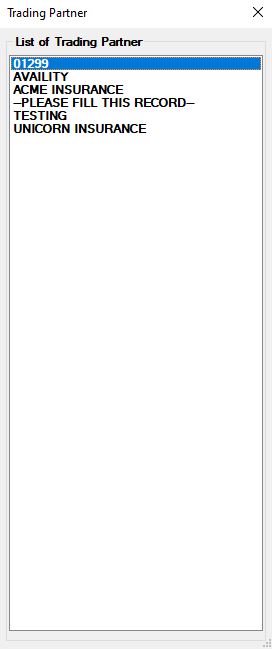
Trading Partner selection.
After having filled in the ISA and GS segments and altered the database query to suit your needs, click the "Go!" button. This will build your EDI 276 request and (if the option in EDI setup was checked) check it for compliance. Clicking "Go!" will also save these ISA and GS segments to registry. These values will be used as defaults for any EDI creation processes until another EDI request is created in this form. The user will then be prompted and an EDI 276 request created:
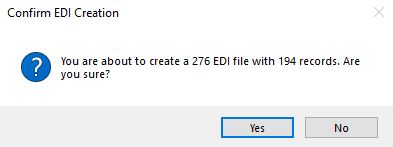
User prompt for included transactions.
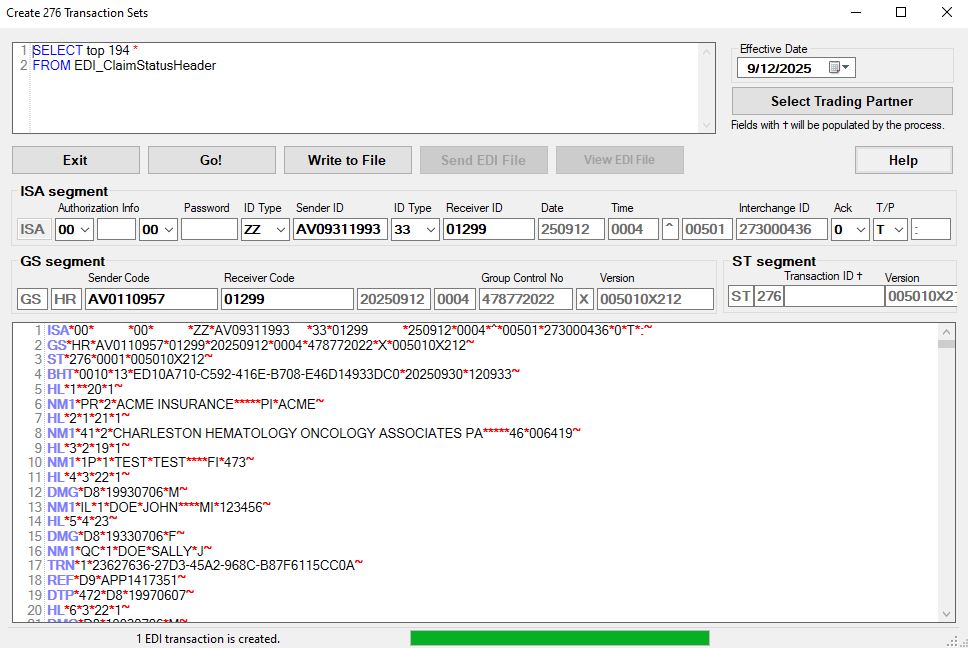
An EDI request is created after clicking "Yes".
Afterwards, a process results window will be displayed, detailing the amount of records making up the new EDI file, each record's new Transaction Number, and each transaction's compliance check results.
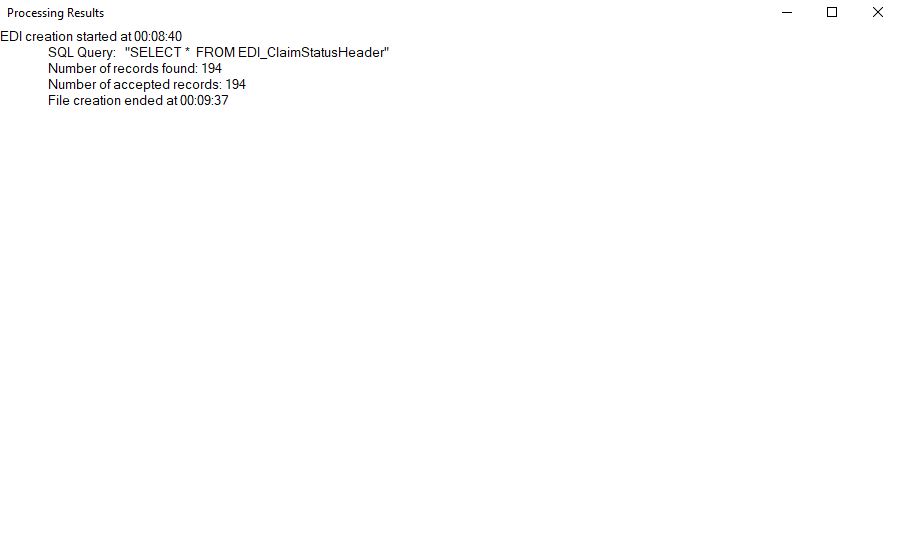
Process results details.
To save the file to disk, click the "Write to File" button. This will present you with a choice of naming the file or using the default naming convention. The default will save your new EDI file to the outbox created when setting up EDI Exchange.
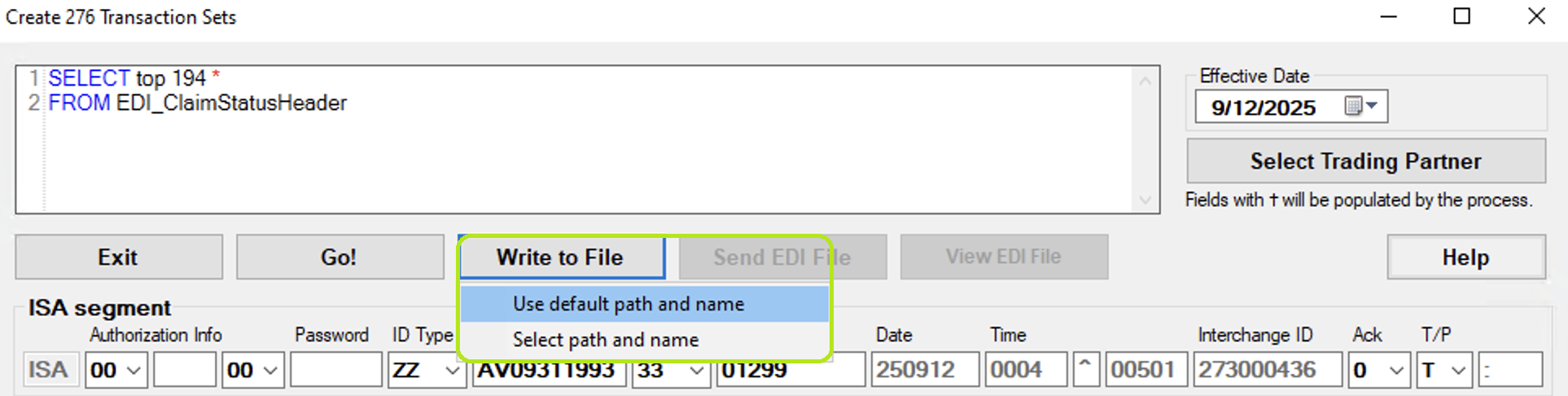
Write to File Button.