Paying a Claim |
  
|
Paying a Claim |
|
After a claim has been adjudicated, an 835 Payment Advice EDI file and a CCD+ electronics funds transfer file may be produced. To generate the 835 and CCD+ files, click the Pay Adjudicated Claims option in the Adjudication menu in the main screen.
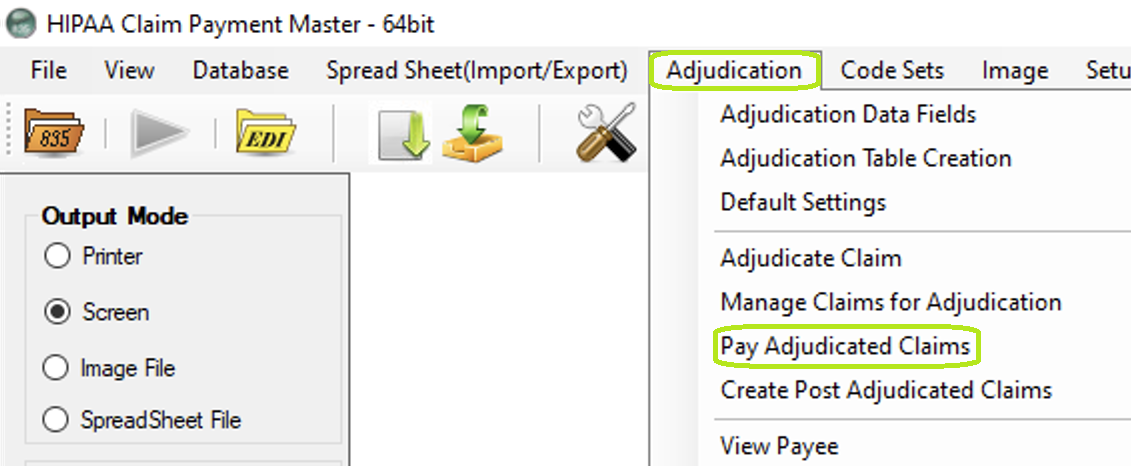
Pay Adjudicated Claims menu option.
The payment creation screen will display all claims that have been adjudicated in the claims adjudication window. They are sorted by billing provider, further also called payee. If you click on a certain provider, all their un-paid and adjudicated claims will be listed to the right. Claims may be added or removed from consideration for payment by checking or un-checking the claim under "Selected Claims."
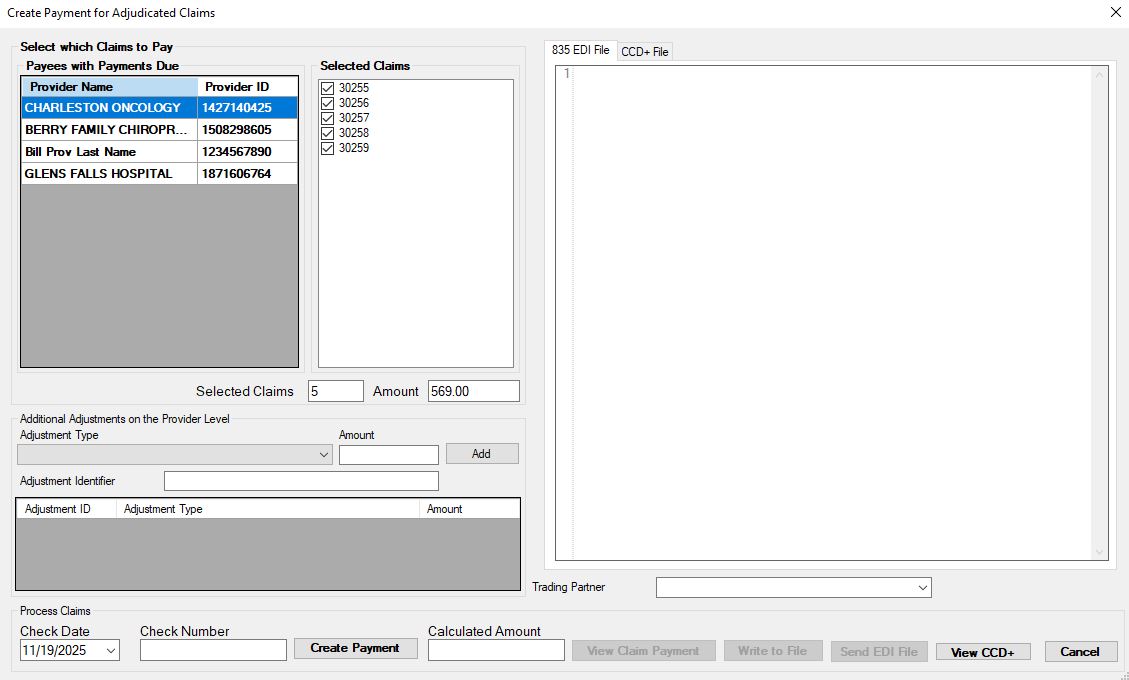
Adjudicated claims ready for payment.
To the left are the payees table and claims list. The Claims list displays unpaid claims for the currently selected payee. Selecting multiple claims in the claims list will generate an 835 with multiple claims. Their number and total open amounts will be displayed beneath the claims list.
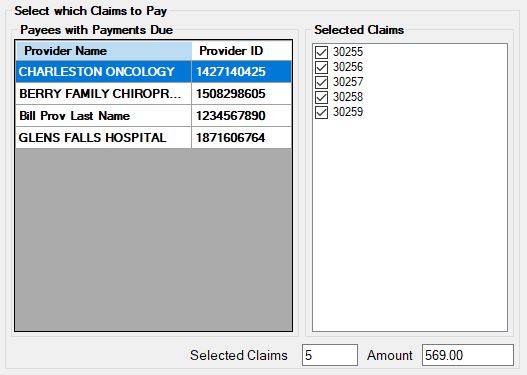
Payee table and claims selection.
Provider level adjustments may be made here. To add a provider level adjustment to the additional adjustment table on the bottom left of the screen, first select the adjustment type and enter an amount. Then click the Add button. A new adjustment is added at the provider level.
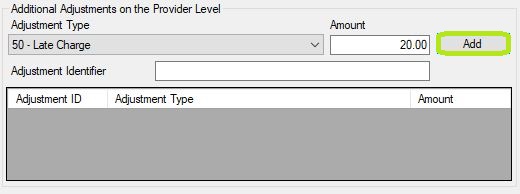
To remove a provider level adjustment, highlight the adjustment to be removed and hit the Delete key.
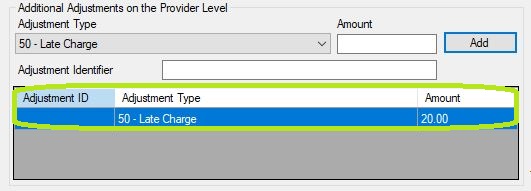
After selecting the payee and claims to be included in the claim advice, enter a check date and number. Then click Create Payment. The resulting 835 will be shown on the right side of the window. The claim will be considered paid and will no longer be presented when loading the 835 creation screen.
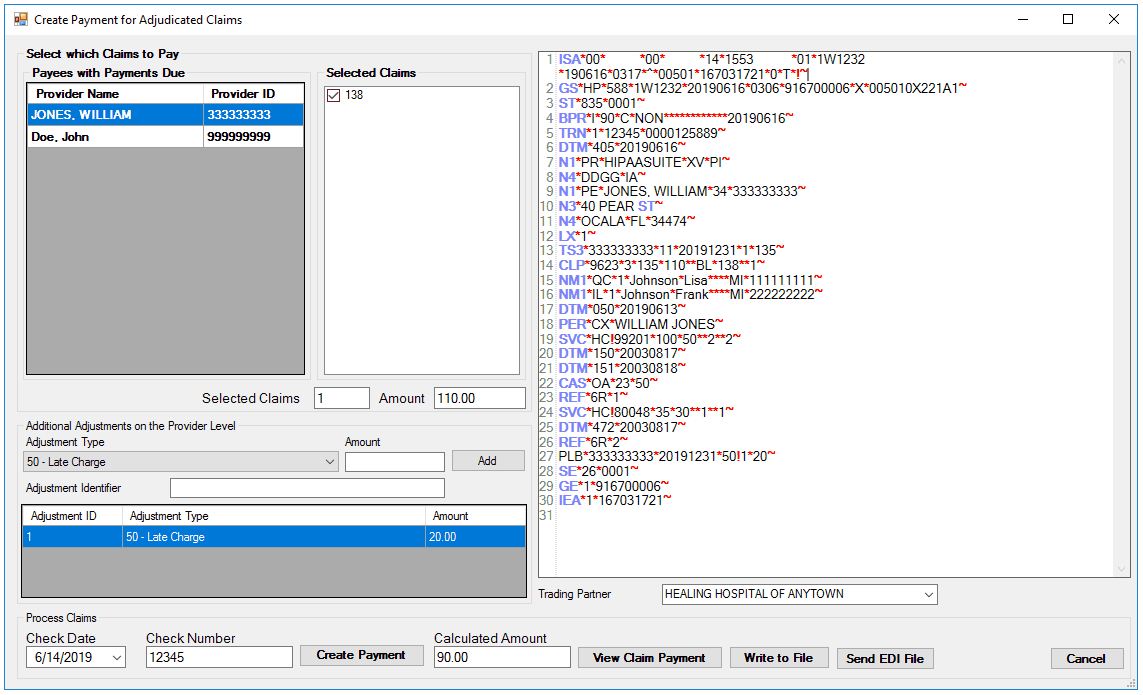
835 Claim Payment has been made.
After creating the 835 EDI file, the payment can be viewed, written to file, or sent to a trading partner.
To write a claim Payment Advice 835 file and its accompanying Corporate Credit or Debit with Addenda Record file, click on "Write to File." Both files will be written and a message box will appear stating where they were saved.
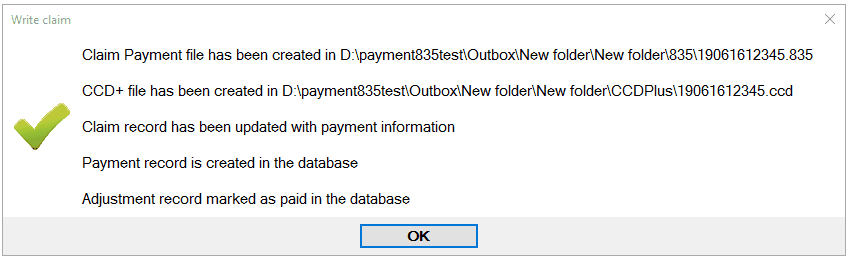
Saved Claim Payment file and CCD+ file for payee.