Payee/Billing Provider |
  
|
Payee/Billing Provider |
|
The eventual recipient of the payment described in an 835, the billing provider or payee, can be modified through the Payee administration screen. To access the administration screen, click Adjudication > View Payee in the main menu window.
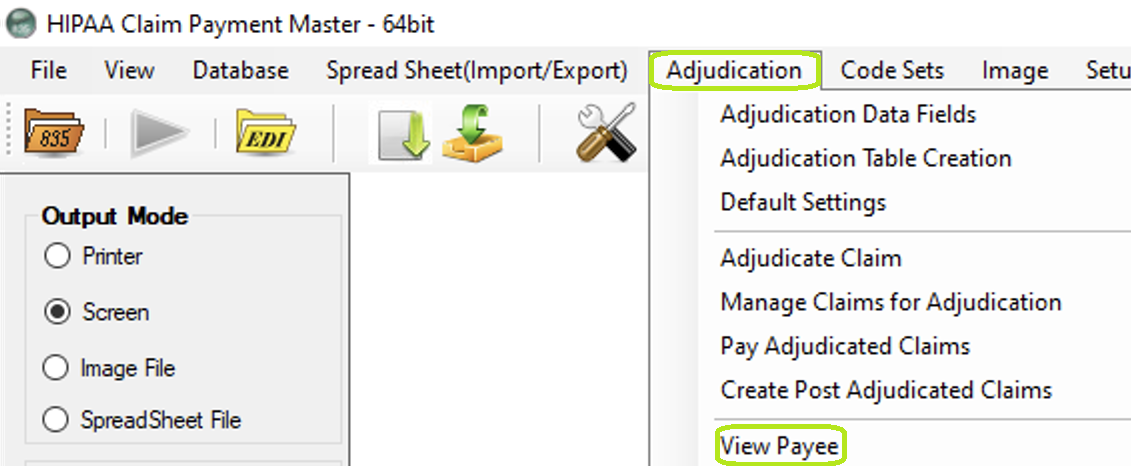
Payee administration menu option.
The following window will be shown:
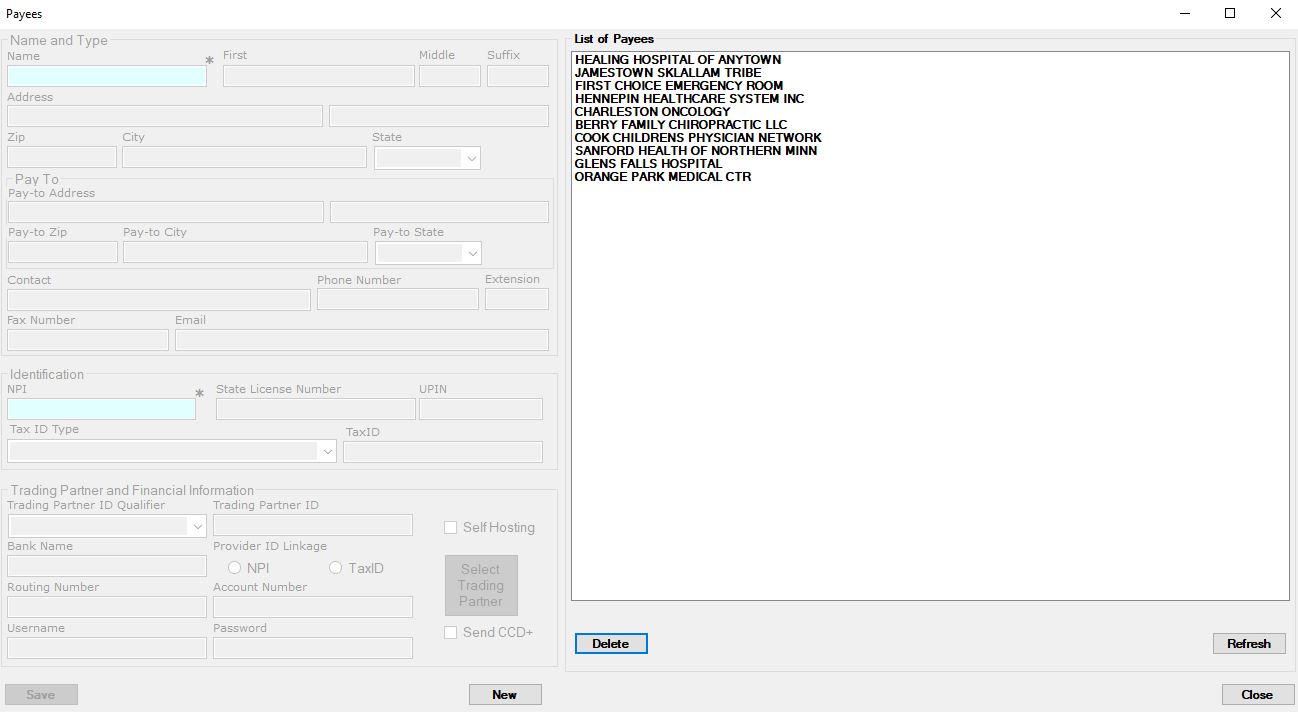
Payee administration window.
The control buttons at the bottom allow you to create a new payee, save a new payee or changes to an existing one, or close the window, canceling all changes.
To create a new payee, click on the New button in the bottom center of the Payee window. This will clear all visible fields for you to fill in. An NPI for unique identification is required. In order to create a CCD+ from the Payee data, some financial information and a link to a Trading Partner is also necessary. The Payee may self-host, in which case it will act as a Trading Partner.
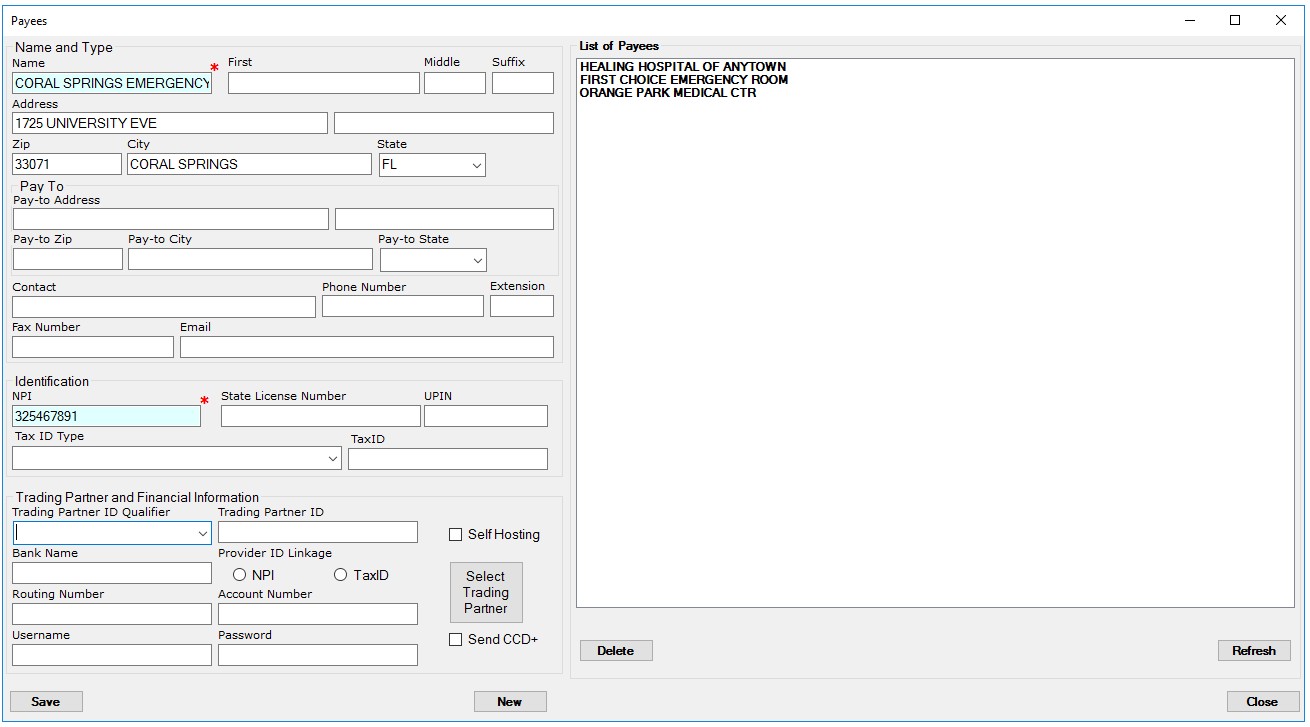
Filling in a new Payee.
In order to create a CCD+ EFT file for a specific Payee, a Trading Partner must be linked to the Payee. If you do not know a Trading Partner's ID, you may select a Trading Partner from your existing ones and the ID will be filled in for you. To do this, click the Select Trading Partner button in the Financial Information group.
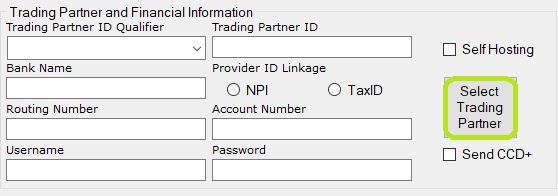
Select a Trading Partner button in Financial Info group.
You will be presented with a list of existing trading partners to choose from. Only Trading Partners of type VAN are listed.
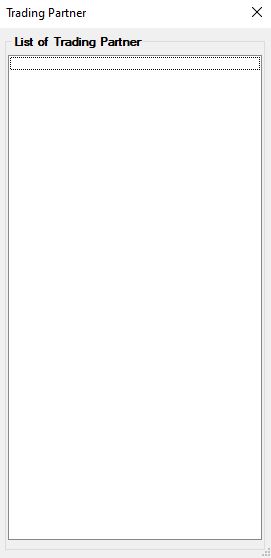
Selecting one will fill in the Trading Partner ID Qualifier and Trading Partner ID fields for the Payee. This links the current Payee to a Trading Partner.
To save a payee that is self-hosting, that is, a payee that is not using a Trading Partner, check the Self Hosting box. This will require a Trading Partner to be filled in.
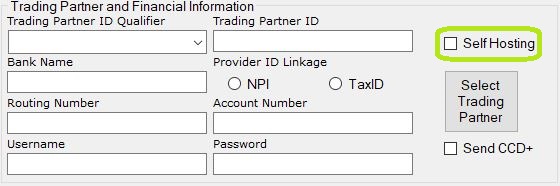
Self-Hosting checkbox.
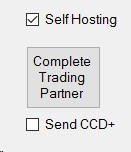
Checking the self-hosting checkbox will allow you to open the Trading Partner window from the Payee window in order to create a new Trading Partner. To do so, click the Complete Trading Partner button. Without a linked Trading Partner, a CCD+ file will not be generated for that Payee.
To modify an existing Payee, double-click the Payee to be edited in the Payee list to the right.
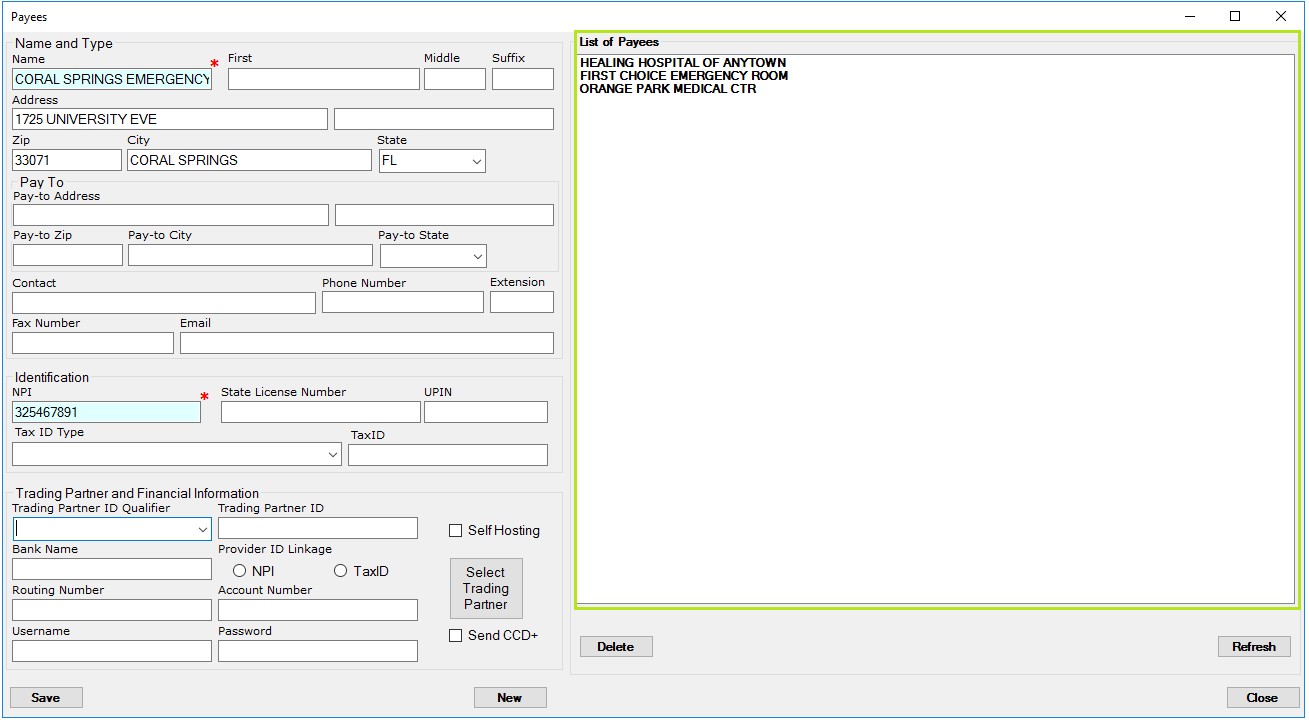
The form will be loaded with the selected Payee. After editing the fields, click Save.
To delete a Payee, select a Payee on the table to the right and click the Delete button or hit the Delete key on your keyboard. You will be prompted before deleting the Payee:
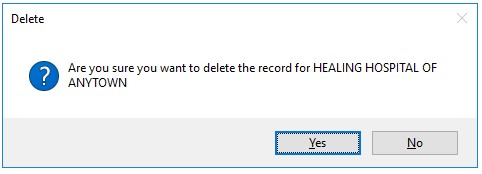
Deleting a Payee.
Clicking Yes will delete the Payee from the database. You will not be able to undo this change.