Claim Level Adjudication |
  
|
Claim Level Adjudication |
|
To make adjustments at the claim level, click the Adjust button in the Claim Level Adjustments, highlighted below.
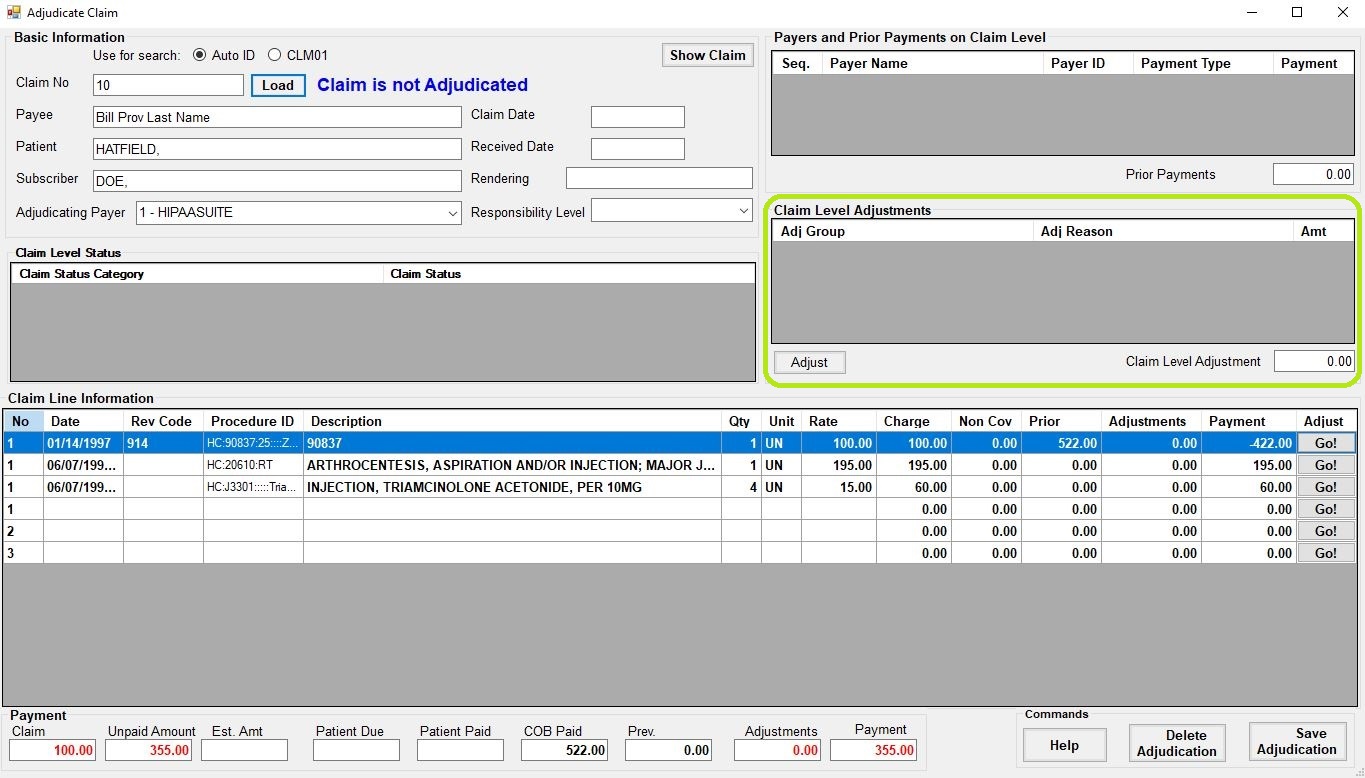
Claim adjudication screen. Emphasis on claim level adjudication table.
The Claim Level Adjudication screen is shown. Adjustments at the claim level can be made here.
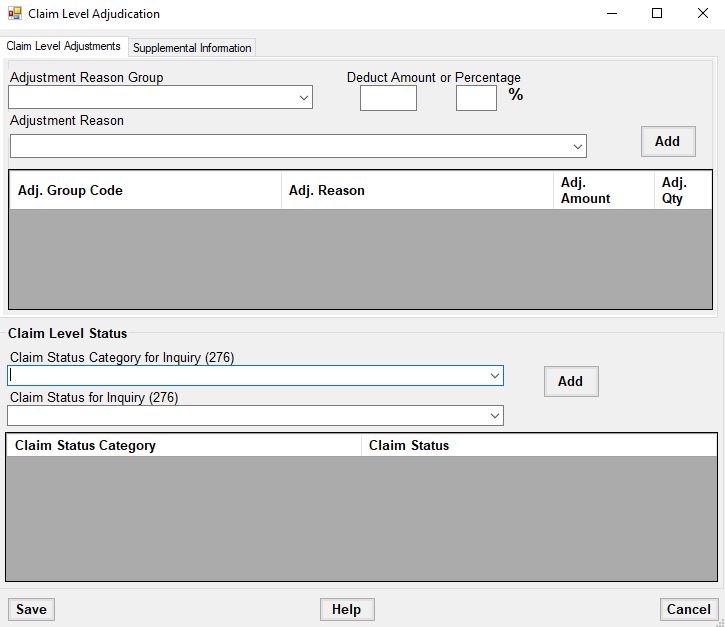
To add a claim level adjustment, first fill in the Adjustment Reason Group, Adjustment Reason and enter either a deduction amount or percentage, then click Add.
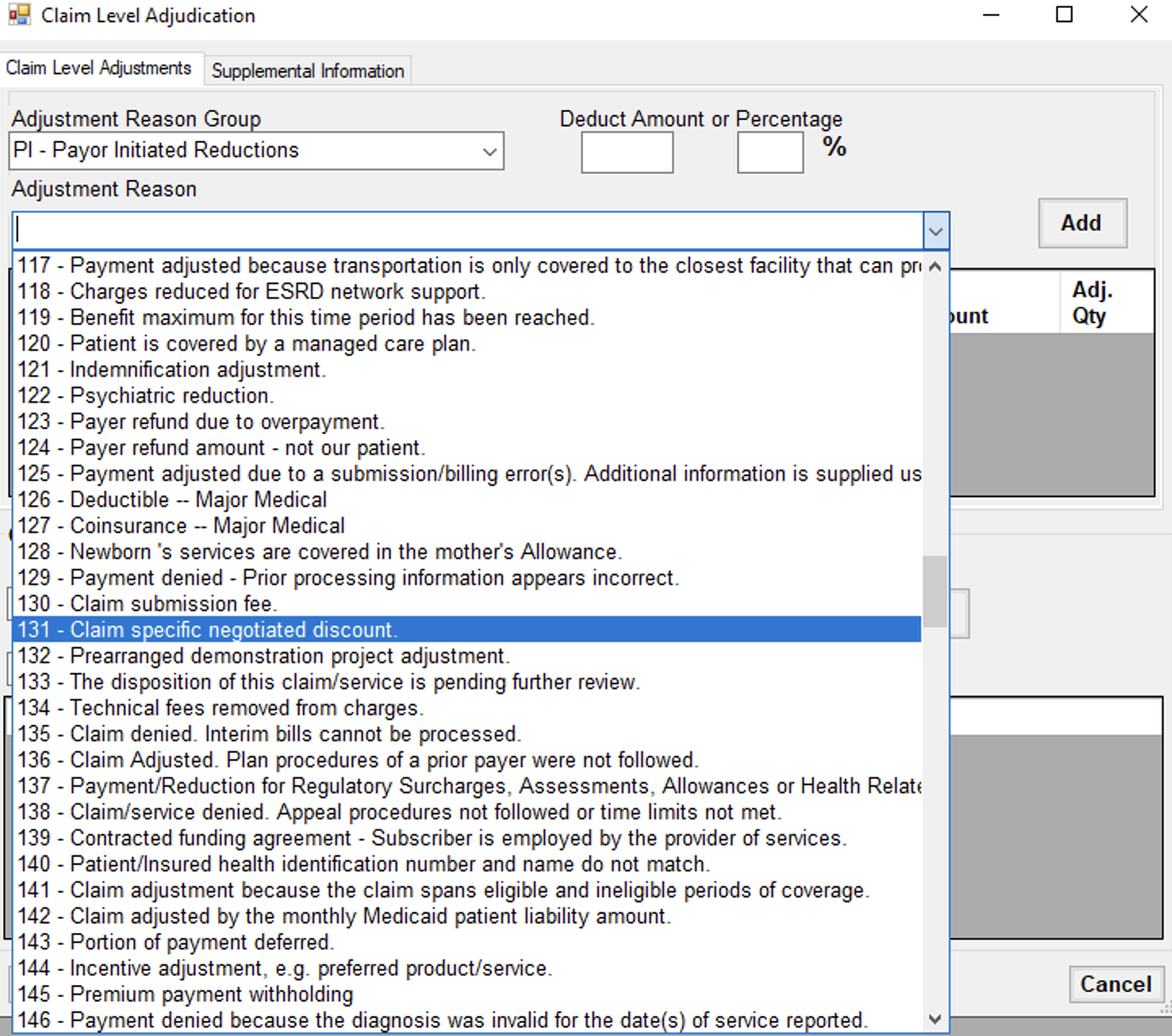
Selecting an Adjustment Reason.
To remove an adjustment, select the adjustment in the adjustments table and hit the Delete key.
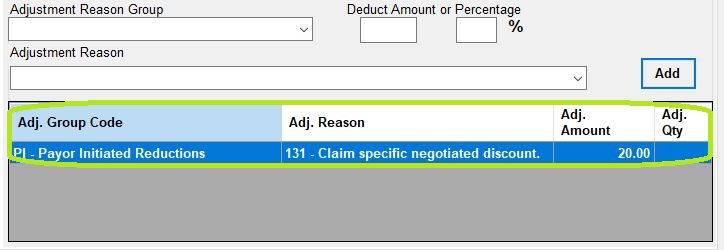
Adjustment Reason table.
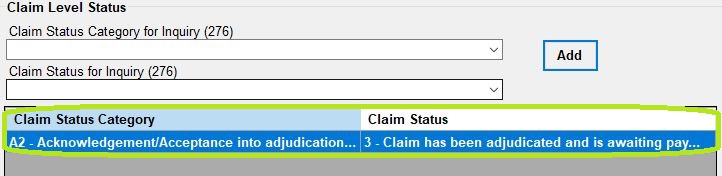
Remember that you can automatically assign a claim status upon adjudication. Please refer to the Default Settings. To add a claim level status, first select the Claim Status Category and Claim Status desired, then click the Add button.

Adding a claim status.
To delete a claim status, select the claim status in the claim status table and hit the Delete key.
The second tab in the Claim Level Adjudication screen contains tables for adding or removing supplemental information.
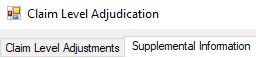
Tabs in Claim Level Adjudication window.
To add a supplemental quantity or supplemental amount, first fill in the type of amount or type of quantity, then fill in the amount or quantity, and click the Add button.
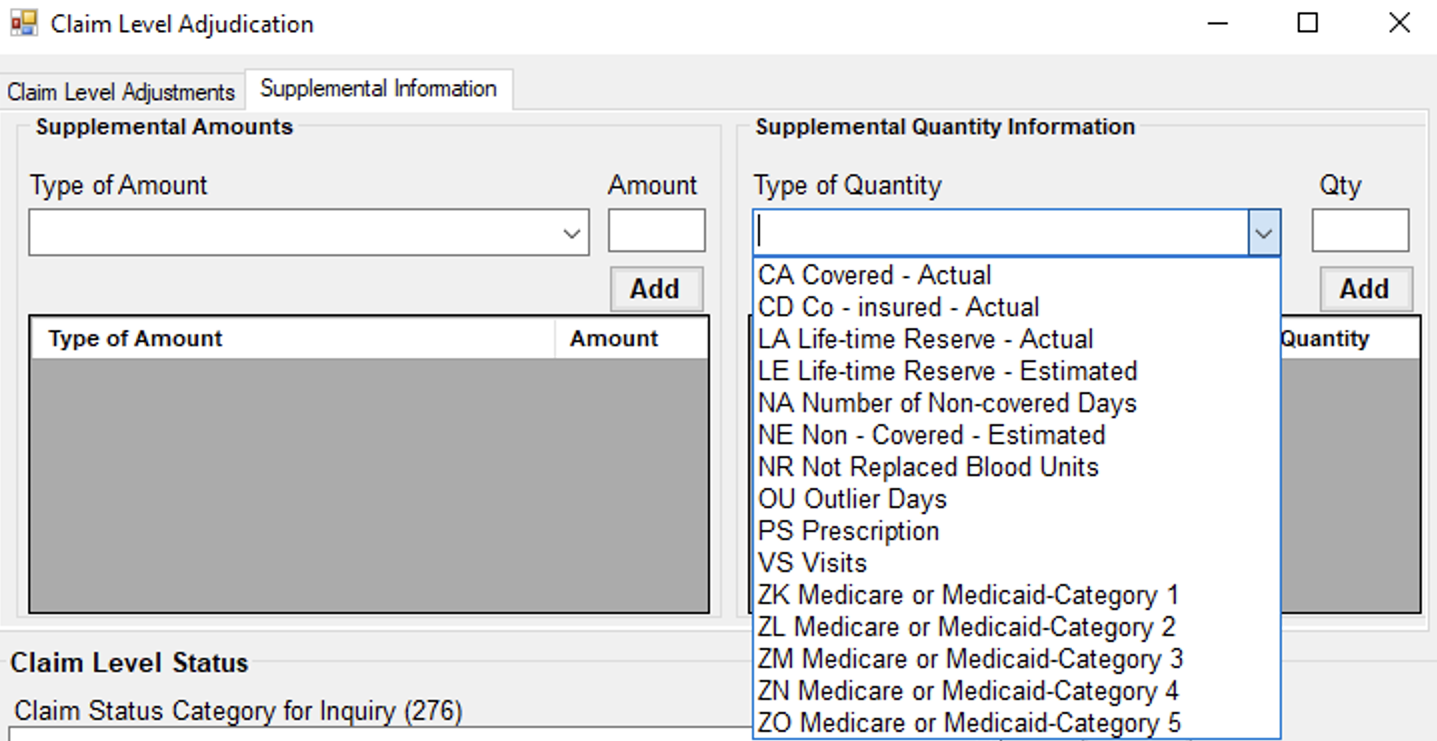
Adding a Supplemental Quantity.
To remove a supplemental amount or quantity, select the row in the appropriate table, then hit the Delete key.
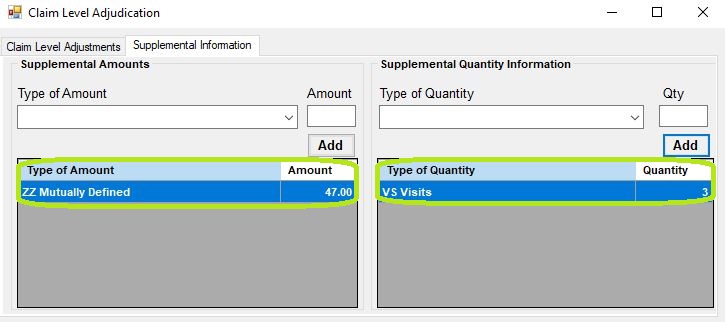
Supplemental Information tables.
To save any adjustments made to the claim, click the Save button on the lower left. All the adjustments will be saved and the new balances will be reflected in the main claim adjustments screen.
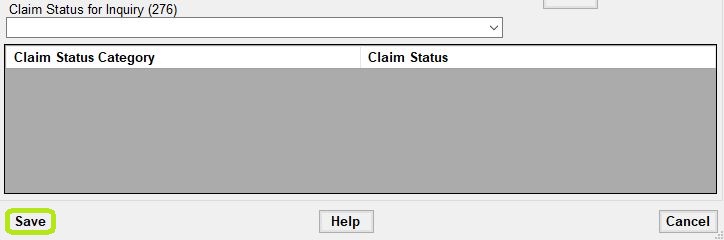
Detail of claim level adjustments window. Emphasis on Save button.