Printing Documents |
  
|
Printing Documents |
|
The HIPAA Claim Master application will automatically have a default printer according to your computer settings. To select a different printer, follow the steps below:
1.Go to File > Select Printer in the main menu window.
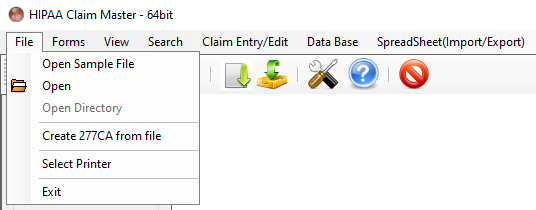
The "Select Printer" option from the "File" tab.
The following window will open:
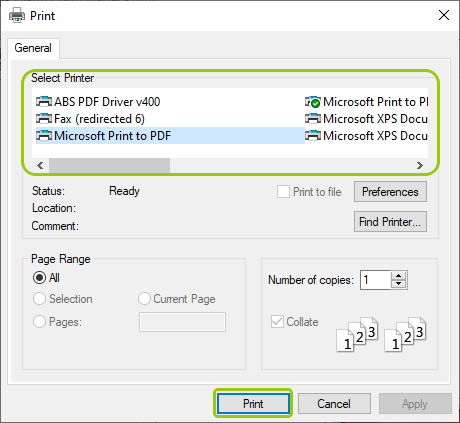
Choose your printer from the "Select Printer" box.
2.Select your printer, then click "Print." If you do not see your printer under the "Select Printer" box, click the "Find Printer..." button and search your computer. Once the correct printer is selected, you may click the "Print" button to print your documents.
Note: After you make any changes and selections, the "Apply" button will be available. Click on it to save all your settings before closing or printing.