Import Method 1 |
  
|
Import Method 1 |
|
The Import Method 1 allows to import data through data tables. There are two options to complete this method:
oSpreadsheet Import Mapping
oCreate SQL Table
See the details for each option below:
1.Go to SpreadSheet(Import/Export) > Import Method 1 > Spreadsheet Import Mapping on the main menu window.
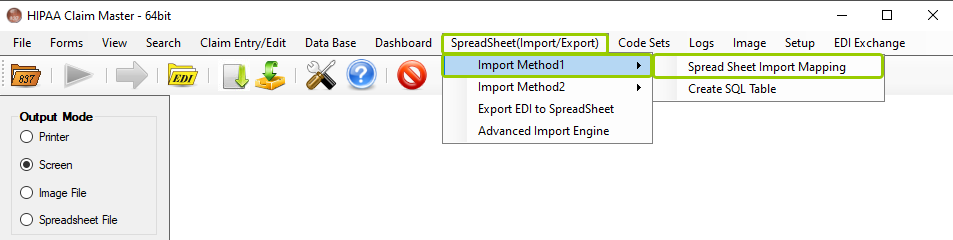
The "Spreadsheet Import Mapping" option from the "Import Method 1" sub-menu is under the "SpreadSheet(Import/Export" tab.
The following window will open:
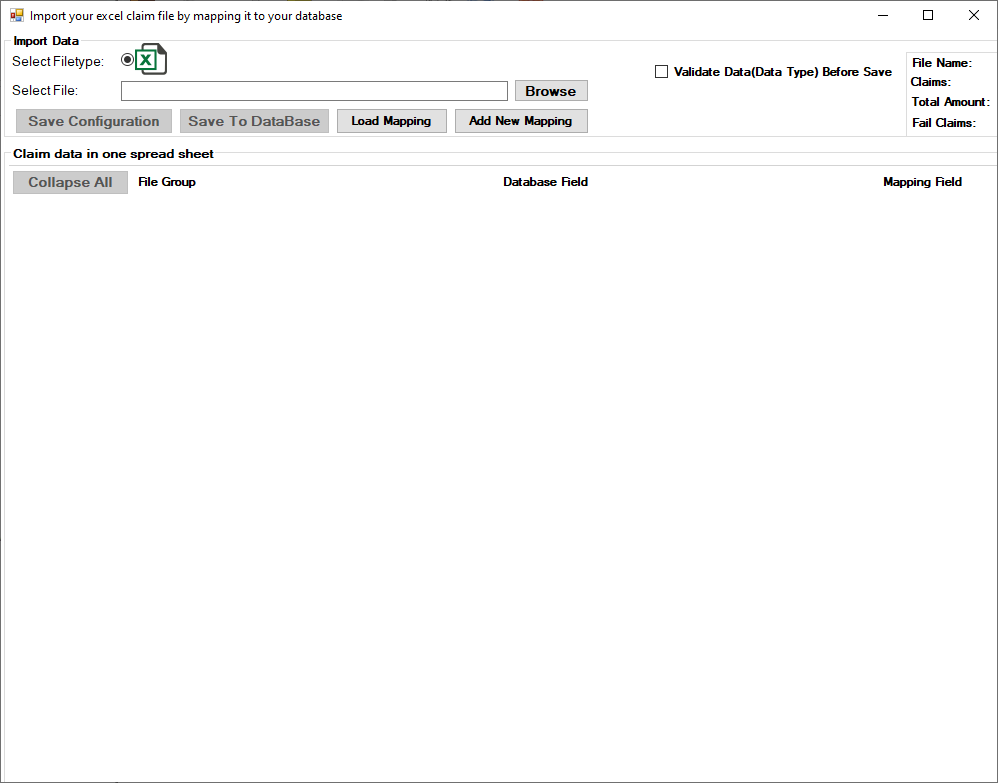
The "Import your excel claim file by mapping it to your database" window.
2.The type of file will be pre-selected as an Excel file. Then, next to the "SelectFile," click "Browse" to search for the spreadsheet file you want to load.

The "Select File" section allows you to search for your spreadsheet file.
3.Once you locate it, you will some options:
oSave Configuration — This will save the configurations established for the import.
oSave to DataBase — This will save the imported file to the database.
oLoad Mapping — This will open the "Load Mapping" window in which it displays a table of previously displayed saved mappings.
oAdd New Mapping — This will create a connection between the excel file columns and database.
oShow Only Required Field — This option will display the fields that are required for a valid 837 EDI file.
oValidate Data(Data Type) Before Save — Checking this box will prompt the application to validate the data to ensure it is correct.
4.You can see a summary of the uploaded Excel file in the top-right box:
oFile Name
oClaims
oTotal Amount
oFail Claims
5.You can review the data in a single spreadsheet in the box below the "Import Data" box. Within this box, you will see three columns:
oCollapse All — This button will open all the categories and show the entire content.
§File Group
§Database Field
§Mapping Field
1.Go to SpreadSheet(Import/Export) > Import Method 2 > Spreadsheet Import Mapping on the main menu window.
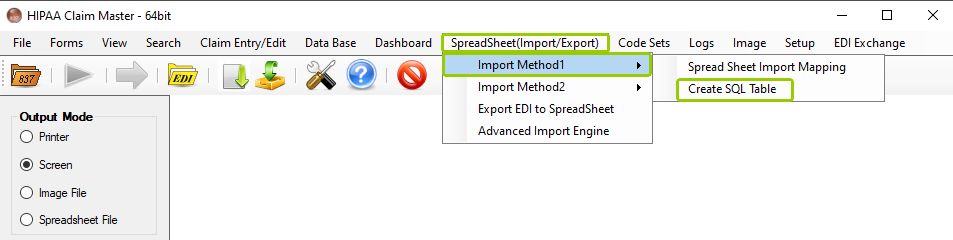
The "Create SQL Table" option from the "Import Method 1" sub-menu is under the "SpreadSheet(Import/Export)" tab.
2.You will see two tabs:
oMaster Data — Where the header information (e.g. mapping file name).
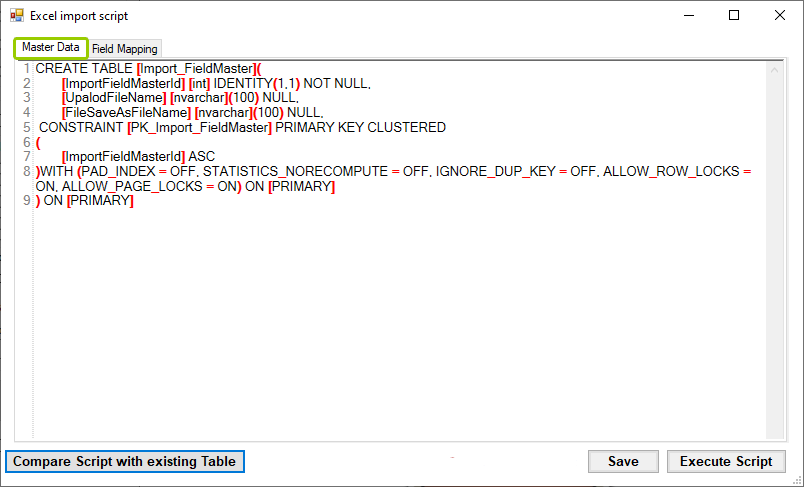
The "Master Data" tab is in the "Excel import script" window.
oField Mapping — Where the field mapping is saved.
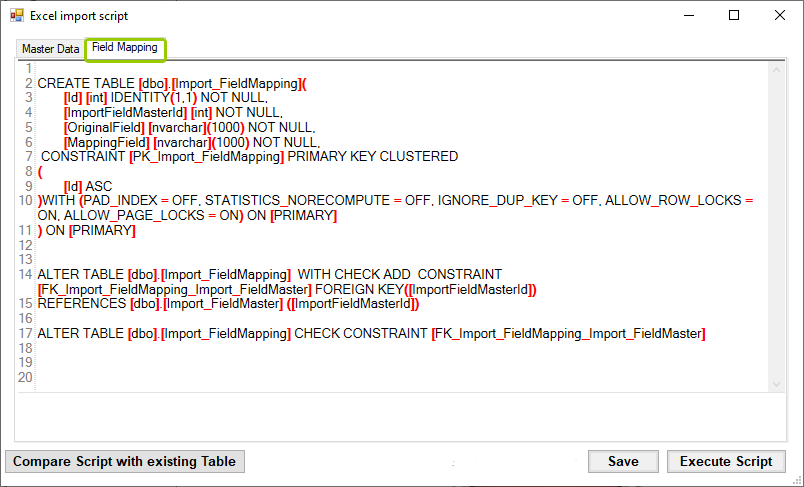
The "Field Mapping" tab is in the "Excel import script" window.
3.If you load a new script for either tab, you can compare the new and previous script by clicking the "Compare Script with existing Table" button. After you make your changes, click "save" then "Execute Script."

The "Compare Script with existing Table," "Save," and "Execute Script" buttons.
Note: You must save and execute scripts per tab to keep the changes. If you switch tabs or close without taking these steps, changes will be discarded.