Setting Up Incoming and Outgoing Files |
  
|
Setting Up Incoming and Outgoing Files |
|
To check if your files are HIPAA-compliant, EDI Exchange can run a compliance check on both incoming and outgoing EDI files. It is important to test these settings with new Trading Partner relationships or new processes to ensure the EDI process runs without issues.
To configure the incoming and outgoing files, follow the instructions below.
1.Go to EDI Exchange > EDI Exchange Setup in the main menu window.
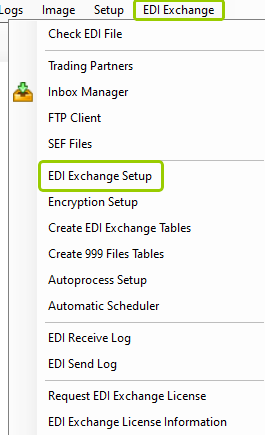
The "EDI Exchange Setup" option is under the "EDI Exchange" tab.
The following window will be displayed:
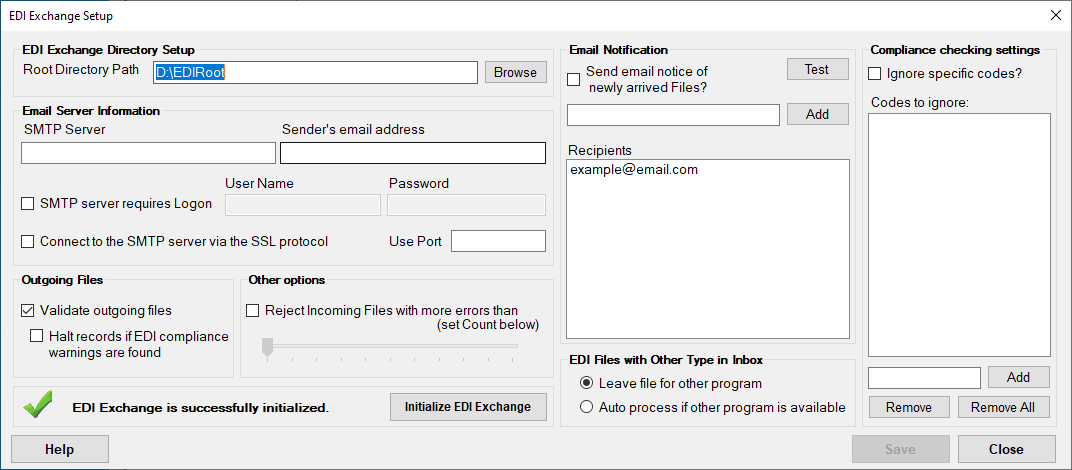
The "EDI Exchange Setup" window.
2.There are four sections where you can configure for incoming and outgoing files:
oOutgoing Files
oOther Options
oEDI Files with Other Type in Inbox
oCompliance checking settings box
See the details for each box below.
oValidate outgoing files — Select this checkbox to validate if the outgoing files are HIPAA-compliant.
oHalt records if EDI compliance warnings are found — Select this checkbox to suppress sending files with warnings and/or errors.
oReject incoming files with more errors than (set Count below) — Select this checkbox if you want incoming files with more errors than defined not placed in the "Inbox" folder. You may set the number of errors by moving the arrow along the counter.
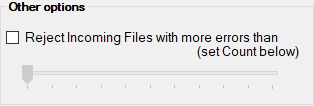
You may set the number of errors with the counter.
The EDI Exchange inbox can hold different types of HIPAA EDI files, such as 837, 834, and so on. You have two options to process these files:
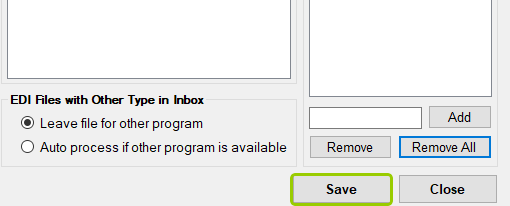
oLeave file for other program — This option will process only files related to HIPAAsuite application you are currently working with.
oAuto process if other program is available — This option will process all file types sitting in the inbox, so long as the corresponding application is installed and configured for auto-processing.
oIgnore specific codes? — Before processing, a compliance check is performed. Any errors found will be written to the "Daily Logs" of the base application and the "EDI Receive Log" of EDI Exchange, including the code related to them. Select this checkbox if you would like to exclude specific error codes from preventing processing files with the error codes. You can add the codes the system will ignore by typing them in the text box next to the "Add" button, then you can click the "Add" button.
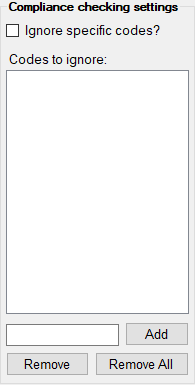
The "Compliance checking settings" box.
To remove a code, select the code, then click on "Remove." If you want to remove all codes, click the "Remove All" button.
3.Once you have made your selections, click on "Save" before closing the window to keep your changes.
The "Save" button.