Certificate-based Authentication in SFTP |
  
|
Certificate-based Authentication in SFTP |
|
SFTP, or FTP over secure shell as it is also known, is deemed the most secure method of file transport. There are three (3) methods of authentication in SFTP:
a.With a username and password,
b.With a username and a private key cryptographic certificate, or
c.With a username, a certificate, and a password.
To enable certificate-based authentication, you must create and link a private key to your certificate. The certification module that HIPAAsuite employs uses a private key SSH2 certificate in .pem format. To get these keys, we recommend using the PuTTY application. Follow the steps below to begin using PuTTY:
1.Open your internet browser and download https://putty.org/index.html. Then, follow the installation instructions.
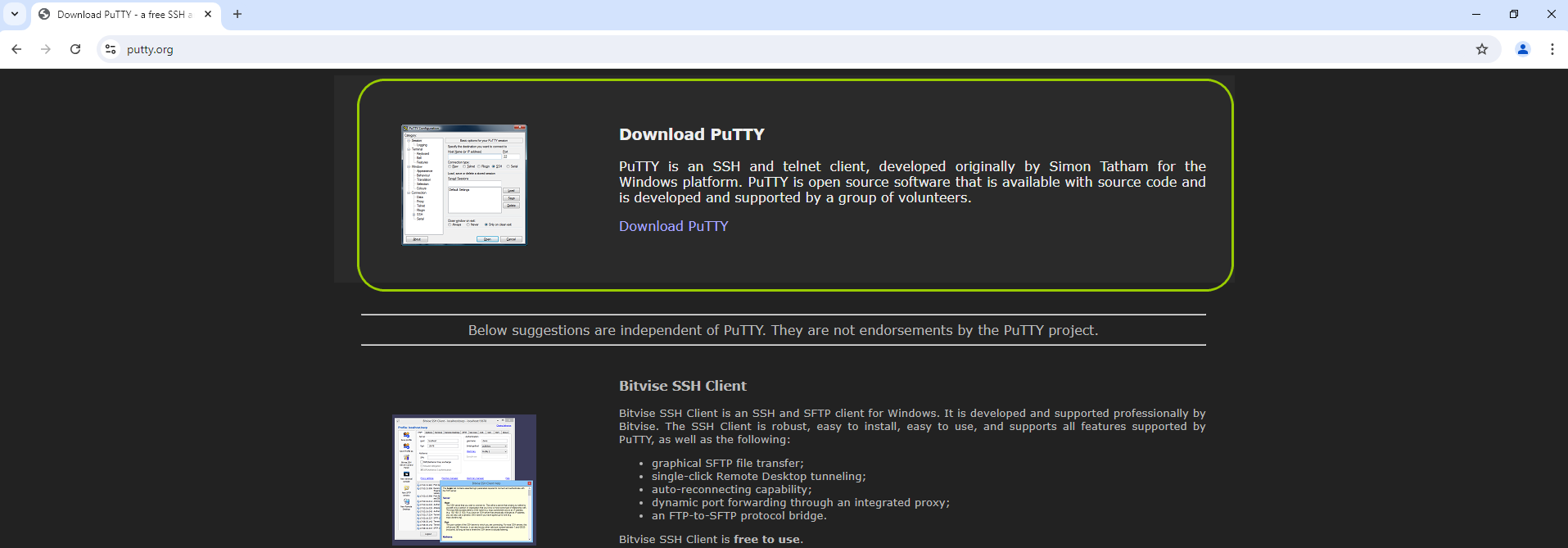
This is the PuTTY website where you can download the application.
2.Once downloaded, locate the application's file and open it by double-clicking "puttygen.exe."

The application location to launch is "puttygen exe."
The following window will open:
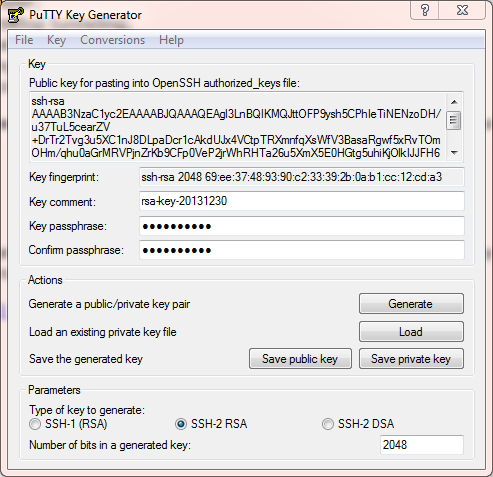
The "PuTTY Key Generator" window.
3.Though there are multiple options, we will focus on key generation. You have two key options: public and private. To get them, click on "Generate."
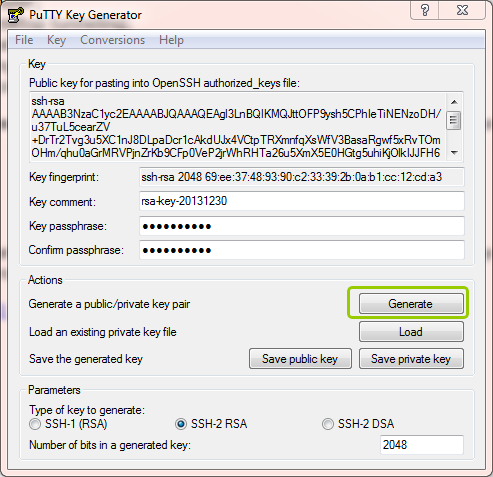
The "Generate" button.
4.Once it's generated, you must convert the key to .pem format. To do this, go to the "Conversions" tab, then click on "Export OpenSSH key."
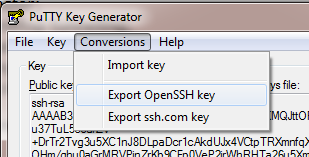
The "Export OpenSSH key" option is under the "Conversions" tab.
After this step, you can save the key with a .pem ending.