Create 275 6020 File |
  
|
Create 275 6020 File |
|
275 file information can be created from this screen. To open the Create 275 screen, go to Manual Entry > Create Manually > 275 6020 in the main menu window:
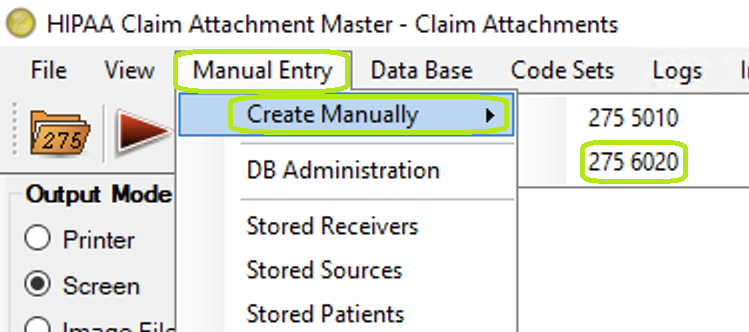
"Manual Entry - Create 275 6020."
The following window will display:
This window contains four data groups:
1.Information Source
2.Receiver
3.Patient and Event
4.Attachment(s)
You can add or update information in any of these sections. Each data group is independent; when you click Update or save record to database, only the data in that section is saved.
1.Information Source:
This is the default load screen that contains saved records.
·Select any record to load data of saved records.
·Click "Update or save record to database" to validate required fields for this section.
·This application validates this window's segments if the proper information is inputted.
·Enter the required information and click the "Update or save record to database" button to validate.
·Click "OK" to refresh the window and to open the record in "Edit Mode."
·Click "Clear all fields" to empty the information.
2.Receiver:
Click the Receiver tab to view the receiver section.
·Click "Update or save record to database" to validate required fields for this section.
·Enter the required information and click the "Update or save record to database" button to validate.
3.Patient and Event:
Click the Patient and Event tab to view the section.
·Click "Update or save record to database" to validate required fields for this section.
·Enter the required information and click the "Update or save record to database" button to validate.
4.Attachment(s):
Click the Attachment(s) tab to view the attachment section.
·Click "Add Another" to add a new attachment.
·Click "Remove selected" to delete the attachment from the list.