|
<< Click to Display Table of Contents >> Updating Database Tables |
  
|
|
<< Click to Display Table of Contents >> Updating Database Tables |
|
In the event of an application update, you can update your existing database tables following the instructions.
1.Start with the table creation script window of the table you wish to update. In this example, we will use the Trading Partner table (see Creating Database Tables).
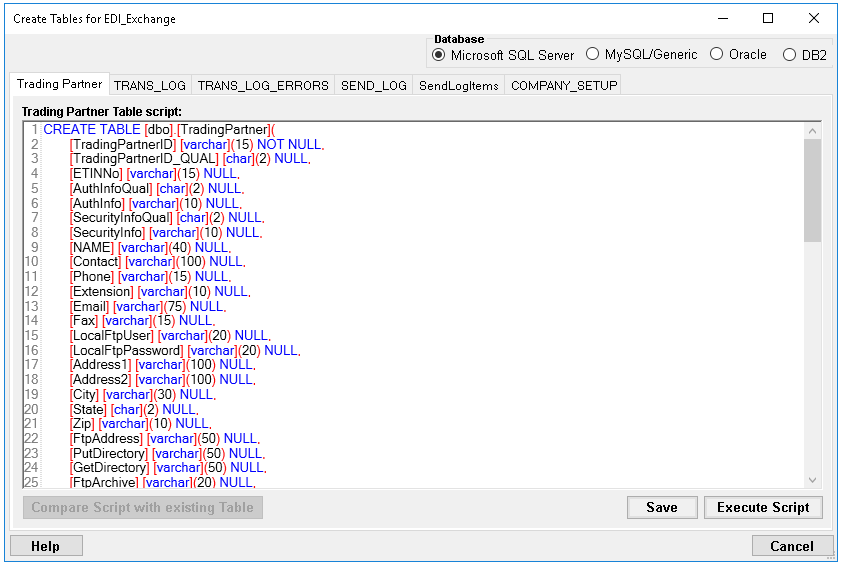
In the "Create Tables for EDI_Exchange" window is the "Trading Partner" table to update.
2.In the case of modifying a table to include, exclude, or change fields required by a program update, the script will be automatically updated; clicking the "Compare Script with existing Table" button will take you to the next step. To modify the table yourself, edit the script text to suit your database system, click the "Save" button and then the "Compare Script with existing Table" button.
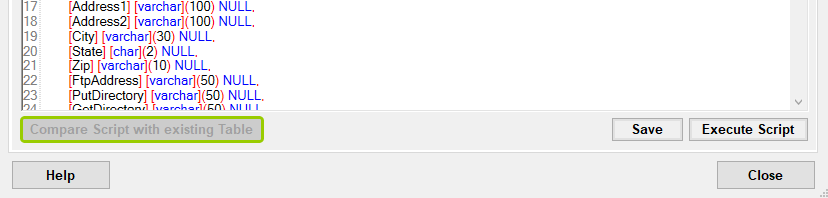
The "Compare Script with existing Table" button.
Notice that if there are no differences to compare, the button will be grayed out. If there is something different, the button will be available.
Note: Every database system has syntax idiosyncrasies, thus the scripts might require tweaking. You may edit the table scripts and save your modified scripts. For example, if "date," "time," or "money" data types do not exist in the SQL Server, you can rename those types to '"datetime" and save your script to run it.
3.The script will be compared to the existing table and any additional fields will be presented. In this example, the "Address" fields will be added to the Trading Partner table.
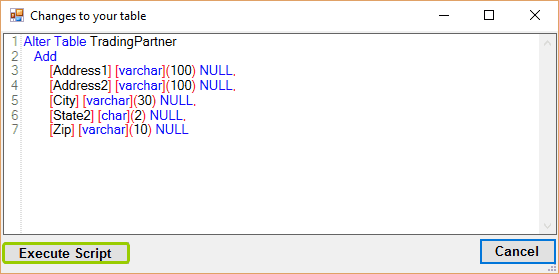
Changes to be made to the Trading Partner table.
4.Confirm the changes you want to make, then click "Execute Script." This will apply the changes displayed in the "Changes to your table" window, as shown in the previous step. After you click "Execute Script," a confirmation message will be displayed:
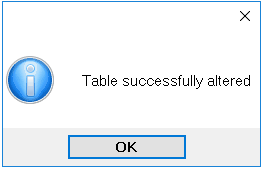
This message confirms that the changes were made to the table.