|
<< Click to Display Table of Contents >> Authorization Request Mode |
  
|
|
<< Click to Display Table of Contents >> Authorization Request Mode |
|
The HIPAA Authorizer has two modes: Authorization Request Mode and Response Mode, serving the two manifestations of the 278 transaction. We can select the Authorization Request mode in two ways:
a.Click on the requester icon.
The "Authorization Request Authorization" button.
b.Click the requester icon in the task bar.

The "Authorization Request Authorization" button in the the task bar.
When we select "Authorization Request Authorization," we will see the following main form:
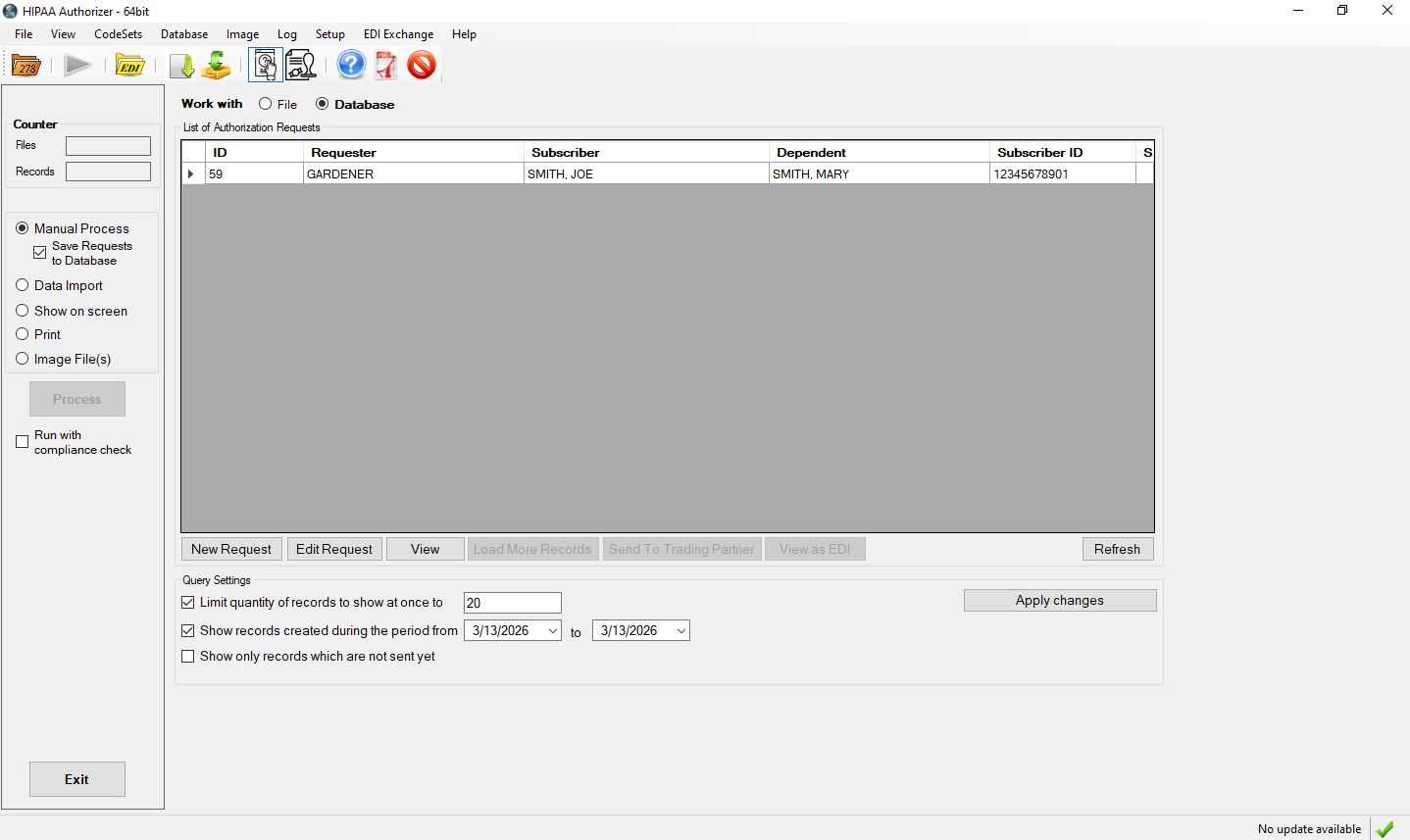
The main form in request mode.
In the center of the form we see the workplace grid. Here you will see all the requests that are manually entered, loaded from files or loaded from the database. From here you can enter new requests, edit existing requests, view requests in a printable form, and see the status of individual requests. Right-clicking the workplace grid is a quick way to access any of these functions for a selected record.
In Authorization Request Mode, we have two initial options when the form loads and they are File and Database.
•File: Select this option to load previously created 278 files.
•Database: Select this option if it is licensed.

The options to load requests either from File or from the Database.
Below the workplace grid you see three check marks with conditions that control what and if records are shown in the grid.
1.Limit the quantity or requests that are displayed per page.
2.Show records based on a date range
3.Show only records which are not sent yet
The query settings naturally apply only when we work with the database.
The last column contains an image representing the status of the request.
 A green check mark means that the request is HIPAA compliant and saved.
 A red circle with a bar through it indicates that the record has not passed the compliance check.
 A red envelope means that the send process failed.
 A blue envelope signifies that the request was successfully sent to the trading partner.
 A green Thumbs Up means that the request has been accepted.
A 999 Functional Acknowledgment stating this has been received should be readied the Trading Partner within one hour.
 A red Thumbs Down means that the request has been rejected.
This could mean a 999 with a rejection has been received or the response indicated such.
 A yellow envelope with a green return arrow indicates that a response has been received.
 A broken chain link indicates that a response was loaded for which the request could not be found.
You can use the buttons to either create a new request, Edit the request that is high-lighted, View the request in a form and write the request to file and send it to a trading partner. Double clicking a line in the workplace grid will pop-up a view of the request in a printable form. If a response has been received then the response will show.