|
<< Click to Display Table of Contents >> Printing Authorization Authorization Requests |
  
|
|
<< Click to Display Table of Contents >> Printing Authorization Authorization Requests |
|
As another feature, the HIPAA Authorizer application allows for the printing of claims if users prefer a physical form. Follow the instructions below to print an electronic claim:
1.Select the "Printer" option in the "Output Mode" box.
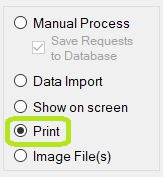
The "Printer" mode is in the "Output Mode" box.
2.Open an EDI file or directory containing the EDI files in the HIPAA Authorizer application. Read more in Processing a Authorization Request and Processing an Entire Directory.
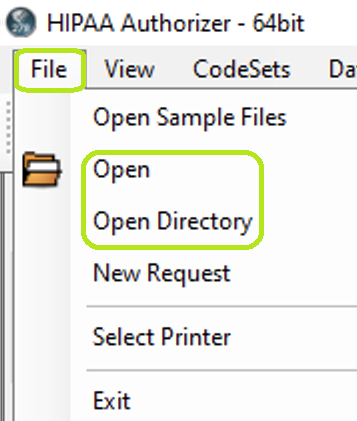
In the "File" tab menu, you can select if you want to open a file or directory.
3.Click on the "Run" button.
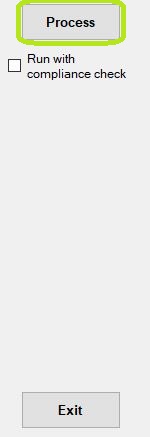
The "Run" button.
4.After the printing is done, a "Processing Results" window will open. If there is no printer, a new window will open instead, prompting you to save the claim as a PDF file.
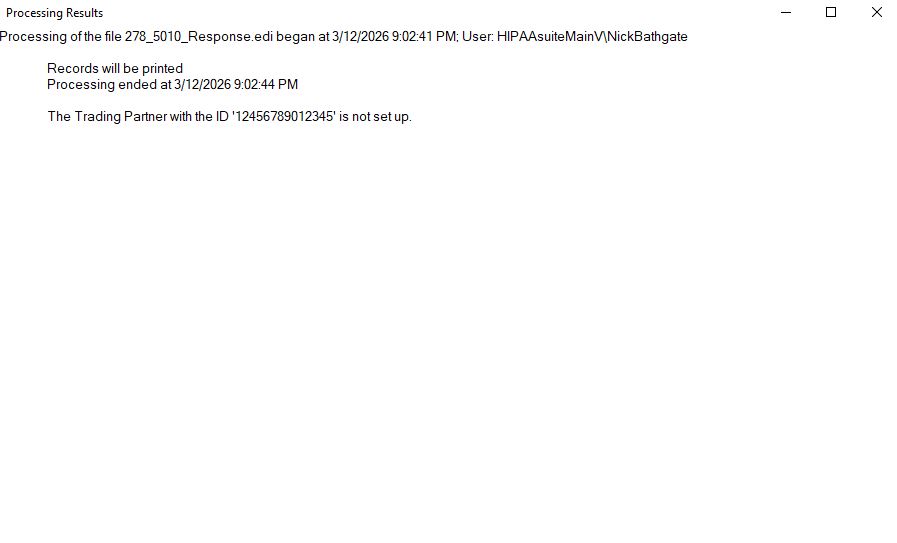
The "Processing Results" window.