|
<< Click to Display Table of Contents >> Spreadsheet Import |
  
|
|
<< Click to Display Table of Contents >> Spreadsheet Import |
|
You may import a request data spreadsheet to view within the HIPAA Authorizer application. The import will be created based on the pre-set configurations and adds the data required to complete the import.
Authorization Request File Data:
Open the file and add the correct data as per the field data type. The "Header" and "Detail" records have one common "Header ID" field to establish the relationship between both data sets. Below are the database tables that store the header and detail data.
To begin importing a spreadsheet, follow the steps below:
1.Go to Database > Excel Import in the main menu window.
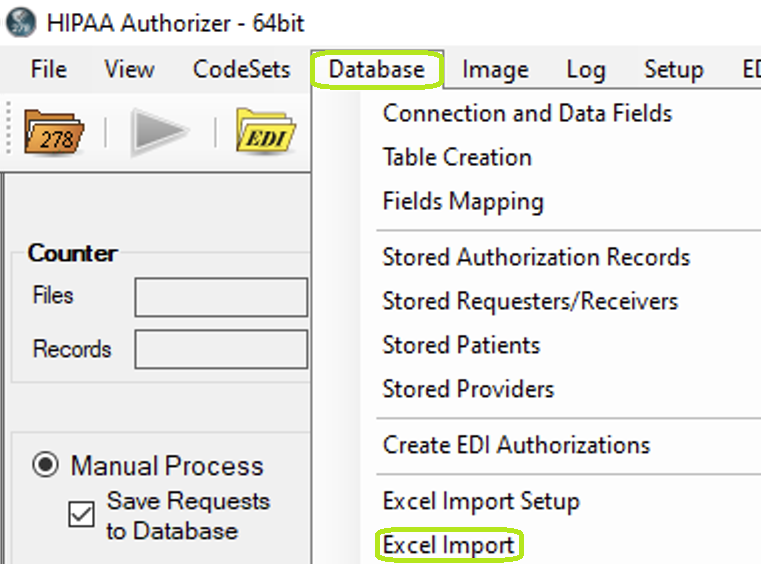
The Excel Import option under the Database tab in the main window.
The following window will open:
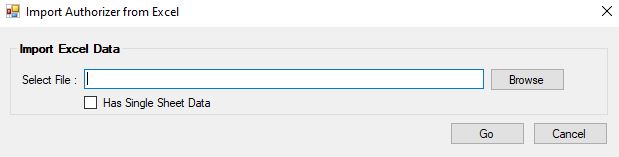
The "Import Authorizer from Excel" window.
2.Make your configuration selections from the checkboxes, then click on "Browse" to look for the spreadsheet you want to import. Select whether it is a Live Database or a Test Database, then once everything is set, click on the "Go" button to begin the import. If the import is successful, you will see a pop-up window confirming the process is complete:

A pop-up message will show if the data import process was a success.
See the different settings for the data import configuration and the descriptions:

The Import Excel Data box within the Import Claims from Excel window.
As mentioned in the steps for importing a spreadsheet, the "Select File" box allows you to search for the file you want to import after clicking the "Browse" button. There are also three settings you can set up before importing a spreadsheet:
Has Single Sheet Data
Checking this box imports a single sheet Excel file, that is, a spreadsheet with both the header and detail data in a single sheet.
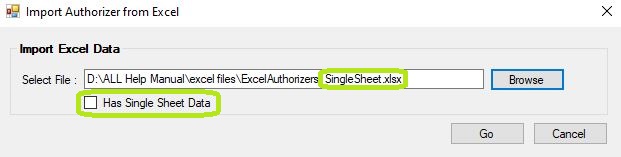
Example of a single sheet file import with Has Single Sheet Data box.
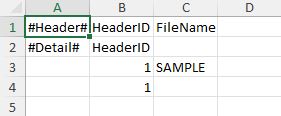
Sample of a single sheet Excel spreadsheet with both header and detail rows.
Once you click on "Go," you will be provided the record status for both header and detail records:

The "Excel Import Status" window is displaying the "Header" tab.

The "Excel Import Status" window is displaying the "Details" tab.
If left unchecked, the Excel file will be uploaded with multiple sheets.
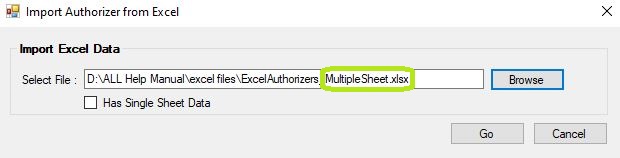
Sample of Excel data import with multiple sheets.
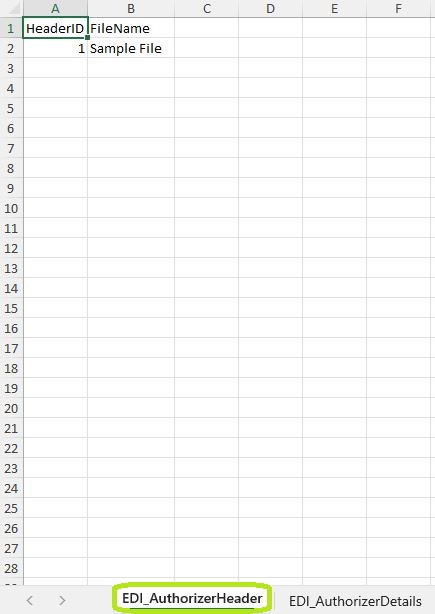
Sample of a multiple sheet Excel spreadsheet in the "Header" tab.
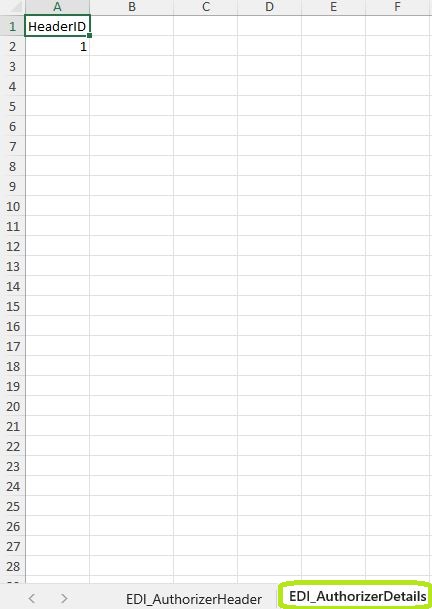
Sample of a multiple sheet Excel spreadsheet in the "Details" tab.
Note: If the checkbox is not selected and a multiple sheet spreadsheet is uploaded, you will see an error pop-up message. This will also create an error log with further details.

Pop-up message showing the file upload error notification.