Viewing Image Files |
  
|
Viewing Image Files |
|
The HIPAA 999 Master application has a built-in image viewer that uses lightweight DLLs to display TIFF and PDF images (see Creating Image File from EDI Files). It also allows you to navigate through the folder structure that has been set up. To view your images, follow the steps below:
1.Select Image > Image Viewer in the main menu window.
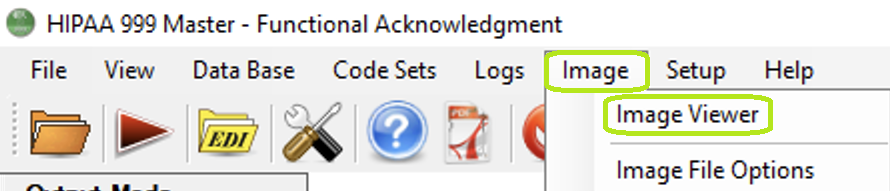
The "Image Viewer" option is in the main menu window.
The following window will open:

The "Image Viewer" window.
Note: If you do not click the "Image File" option in Output Mode, an error pop-up window will open, as shown below.
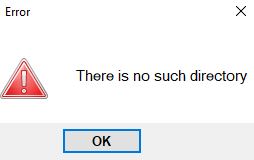
Error pop-up message if an image index is not configured.
2.Click on the image you want to view from the left-hand image list. If the image is in TIFF format, it will open on the right side of the window. If the image is in PDF format, it will open in a separate window.
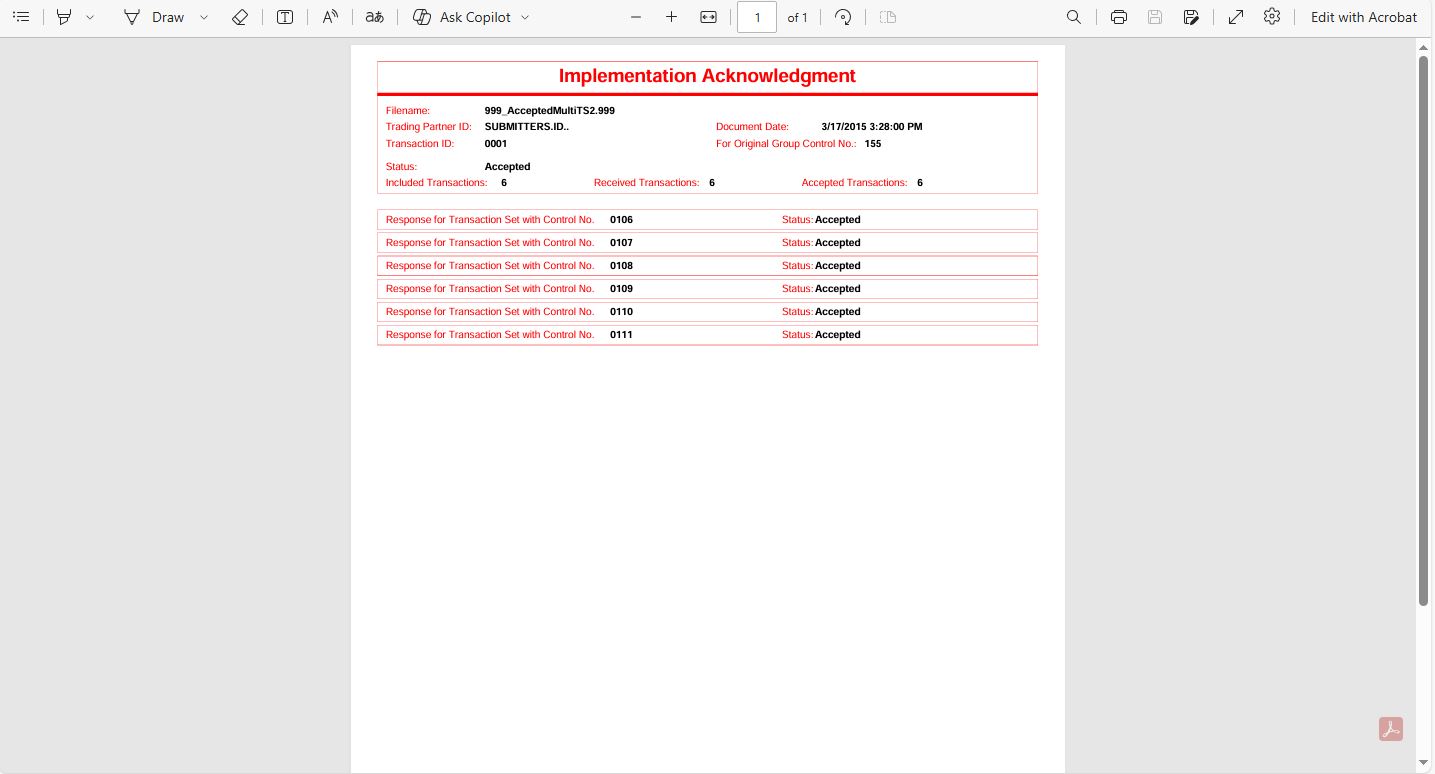
View of a PDF claim file.
3.Once you are done, click the "X" at the top-right corner of the image viewer window to close it.

The "X" button to close the window.
See the details of each navigation tool below:

The "Navigation Header Bar" is at the top of the "Image Viewer" window.
The navigation header bar allows you to navigate through multi-page documents in the upper left corner of the image.
oPages — This option is located on the left side of the navigation header bar. It shows the number of pages and the current page in view; the arrows allow you to navigate through them.

The "Pages" navigation arrows.
oZoom — This option is located on the right side of the navigation header bar. It allows you to magnify or reduce the size of the image.

The "Zoom" tool.
oImage Size — These options are located next to the zoom option in the navigation header bar. It can adjust the image to the actual size, the page, and the width.

The "Image Size" options.

The "Image Panel" of the "Image Viewer" window.
The image panel is on the left side of the image viewer window. It lists all the generated TIFF and PDF image files. To access an image, click on a filename to display its content.