Using the EDI Viewer and Editor |
  
|
Using the EDI Viewer and Editor |
|
EDI files are often difficult to read due to the lack of line breaks and unusual delimiter characters. The EDI Viewer and Editor in HIPAA 999 Master improves readability by displaying each segment on its own line and standardizing delimiters:
Element separator: *
Sub-element separator: :
Segment terminator: ~
These are applied for display purposes only — even if the original file uses different characters.
Tip: Modifying 999 files should be done with caution. These files can be legal documents. Only experienced users should make changes, and only with the originator’s approval.
To begin using the EDI Editor, follow the steps below:
1.Select the EDI file you want to modify (See Processing an Implementation Acknowledgment).
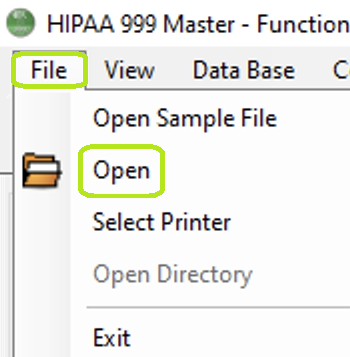
Open the EDI file you want to edit.
2.Go to View > EDI Editor in the main menu window.
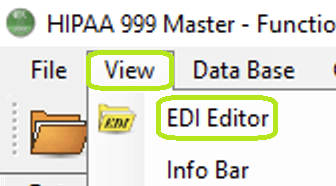
The "EDI Editor" option is under the "View" tab.
Alternatively, click the "EDI Editor" icon in the Taskbar.
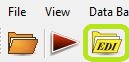
The "EDI Editor" icon is also in the Taskbar.
Note: The EDI Editor only works if you open an EDI file; if there's no file selected, a window will open prompting you to open a file.
The following window will open:
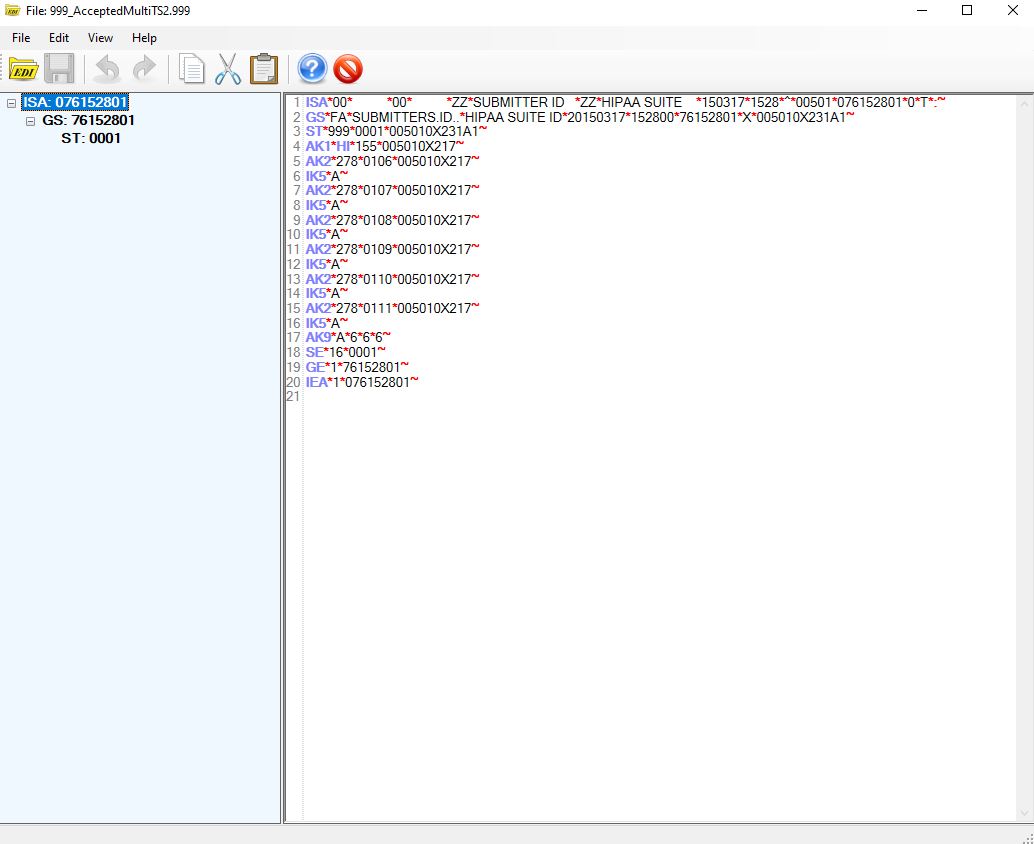
The "EDI Editor" window.
3.Once you have made your changes, go to File > Save. If you want to save the version of the file you have opened without overwriting the original file, go to File > Save As and name it differently from the original file.
See the tools available to modify the EDI:

The "Tab Menu Bar" in the "EDI Editor" window.
The "Tab Menu Bar" of the EDI Editor contains multiple settings within each tab. See their description below:
File
oOpen — This allows you to open and edit a new EDI file.
oSave — This allows you to save any changes to your EDI file.
oSave As... — This allows you to save an open EDI file in another location and/or under another name.
oClose — This allows you to close the EDI Editor window.
Edit
oUndo — This allows you to reverse the last modification made.
oRedo — This allows you to bring back a modification.
oCopy — This allows you to copy any selected text.
oCut — This allows you to copy any selected text to a clipboard but it will delete the text from view.
oPaste — This allows you to place any copied or cut text in the selected area.
oFind... — This allows you to search for any word or character within the EDI file.
oReplace... — This allows you to replace any chosen word or character with another throughout the EDI file.
oGo to line... — This allows you to go to a specific line within the EDI file.
View
oHide Info Bar — This option hides the bar on the left of the EDI Editor window; selecting it again will make it reappear.
Help
oHelp Documentation — This option will open the user's manual on the website.
oView Manual — This option will download the user's manual.
oReport an Issue — This option allows you to send a report and create a ticket for technical support related to EDI Editor.
oAbout — This option opens a pop-up window with basic information about the EDI Editor.
oProject History — This option opens a pop-up window with all the previous versions and the changes made in each until the most recent version.

The "EDI Taskbar" is in the "EDI Editor" window.
The EDI Taskbar contains different tool icons for quick access. The icons from left to right are: Open, Save, Undo, Redo, Copy, Cut, Paste, Help, and Info Bar (see the previous section for each function description).