Creating ASCII Flat Files |
  
|
Creating ASCII Flat Files |
|
You can create ASCII flat files manually or automatically using the command line arguments and Windows Scheduler. Read more in:
·Using the Command Line Arguments (CLI)
·Running the Application via Task Scheduler
Before creating ASCII flat files, make sure all settings are defined correctly. The following options can be defined:
·The directory where you want to save the resulting files. See Application Setup.
Follow the instructions below to create ASCII flat file(s) from EDI file(s).
1.Open an EDI file or directory containing the EDI files in the HIPAA Enrollment Master. Read more in Processing an Benefit Enrollment File, Working through an Entire Directory.
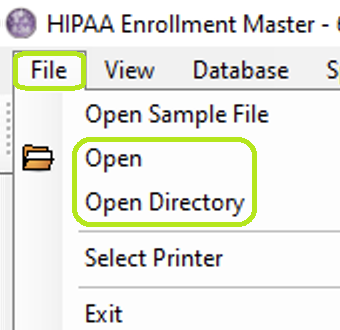
The "Open" and "Open Directory" options are under the "File" tab on the main menu.
The "Open" button
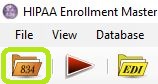
The "Open File" icon is in the Taskbar.
2.Select the "ASCII" option in the "Output Mode" block.
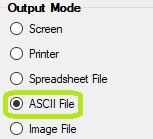
The "ASCII File" option in "Output Mode."
3.Click on the "Run" button.
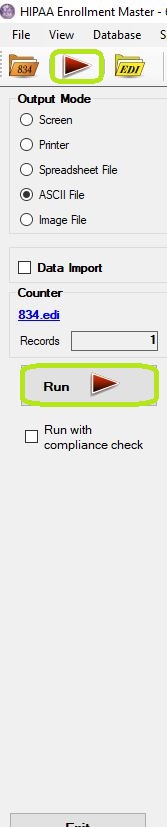
The "Run" buttons.
4.The "Processing Results" window displays the report. You can find the resulting txt files in the specified folder.
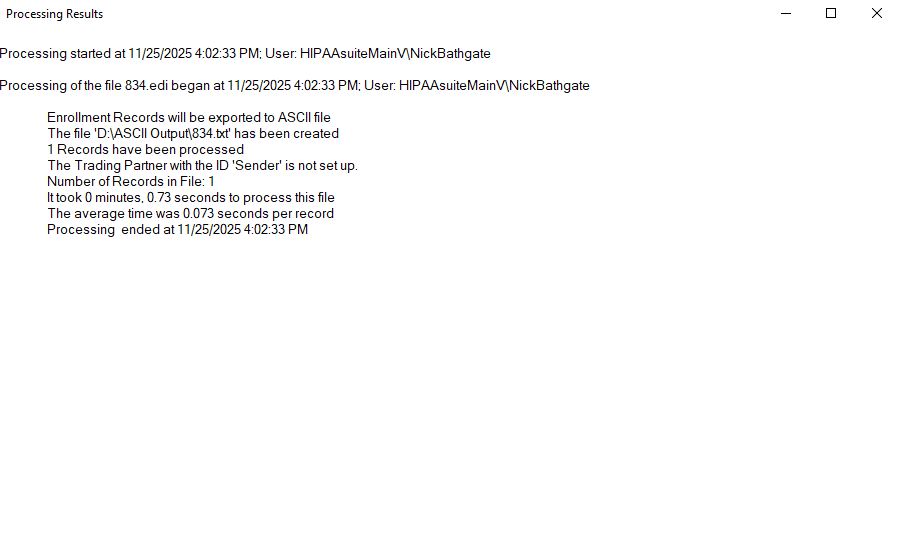
The "Processing Results" window.
5.Open the resulting file to view the data.

A single record as ASCII flat file.
The HIPAA Enrollment Master uses a tab ASCII(9) delimited flat file with CarriageReturn/Linefeed ASCII(10) and ASCII(13) as line end. The first line contains column names, the second and all following lines list the information.