Image Setup |
  
|
Image Setup |
|
1.Select Image > Image Setup in the main menu window.
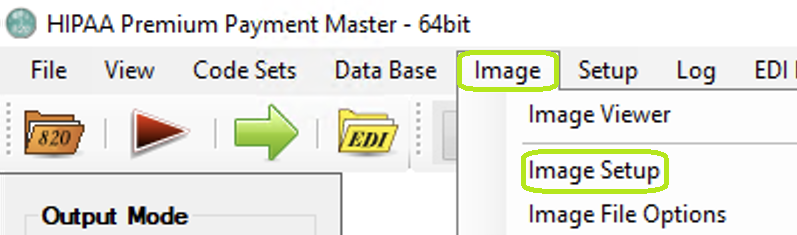
The "Image Setup" menu.
The following window will open:
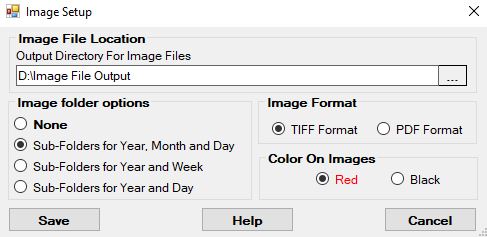
The "Image File Options" window.
2.After making your edits, click "Save."
See the details of each specific option below:

The "Image Files" box.
This box contains specific options regarding the storage and creation of image files. See the settings below:
oOutput Directory for Image Files — Here, you must set the path to the folder where the image files will be saved.
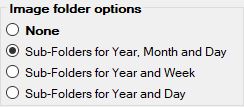
The "Image Folder Options" box.
When you create image files of claims, you could soon end up with thousands of images in one folder. Windows has real problems with folders containing more than 1,000 files. For this reason, the HIPAA Premium Payment Master application can hash the images over many folders to ensure that file quantities per folder remain low.

Folders may be sorted into year, month, and day folders and subfolders.
As shown, there is a folder with the year 2026 under the Output directory, then sub-directories with the month which are further subdivided into days of the month. The "2026/January/19" folder contains all the images created that day.
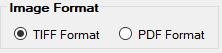
Sample image of how to create a hierarchy.
You may choose either PDF (Portable Document Format) or TIFF (Tagged Image File Format) as claim formats. These are the most widely used image formats.
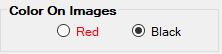
You may choose between Red or Black as a document's color.
This section of the setup window manages the output colors. The form background can be set to red to make the form more visually appealing and to allow the use of a color filter for OCR software.