Creating 820 EDI Files from the Attached Database |
  
|
Creating 820 EDI Files from the Attached Database |
|
Once the EDI Creation module is enabled, you can create EDI files directly from the attached database by following the steps below.
1.Go to Data Base > Create 820 EDI Files in the main menu window.
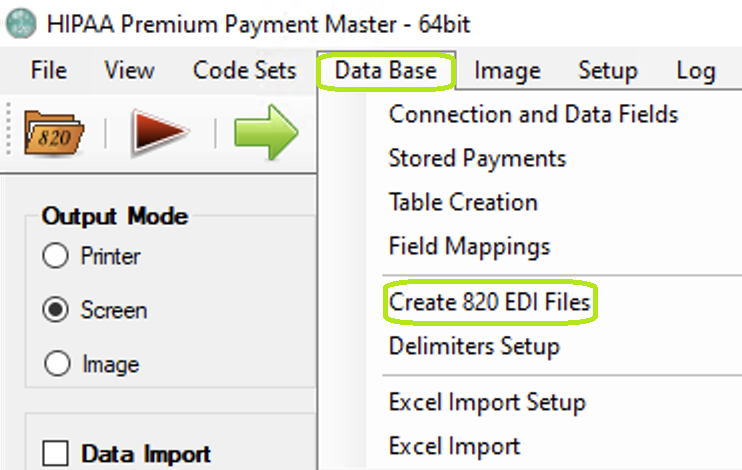
The "Create 820 EDI Files" optionis under the "Data Base" tab.
2.Clicking the "Create 820 EDI File" button in either window will bring up the "Create 820 Transaction Sets" window with the query that you designed.
Note: The fields are described in Understanding the "Create 820 Transaction Sets" chapter.
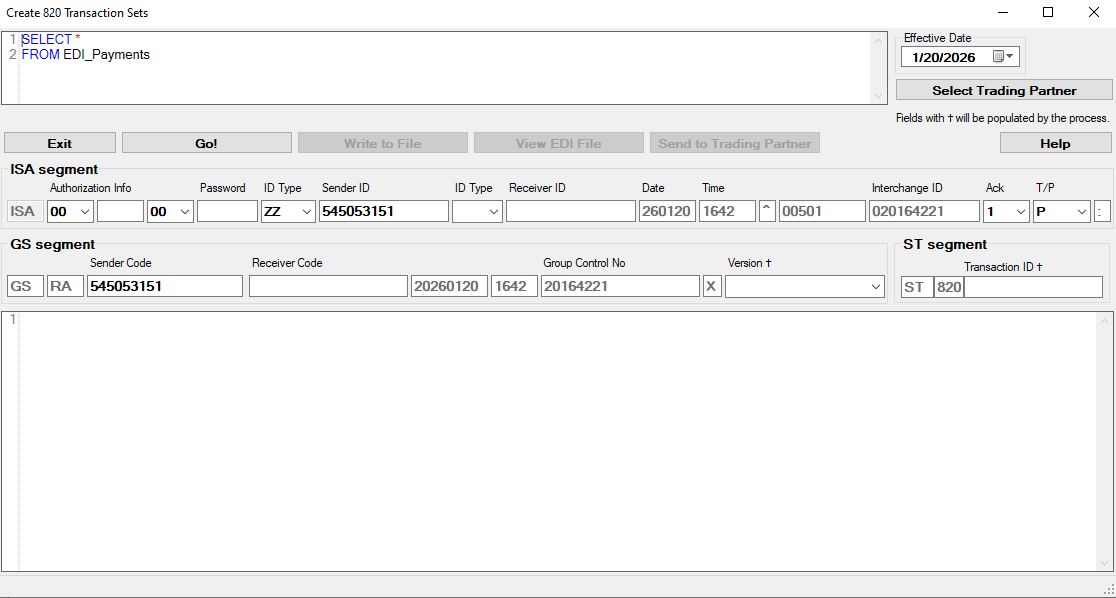
The "Create 820 Transaction Sets" window.
3.After you have filled all necessary values, click "Go!"
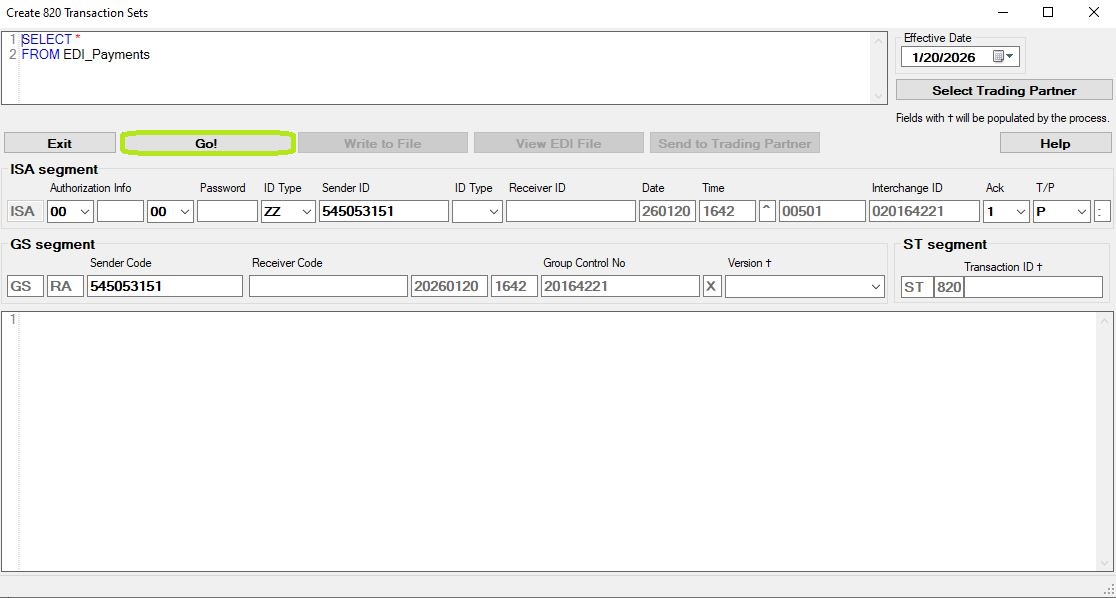
Click the "Go!" button to create the 820 EDI files.
4.A pop-up window will open asking for confirmation to create the 820 EDI files. If you agree, click "Yes."
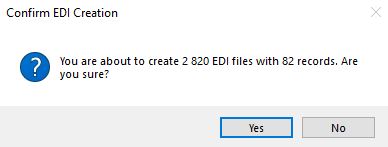
The "Confirm EDI Creation" pop-up.
5.After you click "Yes," the process of assembling the Payment Records to the 820 files starts. You can see the progress bar at the bottom of the window. You can also see the number of files created.

The progress bar at the bottom of the window.

Number of EDI files created.
6.The EDI file will now be displayed within the white text box below the settings. At this point, the file is visible but is not saved to the database.
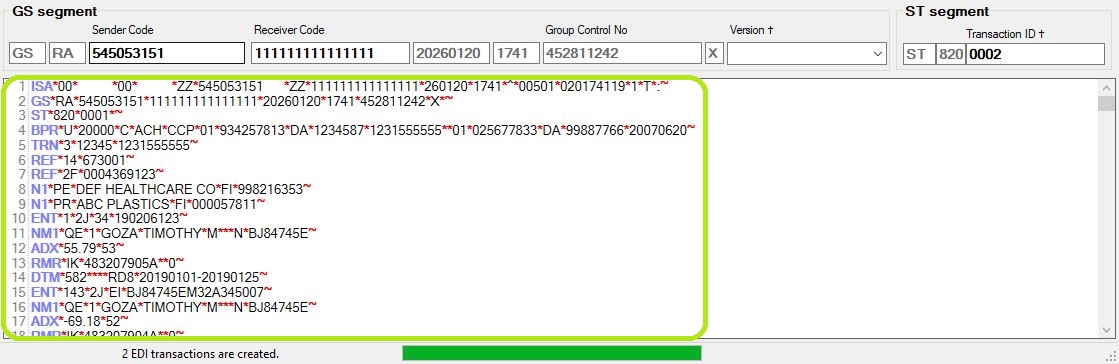
The EDI file content displayed.
7.Click on the "Write to File" button and you will have the choice to determine the location in which to save the file (see more details in understanding the "Create 820 Transaction Sets" Window.")

The "Write to File" button.
8.After successful writing, a pop-up window will show the confirmation and location of where the file was written to.
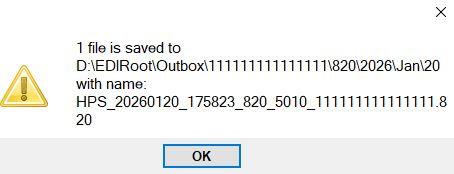
Pop-up confirmation of file saved.
When you have 820 EDI files saved, you may access and view them through the "View EDI File" button. You can bring up the EDI Editor to view and even edit.
1.Within the "Create 820 Transaction Sets" window, click on the "View EDI File" button, which now should not be grayed out.
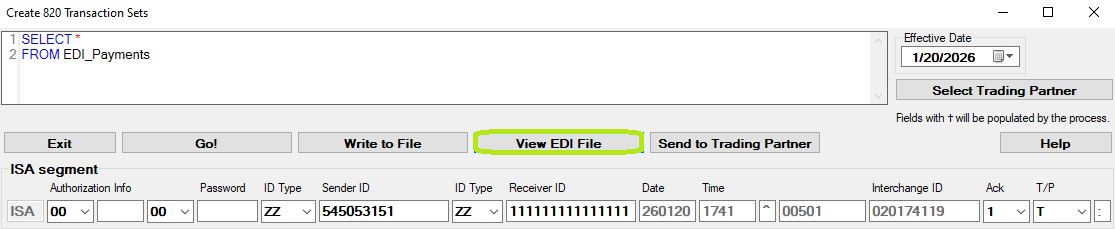
The "View EDI File" button.
The following window will open:
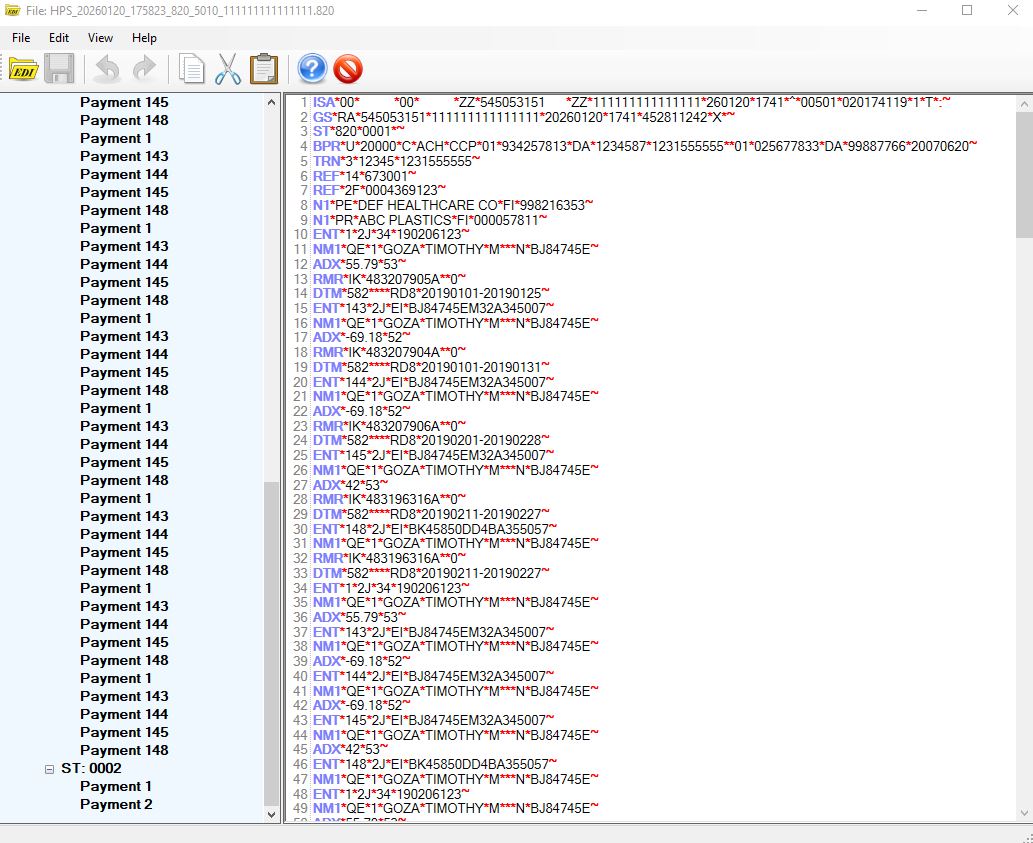
EDI file preview window.
2.With the EDI Viewer, you may view all Payment Records within the EDI file and even edit. To see the EDI Viewer controls in detail, see Using the EDI Viewer and Editor.