Stored Eligibility Responses |
  
|
Stored Eligibility Responses |
|
HIPAA Eligibility Checker allows users to access the imported data. This might help in tracking particular payment advice files. To do this, follow the steps below:
1.Go to Database > Stored Eligibility Responses in the main menu window.
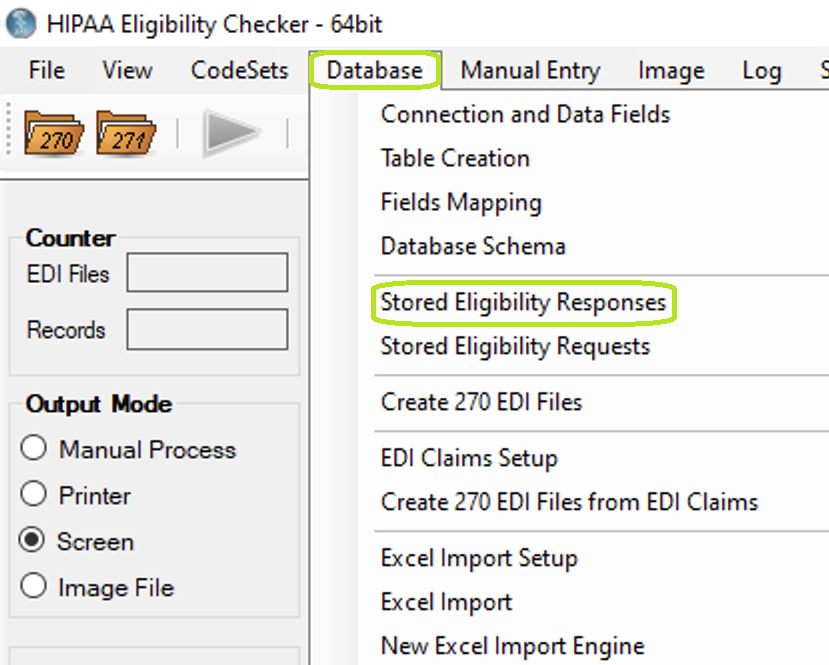
The "Stored Eligibility Responses" option is under the "Database" tab.
The following window will open:
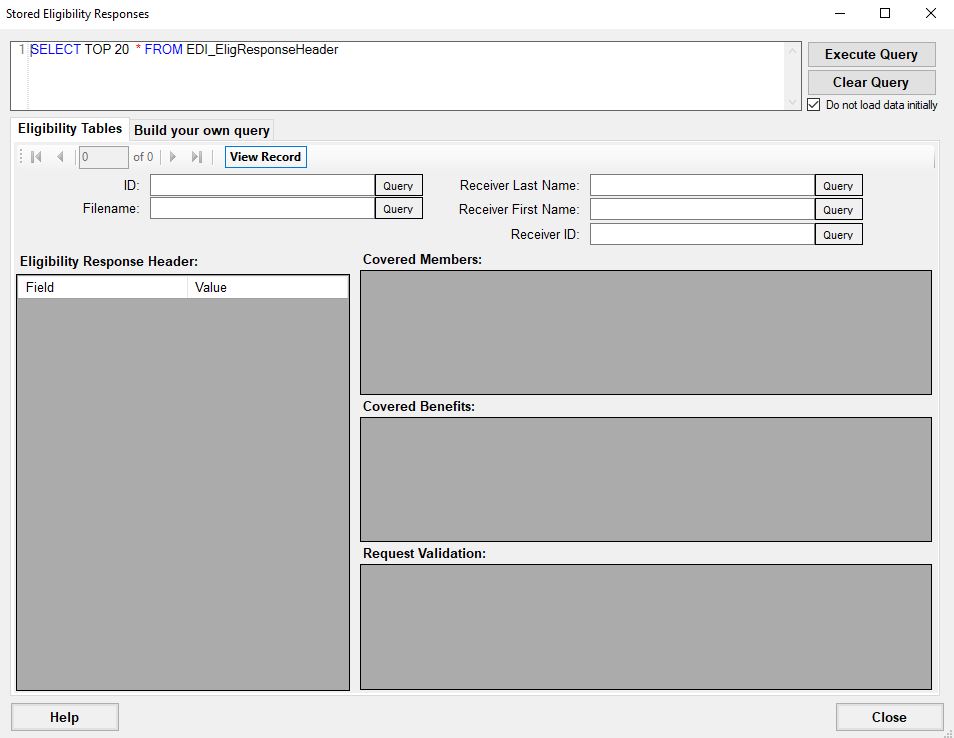
The "Stored Eligibility Responses" window.
2.Running a Query
To search for payment advice files using specific criteria:
1.Enter Query Parameters: Type the desired search value into any of the available fields (e.g., ID, FileName, ReceiverID). This automatically updates the embedded SQL query at the top of the screen.
2.Review the SQL Statement: The system appends your input as a WHERE clause in the SQL query shown at the top.
3.Execute the Search: Click the "Execute Query" button in the upper-right corner of the screen. This runs the SQL query and displays matching results in the lower section.
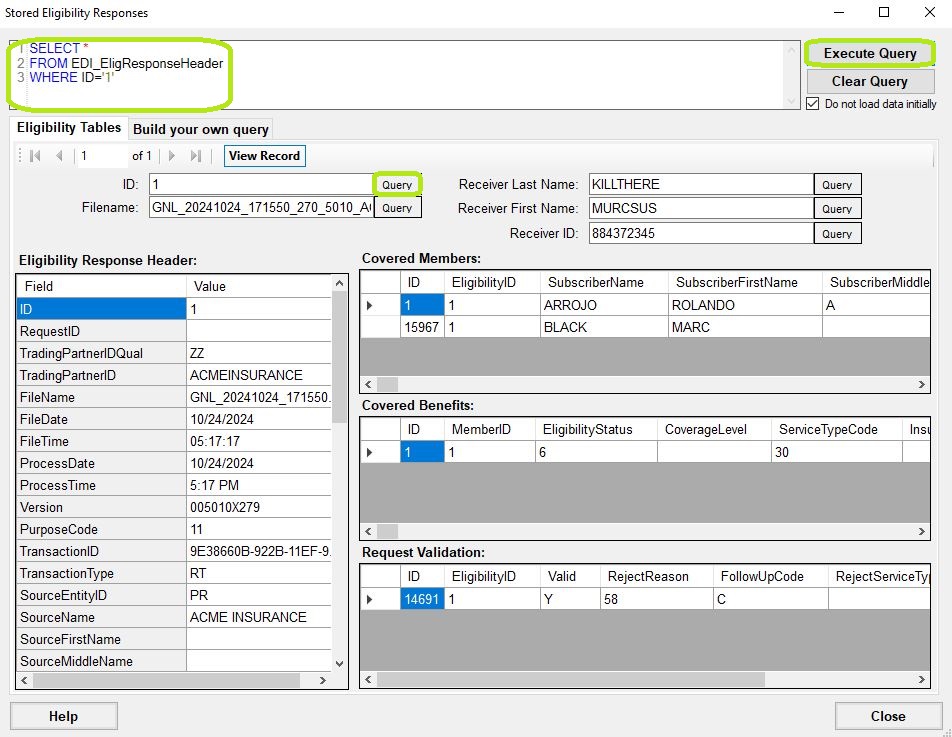
The "Stored Eligibility Responses" window is showing a record from the database.
When you open the screen it shows you the first record in the database and the screen will let you scroll through all the records. You can also enter your own SQL query to select certain records only either as free form query if you are experienced in the database query language or through the "Build your own query" tab
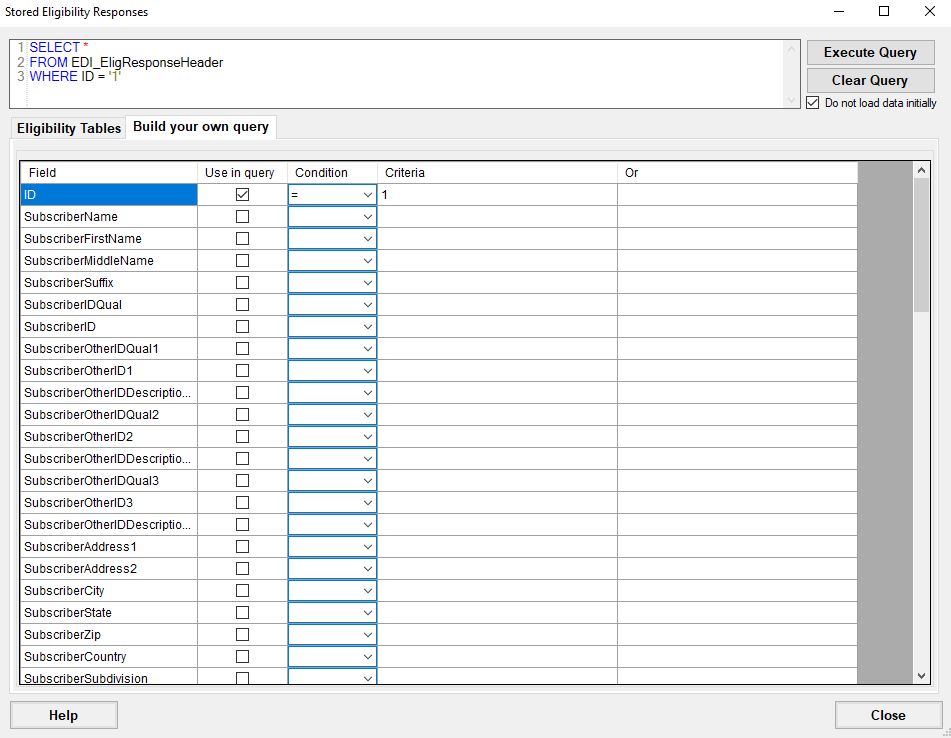
Build your query.
Here you can compose your query using the fields in the database and conditions that you select.
You can edit the table data by typing it into a cell. A dialog will ask you whether you want to save the changes.

Editing the field value.

After editing.
Click the "View File" button to render the payment advice file data in a form on screen.
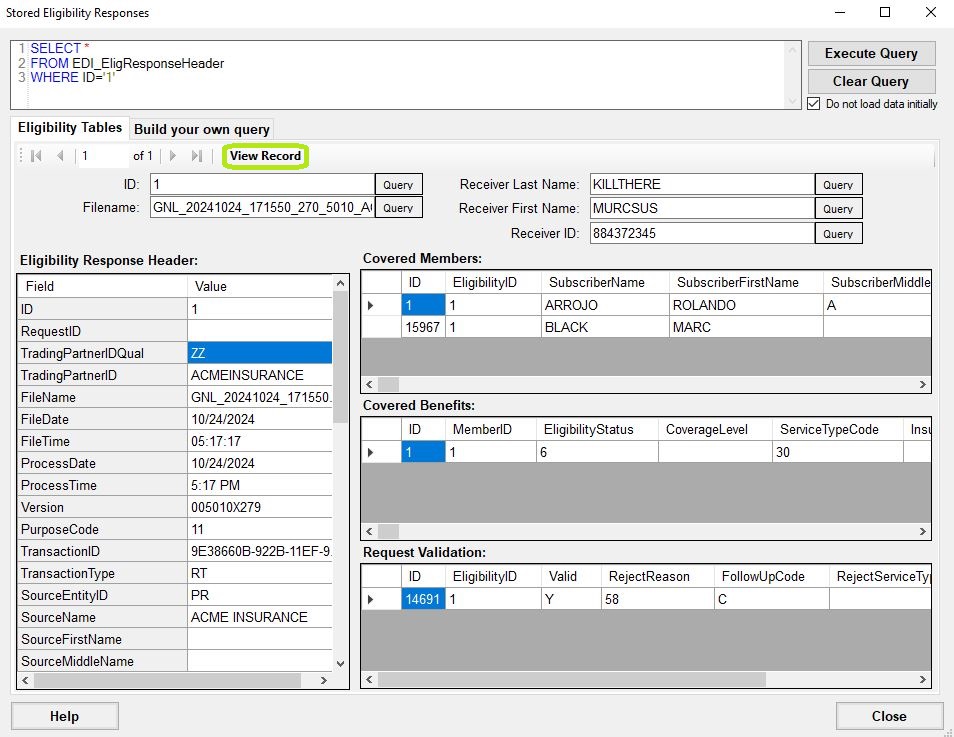
The "View Record" button.
A new window will preview how the payment advice file and its imported fields look:
Note: To preview the payment advice file forms, you must have printer installed on your PC. Microsoft Print to PDF will work as well if there is no physical printer.
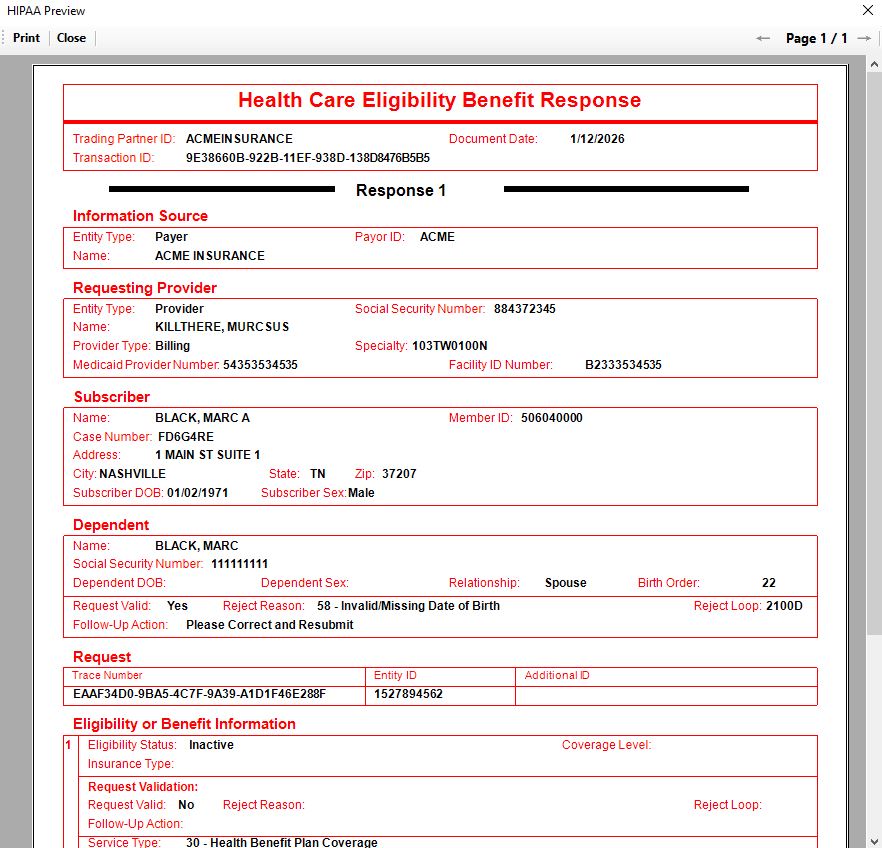
A file image created from a database record.