Sending 270 Requests |
  
|
Sending 270 Requests |
|
1.As covered in Creating 270 Files, clicking "Send To Trading Partner" will initiate the process of sending an Eligibility request.

The workplace grid with a record highlighted, emphasis is placed on the "Send to Trading Partner" button.
2.Clicking "Send To Trading Partner" will prompt you to select a saved Trading Partner who will receive the EDI request. Double click the desired Trading Partner to select it.
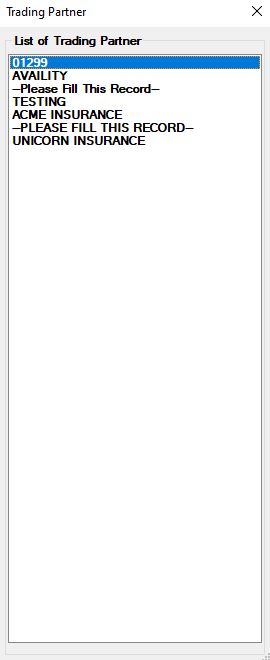
The screen to select the trading partner.
3.We double click and thereby select the trading partner you will be prompted once more to create the EDI file with the selected record after which the EDI request will be sent to the selected trading partner.
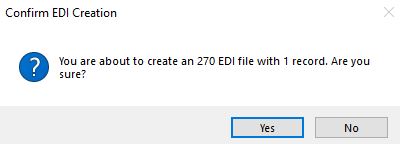
Confirming the creation of the file.
4.Upon receiving a response from the trading partner, the status icon is updated. In RealTime mode, which is used when sending single requests, the statuses after sending a request are:
·send failed 
·999 received 
·response received 
5.An EDI file with multiple transactions can be created by first highlighting multiple rows.
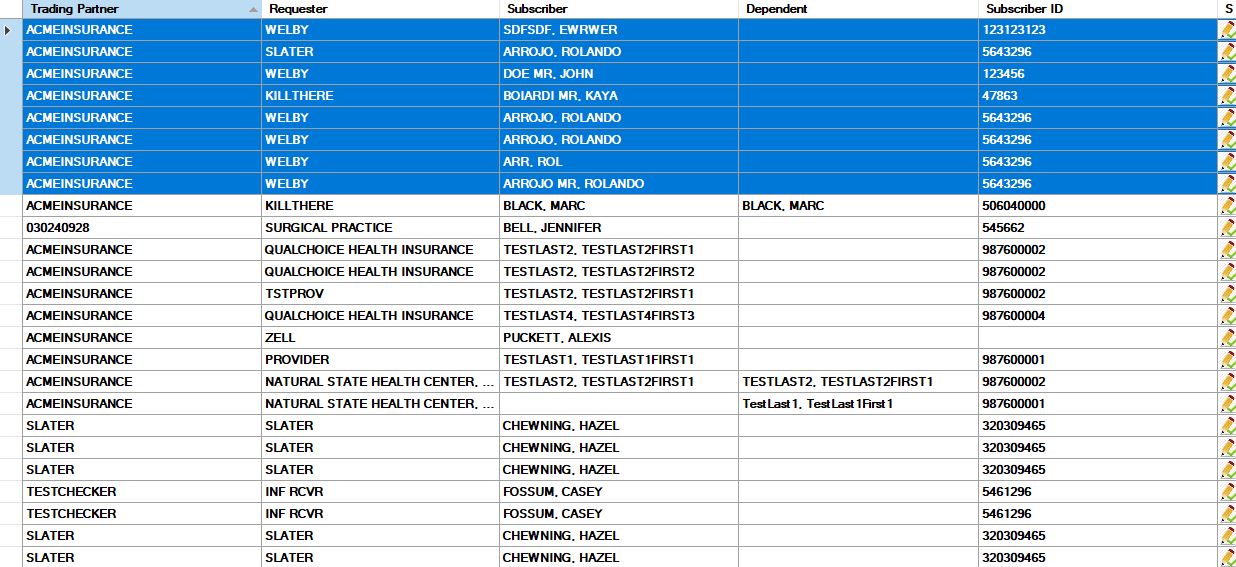
The workplace grid with eight records highlighted.
6.The rest is the same as sending a single request. Click on "Send to Trading Partner" to build and send the EDI file. By selecting multiple rows, an EDI file with multiple transactions is created and sent to the Trading Partner selected in the method assigned during the Trading Partner's setup. The EDI creation confirmation prompt will present the number of transactions to be created. If the Trading Partner's selected transfer mode is MIME or SOAP, the file will be sent in Batch Mode.
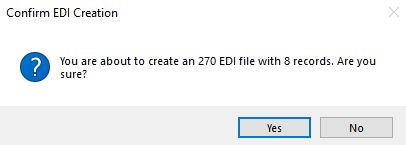
Confirming the creation of the file.
Clicking "Yes" will build the 270 EDI request and send it. Afterwards the process window will be shown. If the Trading Partner's send method is SOAP or MIME, Eligibility Checker will send a SOAP or MIME EDI request in BatchMode. Batch mode requests do not have to be processed until the next business day.