Accessing Daily File Logs |
  
|
Accessing Daily File Logs |
|
The HIPAA Eligibility Checker application keeps a log entry for each file that gets processed. This feature is helpful when the application is run through automated processes, such as Task Scheduler. The log is essential in tracking errors and documentation.
Follow the steps below to access the log files:
1.Go to Log > Daily Log in the main menu window.
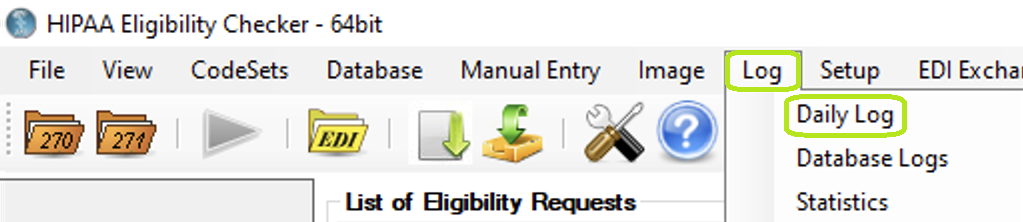
The "Daily Log" option is in the "Log" tab.
The following window will open:
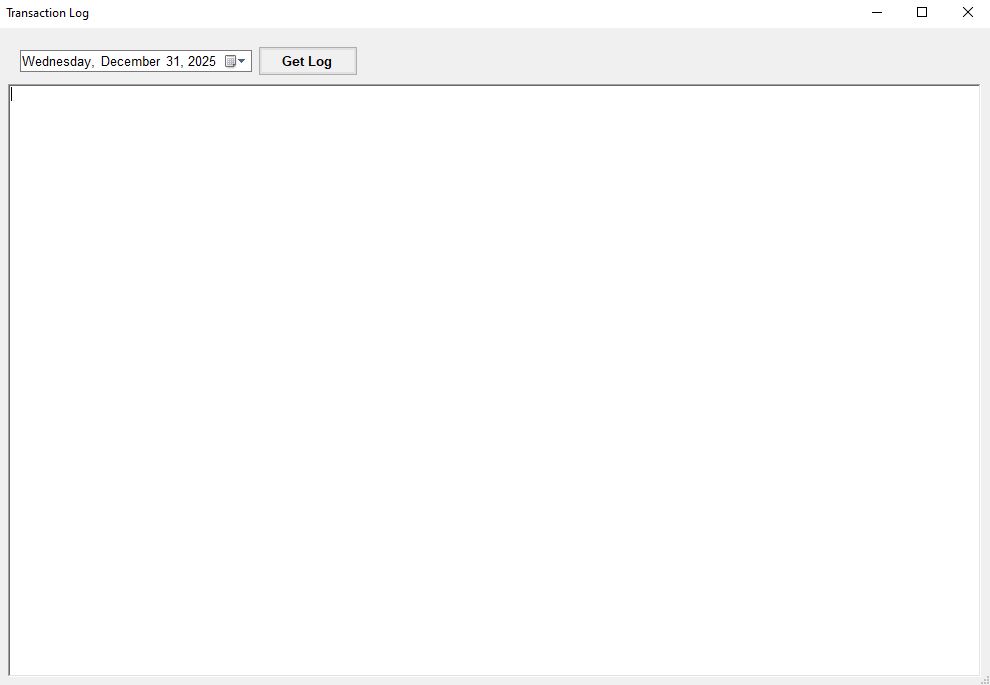
The "Transaction Log" window.
2.Select the date for the log you want to retrieve, then click "Get Log." If you have any transactions logged for the selected date, you will see the following:
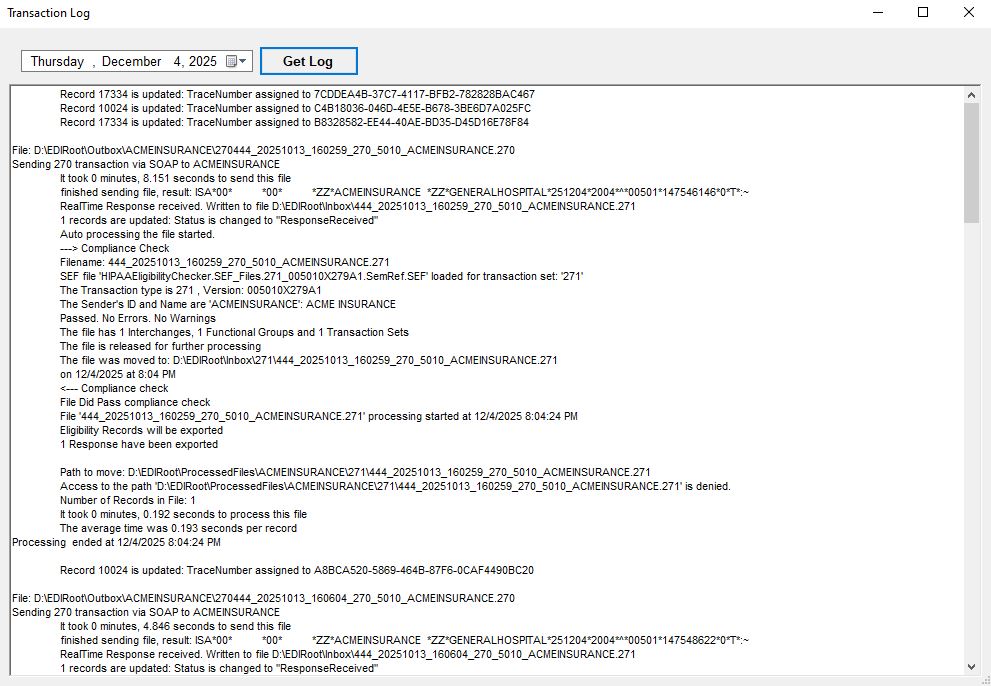
The "Transaction Log" window with results.
The sample log file above is a problem-free file. Out of this entry, you will get:
oFilename
oNumber of payments with claims to be exported
oTransaction type
oSender ID and Name
oFile results
oFile stats
oProcessing end time
oInfo on further processing
If there are no transactions logged under the selected date, the following pop-up window will open:
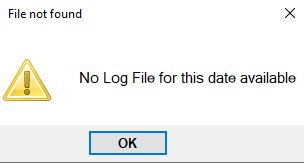
A pop-up window will indicate there are no logs.
Log files are simple text files that are stored in date-hashed folders. You can access the Logs folder following this directory:
oThis PC\Window (C:)\ProgramData\HIPAAsuite\HIPAA Eligibility Checker\Logs
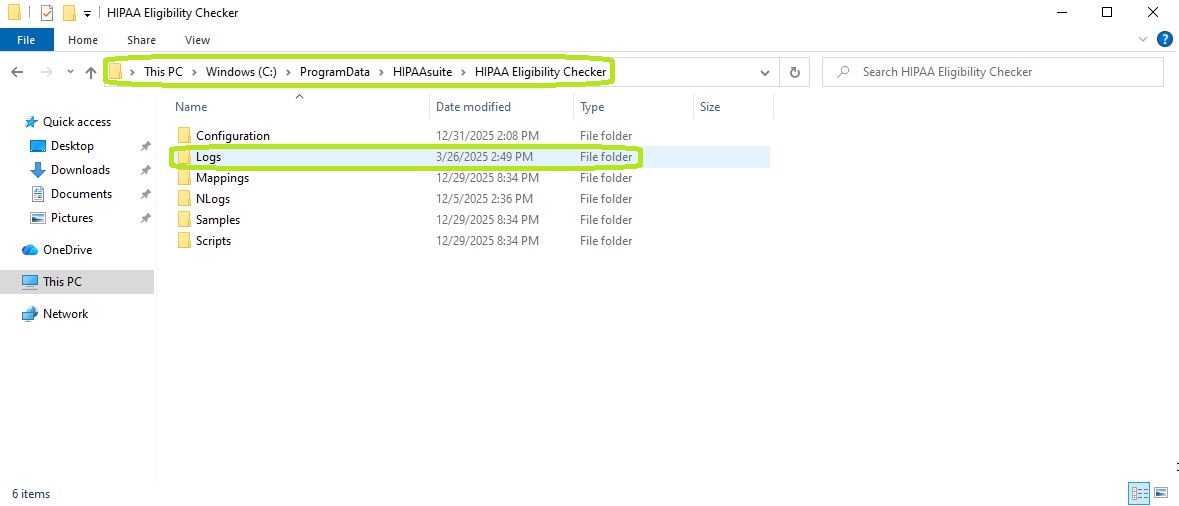
The directory pathway for the daily logs.
The folder is hidden by default. But if you type in the address in the top bar of the File Explorer window, you will find that it exists. Alternatively, you may change the explorer settings to show hidden files and directories.
For each time HIPAA Eligibility Checker is used (if logs are enabled), there will be a log file. If you open the file, it will look like this:
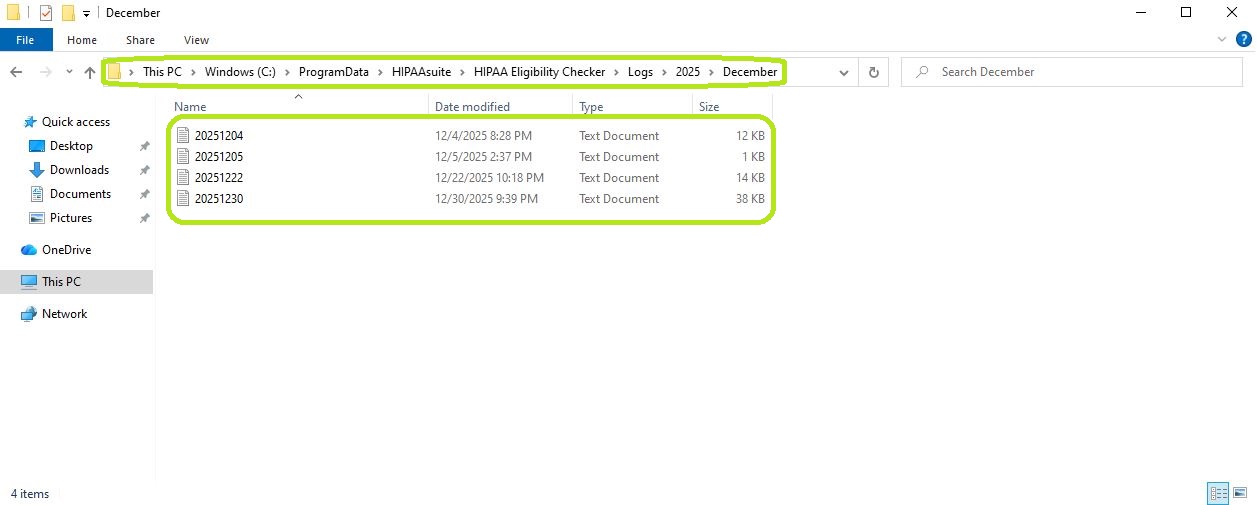
The log text files.