Familiarizing with the Interface |
  
|
Familiarizing with the Interface |
|
The HIPAA EDI Editor application is designed to be as user-friendly and intuitive as possible. Please take a moment to review the basic commands in the main menu before processing anything:
The Tab Menu Bar
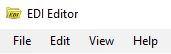
The Tab Menu bar.
oFile — Contains all file-related activities such as opening a file or saving a file, and exiting the program.
oEdit — Contains editing-related activities such as cut and paste, undo and redo, and find and replace.
oView — Lets you show or hide the info bar.
oHelp — Shows the documentation and context sensitive help topics.
The taskbar has the most important functions accessible through quick launch icons.

The Taskbar.
The Taskbar sits below the Tab Menu Bar and it has the most important functions accessible through quick launch icons. The Taskbar shows the following icons: Open, Save, Redo, Undo, Copy, Cut, Paste, Help, and Info Bar.
The info bar is located in the left part of the interface.

The Info Bar.
This panel displays all detected Interchange Control Headers, Functional Groups and Transaction Sets in the EDI file. If you do not see the info bar, there is the "Info Bar" menu item that shows it (the last button located on the task bar also toggles the info bar). Double-clicking an entry in the Info Bar will bring the cursor to the selected ISA, GS, ST, or EDI-specific segment group.