Entering Patient Information |
  
|
Entering Patient Information |
|
The second tab on the manual entry form contains the insured and/or patient information.
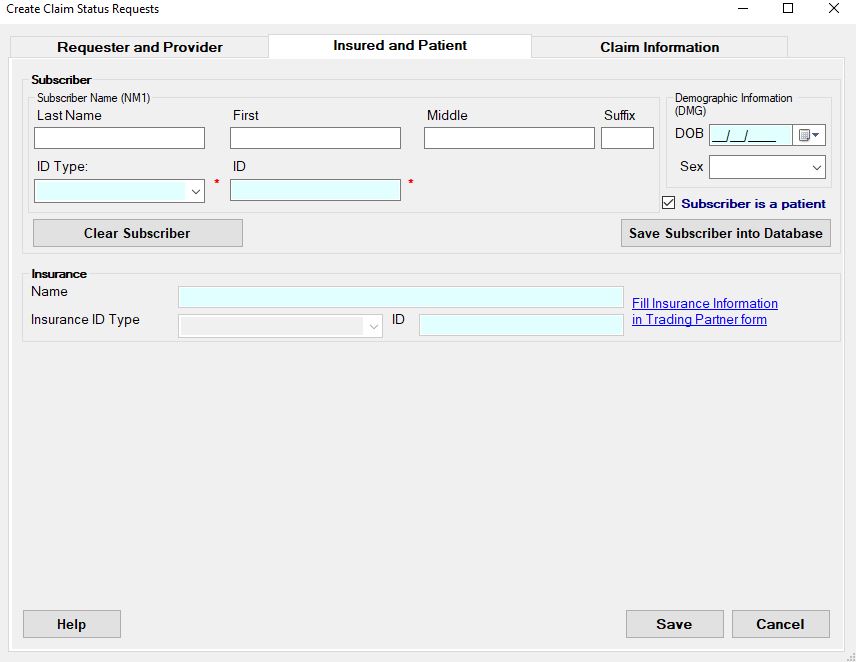
The patient information tab describes a Subscriber and/or dependent.
1.The subscriber is set as the patient by default. But if the patient is a dependent to the insured, then another tab with the dependent information will become visible.

The check mark indicates that the subscriber is the patient.
Let's take a look at a completed Subscriber screen.
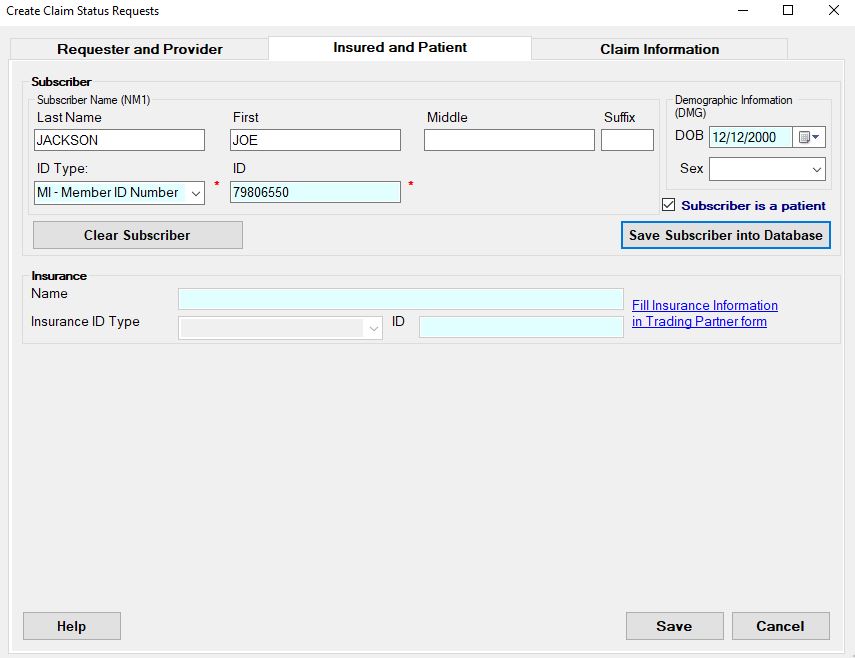
Filled patient tab. Subscriber is the patient.
To the right of the "Subscriber is Patient" check box is the name and id of the insured. Below the check box is a block with demographic information, namely the patient's date of birth and gender.
Like the Requester tab, the Patient tab allows you to save a subscriber's information for future use when you click on the "Save Subscriber into Database" button. Once the record is saved you will see a positive affirmation of the save event.
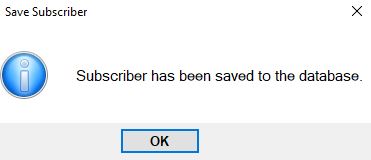
Saving the Subscriber information.
2.If you are using EDI Exchange the Insurance information will be filled automatically for all Trading Partner except VAN. In that case the insurance field is read-only. And there will be a link to Trading Partner form to change information if needed.
Note: Filled automatically Insurance information
If you are not using EDI Exchange or the Trading Partner is a VAN, insurance must be filled manually.
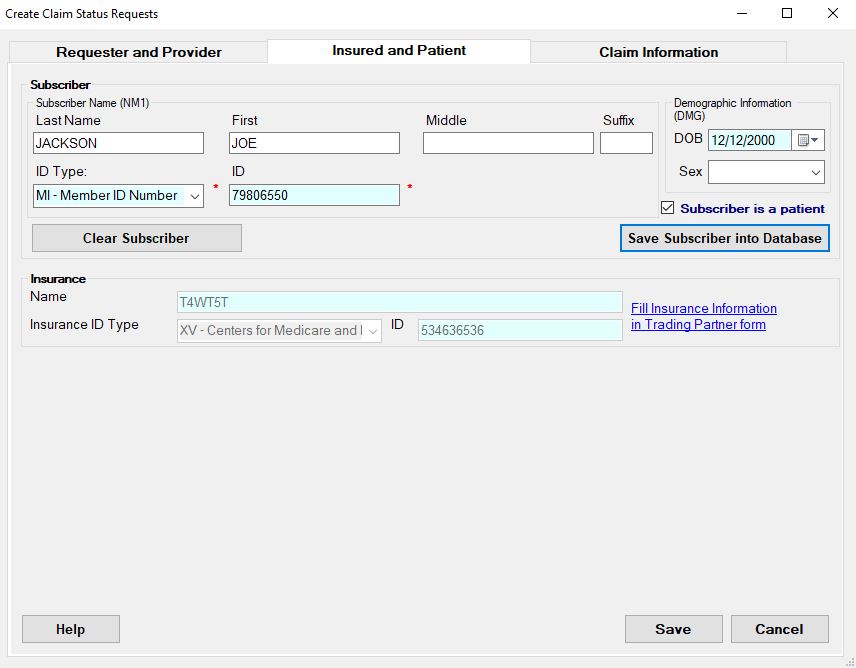
Filled insurance information on patient tab.
Patient tab allows you to save Insurance information if Auto-Complete Mode is checked in Manual Entry settings.
3.To request Claim Status information about a subscriber's dependent, first uncheck the "Subscriber is a patient" check box.

Unchecking the Subscriber is Patient check mark.
4.Unchecking "Subscriber is a Patient" will present the dependent fields, where you can fill in a dependent's information. This field block, like the subscriber field block, also has a button to save the dependent information into a database and his/her info can be auto-filled the next time around.
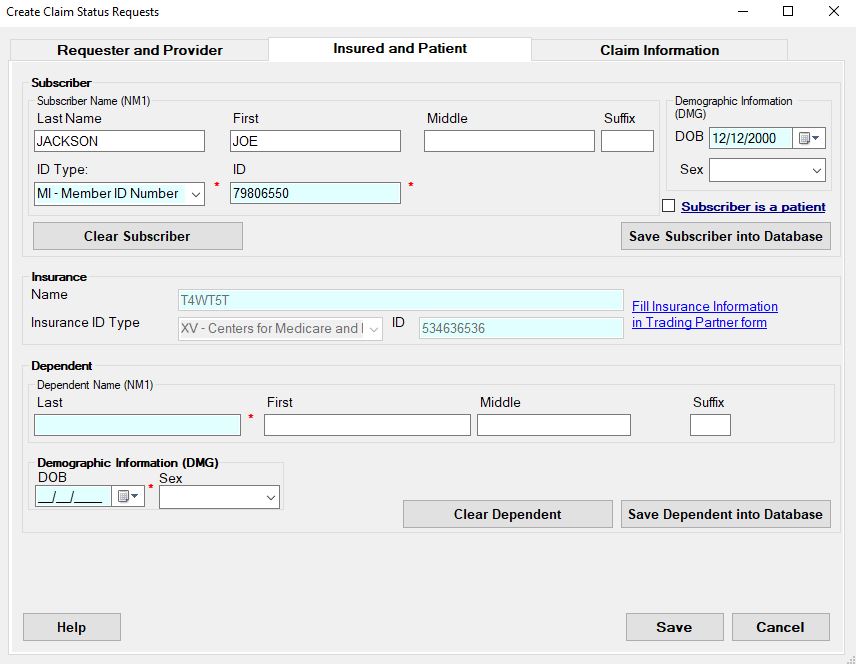
Blank Dependent entry fields.
The field entry and save procedure for the dependent is the same as for the subscriber.