Stored Patients |
  
|
Stored Patients |
|
1.To access all currently stored Patients, go to Manual Entry > Stored Patients in the main menu window.
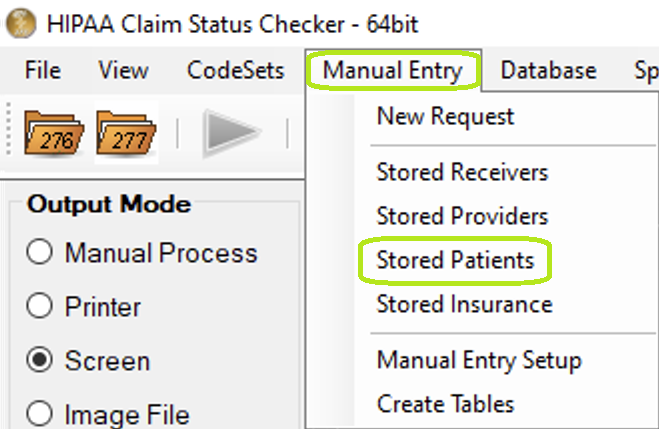
"Stored Patients" under "Manual Entry" in the main menu.
2.Clicking Manual Entry > Stored Patients will open the "Stored Patients" editing window, where all Patients stored in the database are available for editing. Patients can also be added or removed from the database.
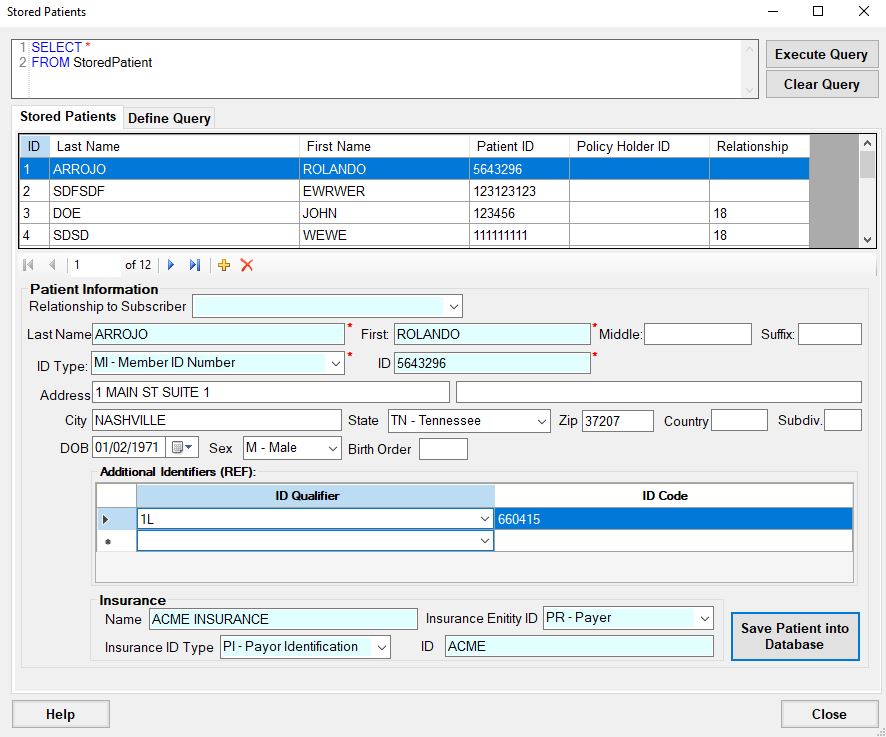
"Stored Patient" window.
3.To add a new Patient, click the yellow "plus" symbol on the navigation bar.

Adding a new patient option.
4.The Patient fields will be cleared. Fill in at minimum the required fields marked by a red asterisk. To save the new Patient to the database, click the "Save Patient into Database" button.
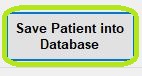
"Save Patients into Database" option.
The new Patient will now appear in the list of Patients under the query window.
5.To modify an existing Patient, select the Patient on the list under the query window. To narrow the selection of Patients, the query in the top of the screen can be modified and run again to populate the stored Patients list with a different set of Patients.
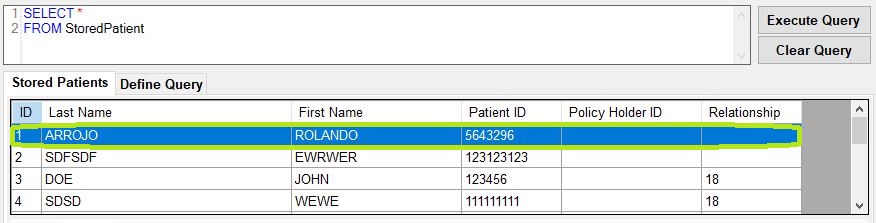
Stored provider list.
6.The selected Patient's details will be loaded into the form. These can now be edited. Clicking the "Save Patient into Database" button will save any changes into the database.
7.To remove a Patient from the database, select the Patient on the list under the query window, then click the red "X" in the navigation bar.

Deleting a patient option.