Creating Tables |
  
|
Creating Tables |
|
How to Create Tables
In order to facilitate the development, HIPAA Claim Status Checker allows you to create the staging tables for your database where HIPAA Claim Status Checker will export the claim data.
Before data export, you need to create the tables through SQL table statements. You can do it using the built-in function of the HIPAA Claim Status Checker. Creating these tables is a quite intimidating task. Once you have your connection defined and tested, follow the instructions below.
Note: The tables are created via the "Drop Table" and "Create Table" commands. The scripts come from two files: EDI_ClaimStatusHeader.sql and EDI_ClaimStatusDetail.sql that are distributed with the application. Please, contact HIPAAsuite if you need help with the database setup.
1.Go to Database > Table Creation in the main menu window.
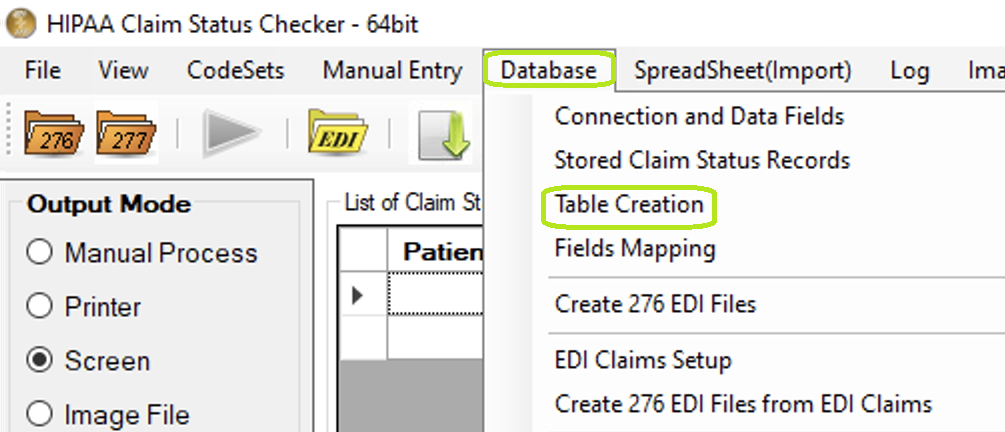
The "Table Creation" menu.
The following window will be displayed.
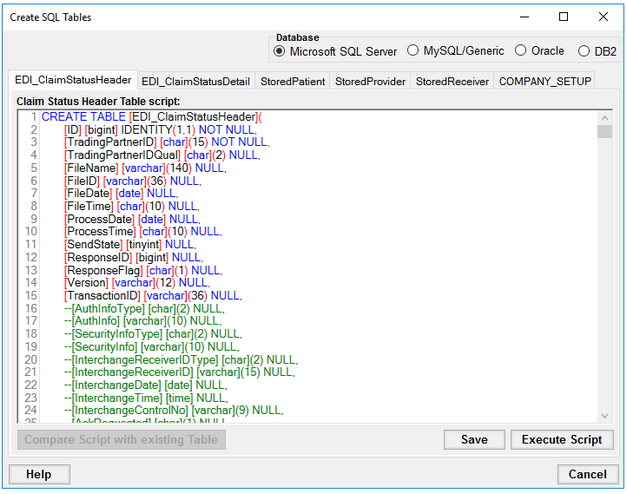
The "Table Creation" window.
2.Define the following options:
Database

The "Database" box with the four database options.
Within the "Database" box, the user may select one of four Database options, as listed below:
oMicrosoft SQL Server
oMySQL/Generic
oOracle
oDB2
There are four Database types the HIPAA Claim Status Checker supports:
oMicrosoft SQL Server
oMySQL/Generic
oOracle
oDB2
In the following sections, you will see the scripts for each Database type. If you have a database that is not mentioned here, we recommend two options:
oHave a database administrator change the scripts to work.
oCreate the fields in your database administration tool according to the specifications in the scripts.
Scripts
On the following tabs there are SQL scripts used to create the appropriate tables:
·EDI_ClaimStatusHeader Tables Script
·EDI_ClaimStatusDetail Tables Script
·StoredPatient Tables Script
·StoredProvider Tables Script
·StoredReceiver Tables Script
·COMPANY_SETUP Tables Script
Tip: You can modify the scripts so that they run on your specific database and to conform to your database's specific SQL syntax. For each script, click "Save."
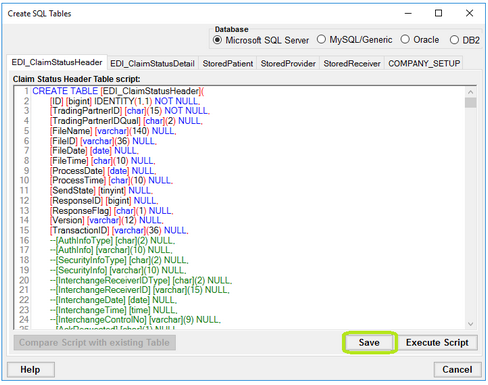
The "Save" button.
For each script, click "Execute Script" to create the corresponding table in the database.
Warning: If the database tables already exist, executing the “Create Table” scripts will drop and recreate those tables. This means:
·All existing data in those tables will be permanently lost.
·Any customizations made to the table structure will be overwritten.
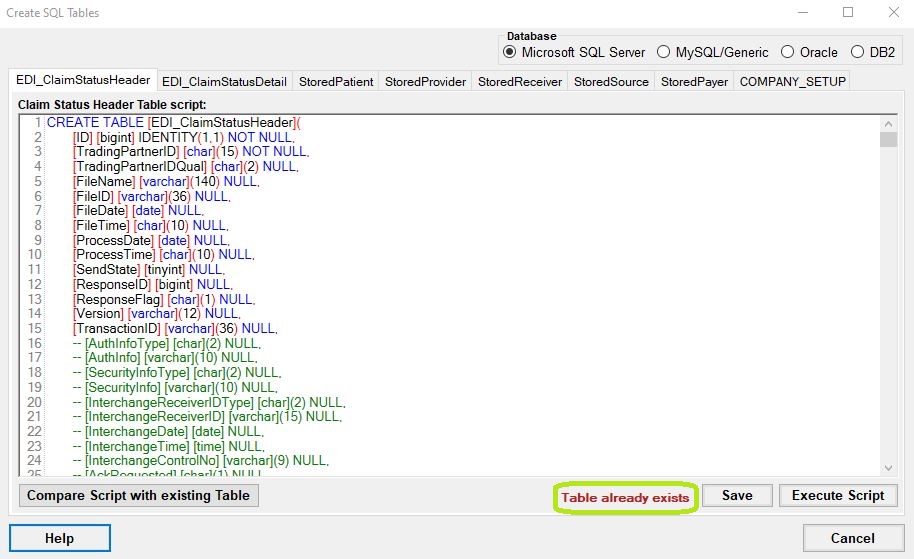
Table already exists.
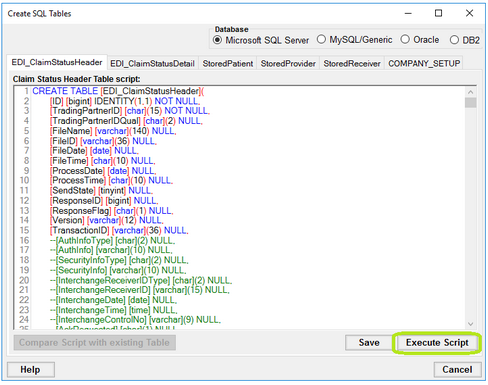
The "Execute Script" button.
Once the table has been created successfully, you will see the following notification:
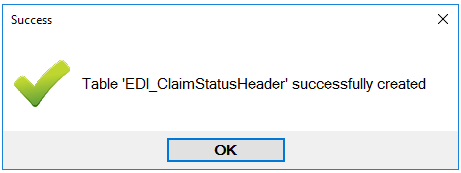
The success message.