Creating Image Files from EDI Files |
  
|
Creating Image Files from EDI Files |
|
You can create image files manually or automatically using the command line arguments and Windows Scheduler. See more in Using Command Line Arguments (CLI) and Running the Application via Task Scheduler. Follow the steps below to create image files from EDI files manually:
1.Go to File > Open for a single file or to File > Open Directory for multiple files as seen below (see Processing an Electronic Claim and Processing an Entire Directory.)
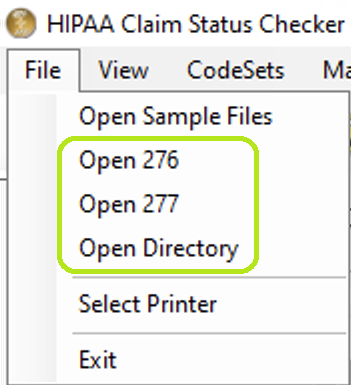
The "Open 276", "Open 277", and "Open Directory" options are under the "File" tab on the main menu.
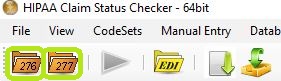
The "Open File" icon is in the Task Bar.
2.Select the "Image File" option as the "Output Mode."
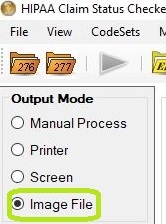
The "Image File" mode.
3.Click the "Run" button.
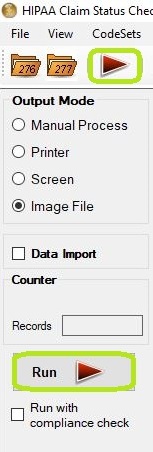
The "Run" button options in the main window.
4.The "Processing Results" window will pop-up and display the report. You can find the TIFF or PDF files in the specified folder.
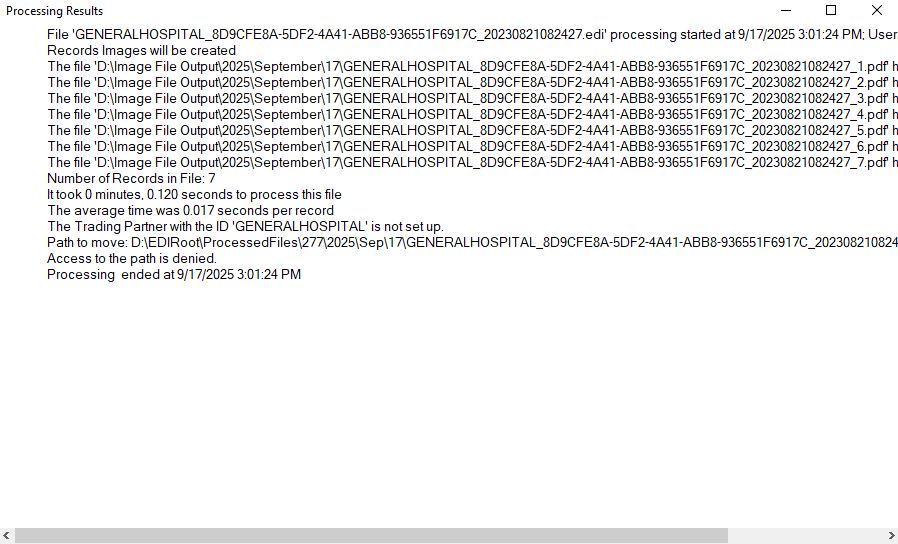
The "Processing Results" window.
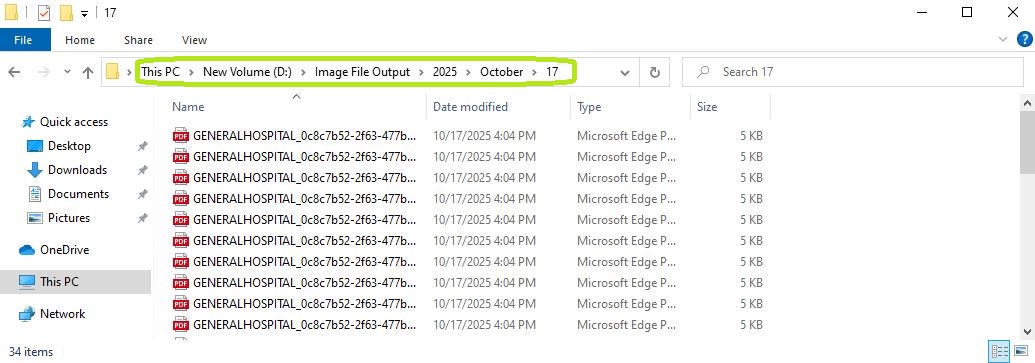
The "Image Index Output" folder is where images can be found.