Opening an EDI file |
  
|
Opening an EDI file |
|
1.Go to File > Open in the main menu window.
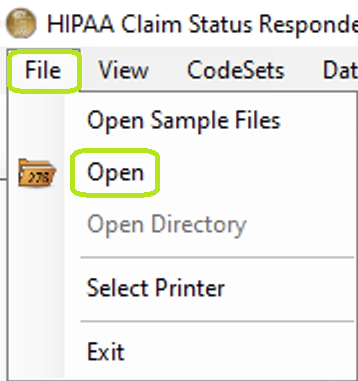
Click the "Open 276" tab to search for an EDI file.
Alternatively, click on the "Open Document" icon shortcut located on the program toolbar.
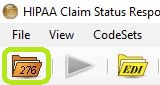
The "Open Document" icon.
2.Browse through the folders and select a file with .edi extension. Click "Open."
Note: Only claim files in "ANSI 276 " format can be opened via the Claim Status Responder. The program will display an error message if you select a file in a different format.
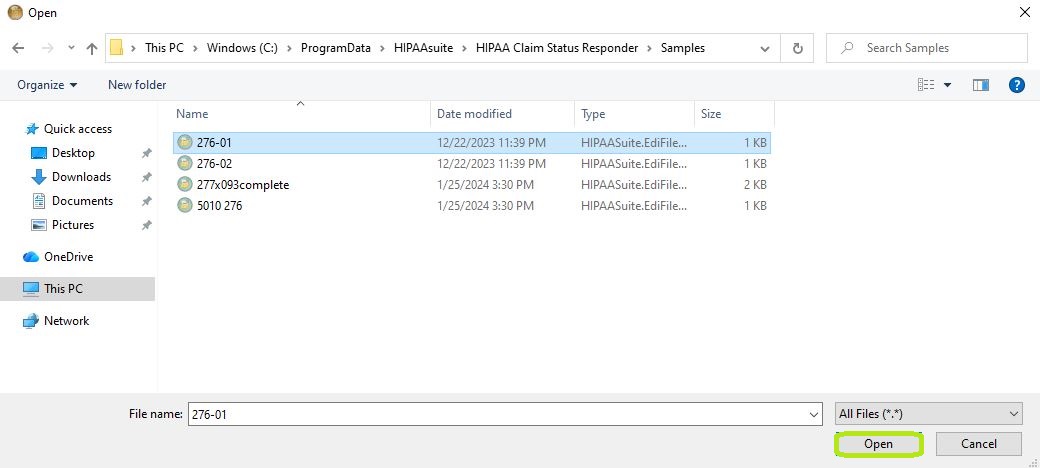
The "Open" window.
Now you can click on the "Read File" button and you will see the listing of individual requests in the request grid.
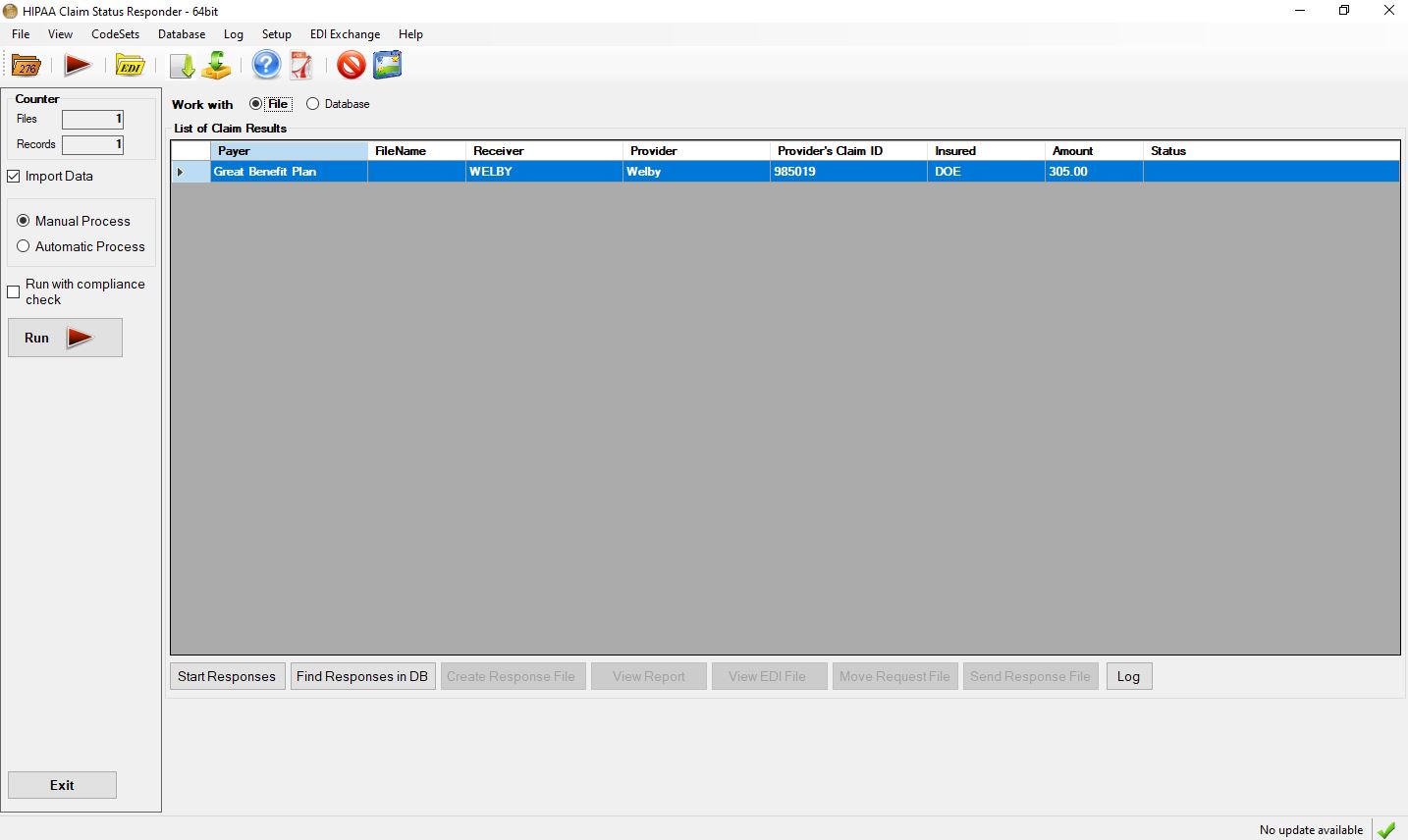
After parsing a 276 request file the individual requests are displayed.
We can see that this particular 276 file contained 3 different requests. The spreadsheet lists the payer, the receiver of the response file and the provider and the claim number as well as the insured and the claim amount.
Please note that the last column with the status information is empty.
We can either double-click on a row in the request grid or by clicking on the "Start Responses" button. The "Start Responses" button will start with request number one. If working with DataBase, clicking "Find Responses in DB" before starting work on the responses will pre-load the next step with information from the database. This can also be done after having clicked "Start Responses" in the next window.
Once the status information has been added, one can create the response file by clicking on the appropriate button. Once the file has been created the "View Report" and "View EDI File" buttons will be enabled
The "Move Processed File" button will move the file to the directory that has been specified in the setup.