Processing a Payment Advice File |
  
|
Processing a Payment Advice File |
|
Follow the instructions below to open a single EDI file and display its details on screen in easy-to-read table format.
1.Go to File > Open in the main menu window.
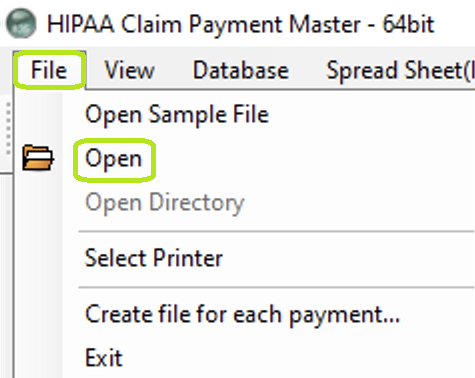
Click the "Open" tab to search for an EDI file.
Alternatively, click the "Open Document" icon in the Taskbar.
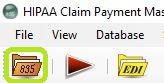
The "Open Document" icon.
2.Browse through the folders and select a 835 file. Then, click "Open." (update pic)
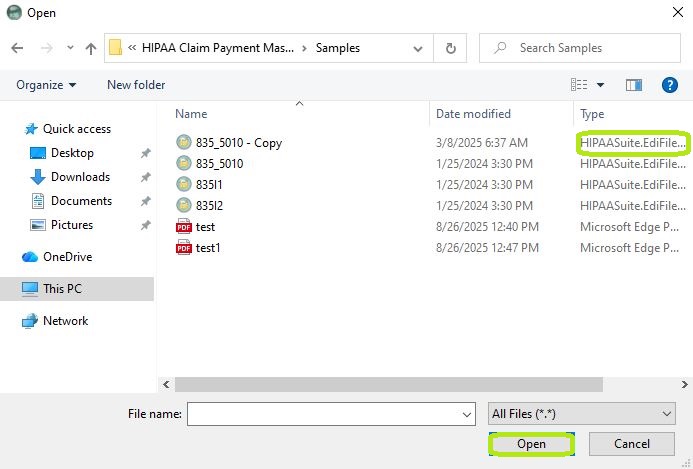
Choose a 835 file.
Note: Only files in "ANSI ASC or X12 835" format can be opened with the HIPAA Claim Payment Master application. An error message will be displayed if you select a file in a different format.
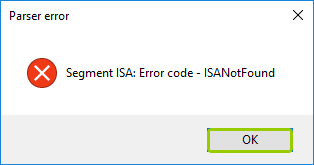
An error pop-up message.
3.Select one of the options in the "Output Mode" box. In our example, we selected the "Screen" mode.
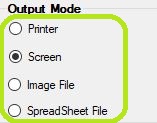
The "Output Mode" box is in the Info Bar.
4.The file is now open. Click the "Run" button in either the Taskbar or at the bottom of the Info Bar to process the file.
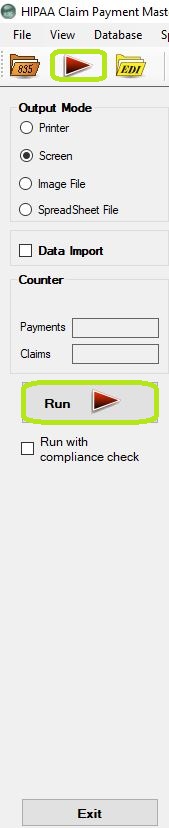
You can process Payment Advice Files by clicking "Run" in the Taskbar or the Info Bar.
5.When you click the "Run" button, the file will be parsed and the information displayed. Since in our example the output mode is "Screen," the Payment Advice File is displayed in a separate window. See Displaying Payment Advice File.
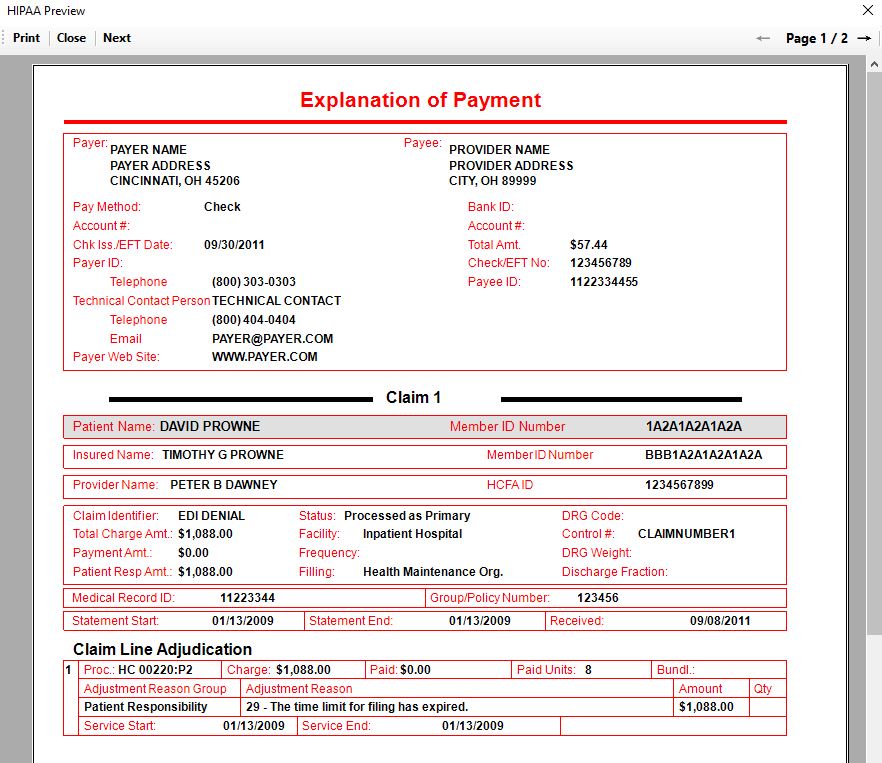
The 835 EDI file is displayed in a separate window.