Creating Company Setup Table |
  
|
Creating Company Setup Table |
|
You can create the Company Setup Table by following the steps below in the HIPAA Claim Payment Master.
This feature allows you to compare the saved table creation script with the existing schema of the company_setup table in your database, ensuring the structure is correct and up to date.
1.To configure the program options, select Setup > Create Company Setup Table in the main menu window.

The "Setup" menu and "Create Company Setup Table" button.
2.The following screen will appear.
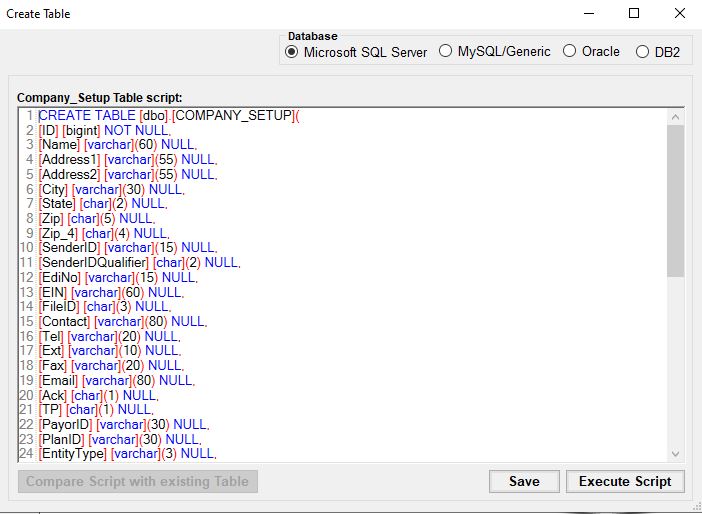
The "Create Table" window.
3.This window allows you to edit, save and run the table scripts.
4.Choose the database you are connecting to:
·Microsoft SQL Server
·MySQL/Genetic
·Oracle
·DB2
Tip: You can modify the scripts so that they run on your specific database. Be sure to hit save.
5.Once you have you modified the script, click "Save."
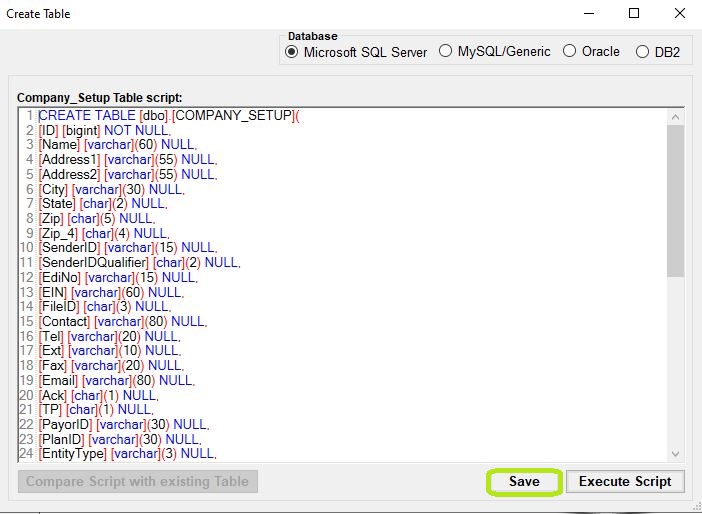
The "Save" button.
6.Click "Execute Script" to create the table in the database.
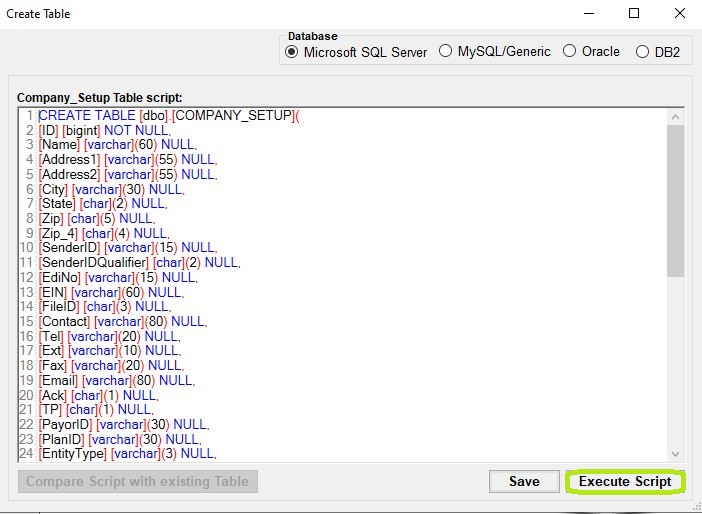
The "Execute Script" button.
The Execute Script button runs the SQL query within the connected database to create the company_setup table. If the table already exists, the application will prompt you to confirm the loss of any existing data before recreating it.
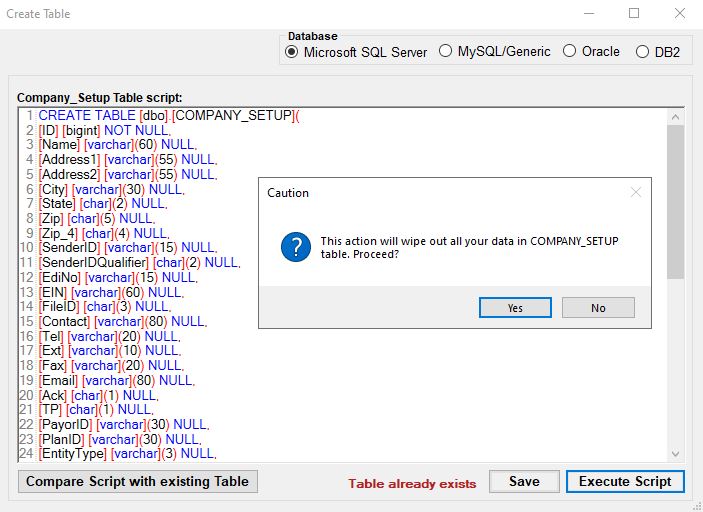
"Company Setup Screen - Execute Script Confirm."
Once the table has been created successfully, you will see the following notification:
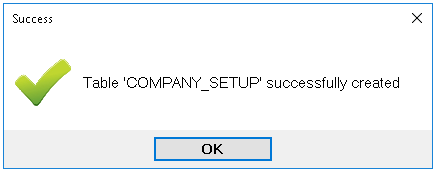
The success message.
Warning: Executing the script will wipe out any existing data in a previously created table.
Make sure there are no any error messages for successful table creation.
Compare Script with Existing Table
Occasionally, scripts are updated as new features are introduced—this may include additional fields or modified definitions. Keeping the table schema aligned ensures proper functionality of the software and prevents run-time errors.
1.Compare Schema
When you initiate the comparison, the application checks the saved script against the actual database schema for the company_setup table.
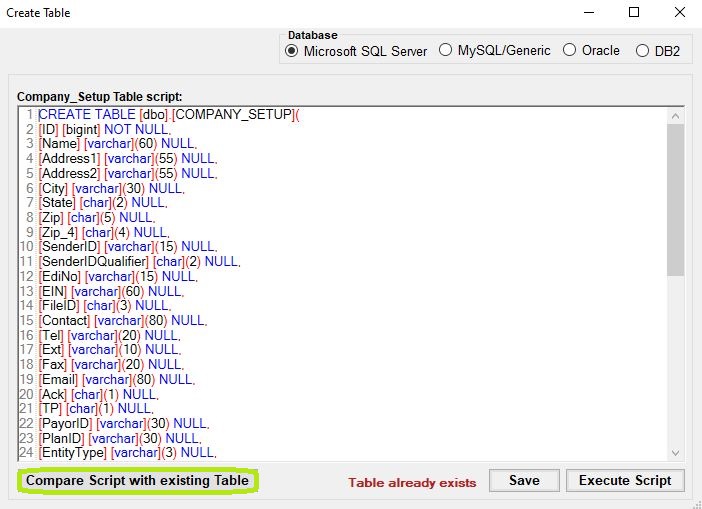
"Company setup table screen - Compare Script with existing Table."
2.No Differences Found
If there are no differences, the system notifies you that no updates are needed. You can proceed without taking any further action.
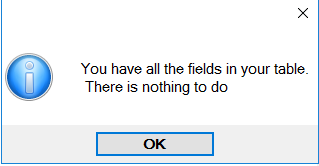
"Company setup table screen - no difference message."
3.Differences Found
If differences are detected, the system opens a comparison window highlighting the schema discrepancies. This is useful for identifying structural mismatches caused by older scripts or manual changes to the database.
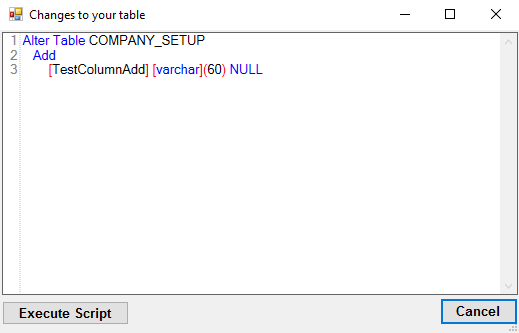
"Company Setup Screen- difference screen."
4.Apply Changes
Click the Execute Script button in the comparison window. This will apply only the missing or changed fields to your database schema.