Creating 835 EDI Files From Grouped Claims |
  
|
Creating 835 EDI Files From Grouped Claims |
|
Once the EDI Creation module is enabled, you can create EDI files directly from grouped claims by following the steps below.
1.Go to Database > Create 835 EDI Files in the main menu window.
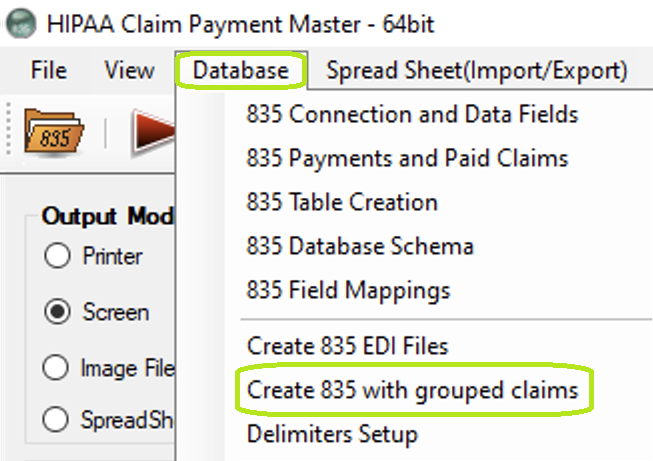
The "Create 835 EDI Files" optionis under the "Database" tab.
2.Clicking the "Create 835 EDI File" button in either window will bring up the "Create 835 Transaction Sets" window with the query that you designed.
Note: The fields are described in Understanding the "Create 835 Transaction Sets" chapter.
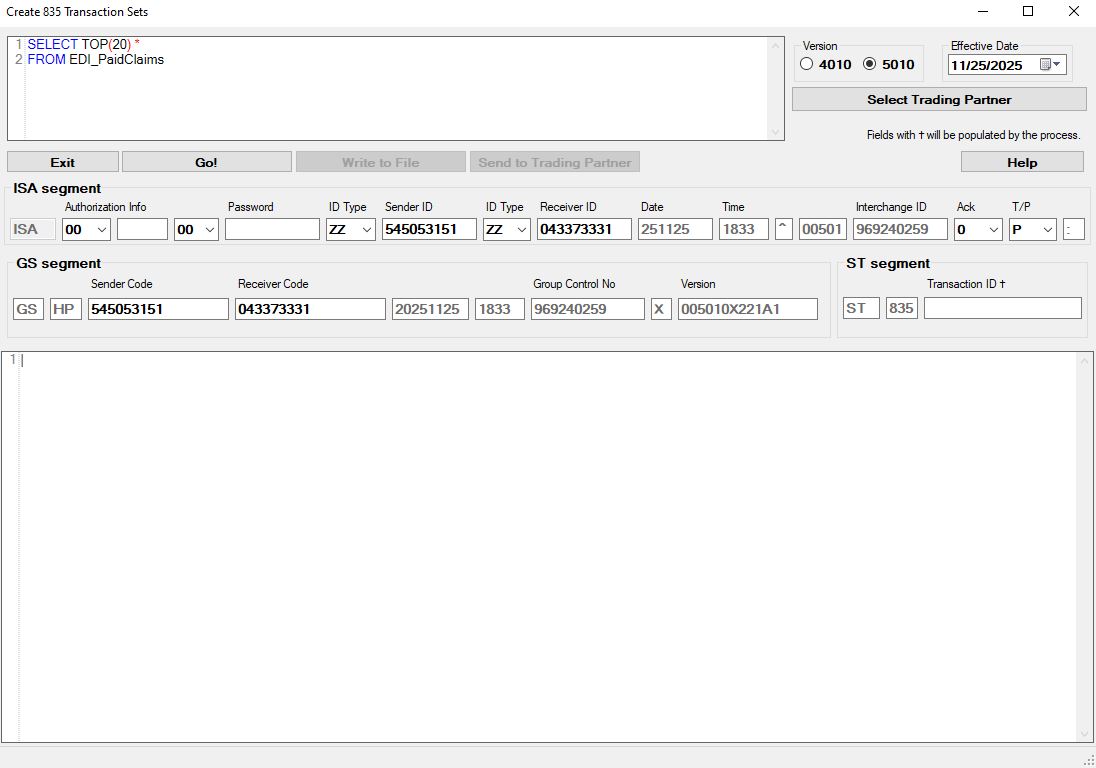
The "Create 835 Transaction Sets" window.
3.After you have filled all necessary values, click "Go!"
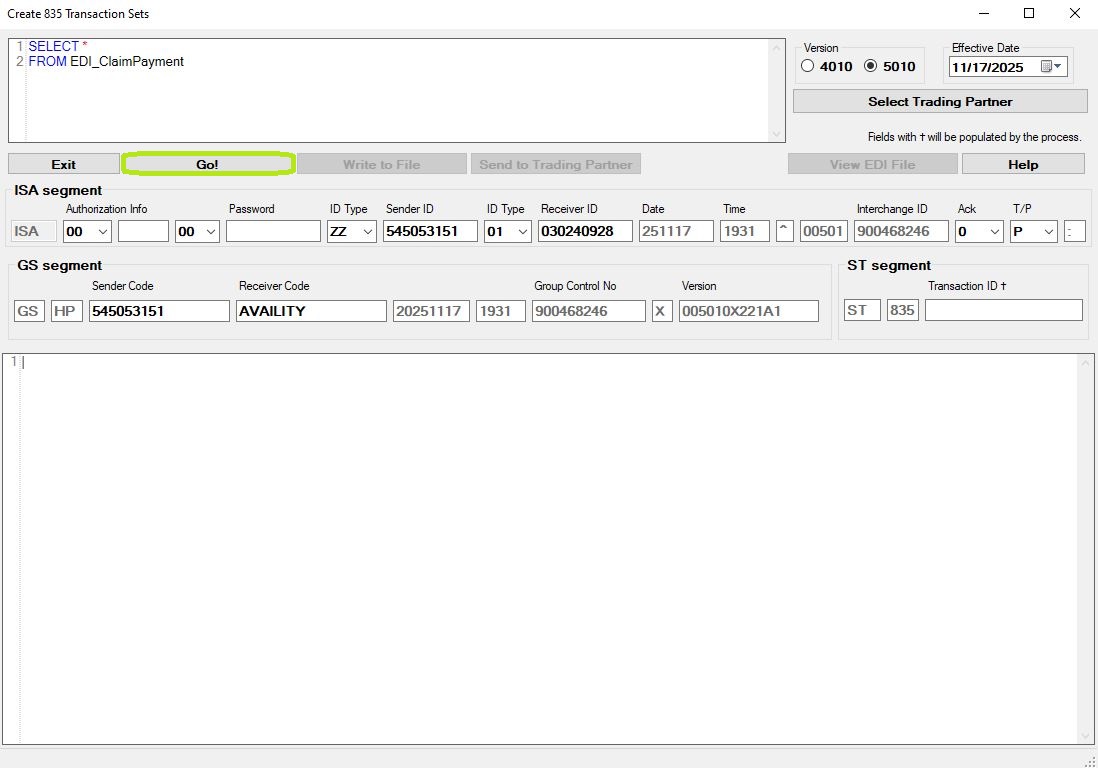
Click the "Go!" button to create the 835 EDI files.
4.A window will open showing the processing results.
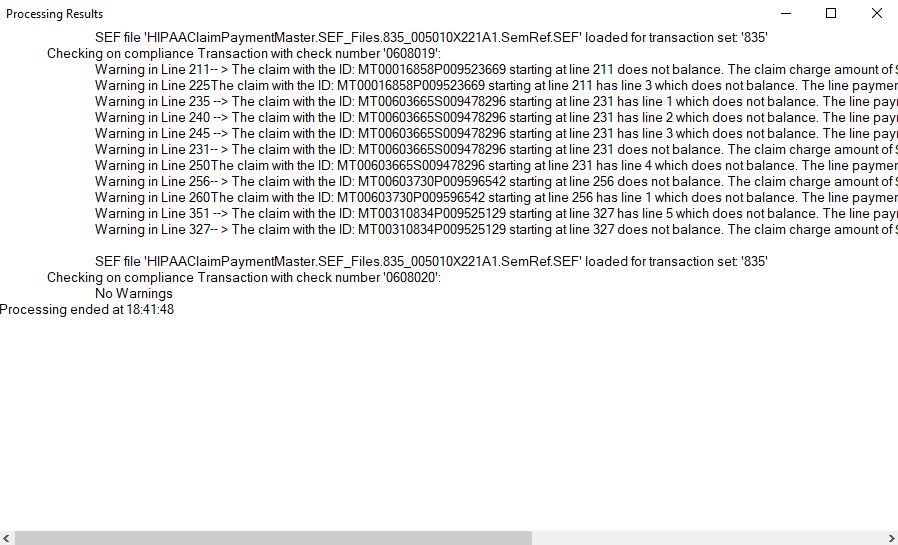
The "Processing Results" window.
5.The EDI file will now be displayed within the white text box below the settings. At this point, the file is visible but is not saved to the database.
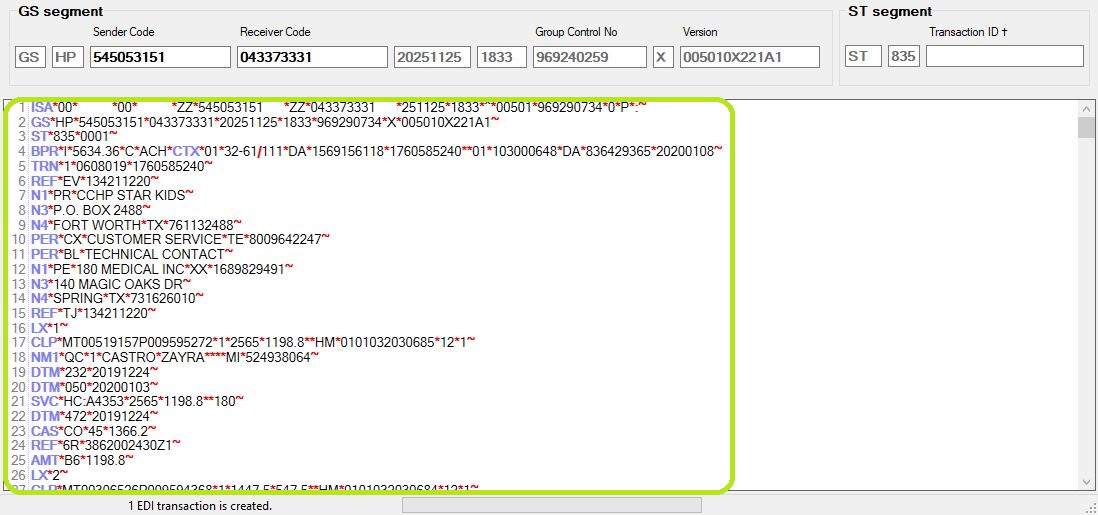
The EDI file content displayed.
6.Click on the "Write to File" button and you will have the choice to determine the location in which to save the file (see more details in Understanding the "Create 835 Transaction Sets" Window.")
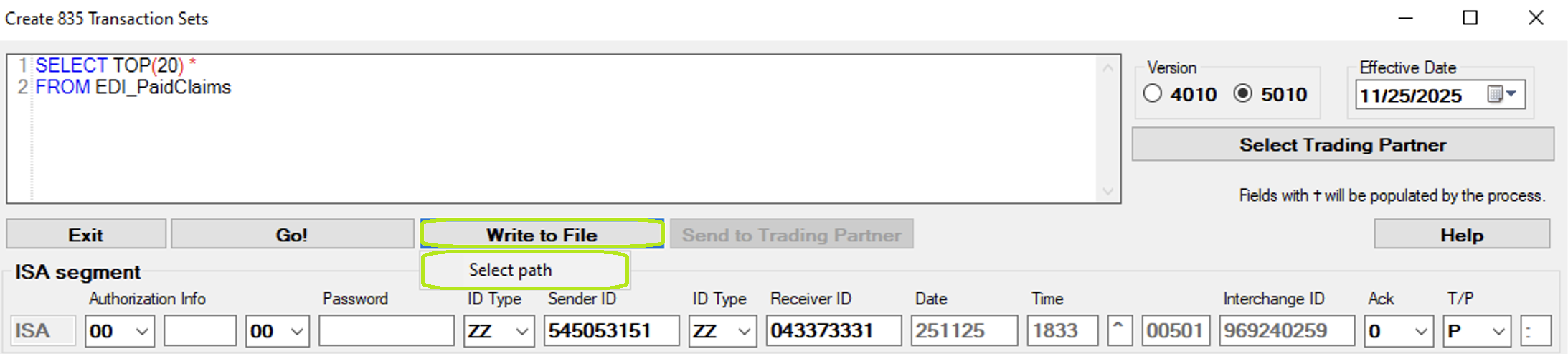
The "Write to File" button.
7.After clicking the "Go!" button, you will be presented a pop-up message to browse folders that you want the file to go to.
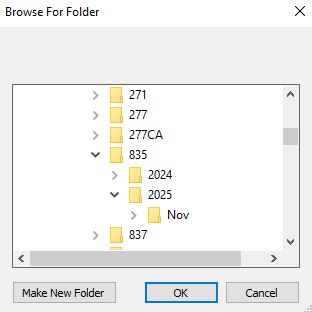
Pop-up window to choose file path.