|
<< Click to Display Table of Contents >> Running the Application via Task Scheduler |
  
|
|
<< Click to Display Table of Contents >> Running the Application via Task Scheduler |
|
A scheduler is software that can be programmed to execute a specific task at a particular time repeatedly. One of the most well-known is Windows Task Scheduler. HIPAA Authorizer can be automated through a scheduler.
Windows Task Scheduler allows HIPAA Authorizer to execute tasks regularly without user intervention. Usually, the HIPAA Authorizer application scans a directory and then prints, creates image files, or imports the data. Lastly, files are removed to prevent duplicate processing.
Use the command line with the appropriate options described in Using Command Line Arguments (CLI).
Note: Please consult Windows help files for further information on setting up the scheduler.
If the task scheduler is installed on your system, go to Start, then type "Task Scheduler" and press "Enter."
Note: In different Windows versions, the way to access the Task Scheduler can differ. Consult your Windows version documentation.
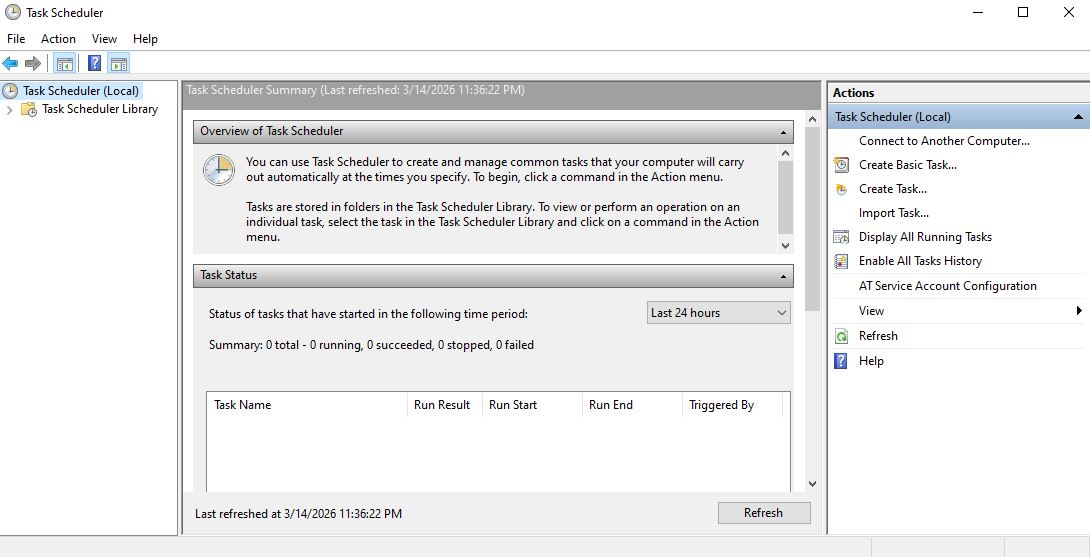
The "Task Scheduler" window.
Alternatively, you can access Task Scheduler through the EDI Exchange tab, then select "Automatic Scheduler."
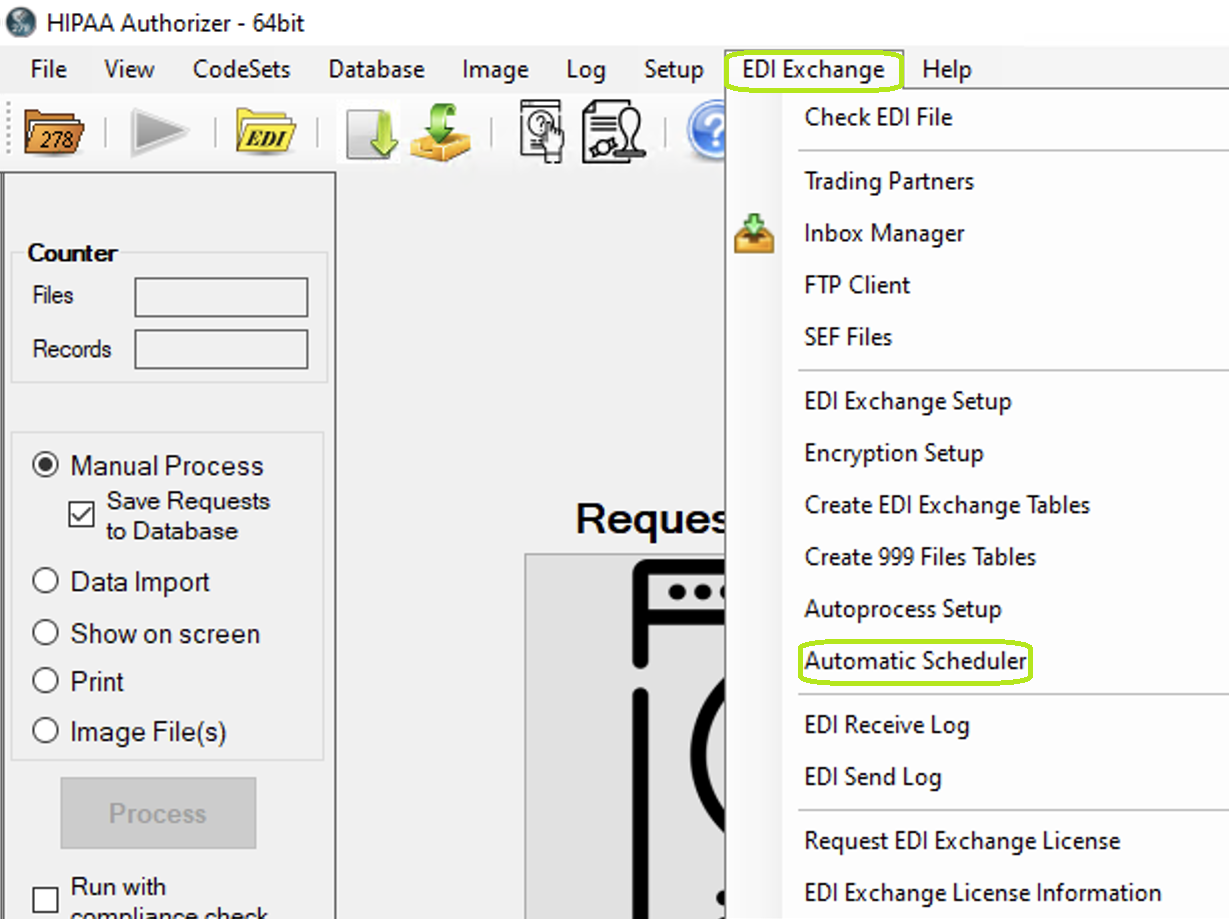
The "Automatic Scheduler" option is under the EDI Exchange tab.
At the top of the "Task Scheduler" window, you will see the "Action" menu item. Click it, then select "Create Basic Task."
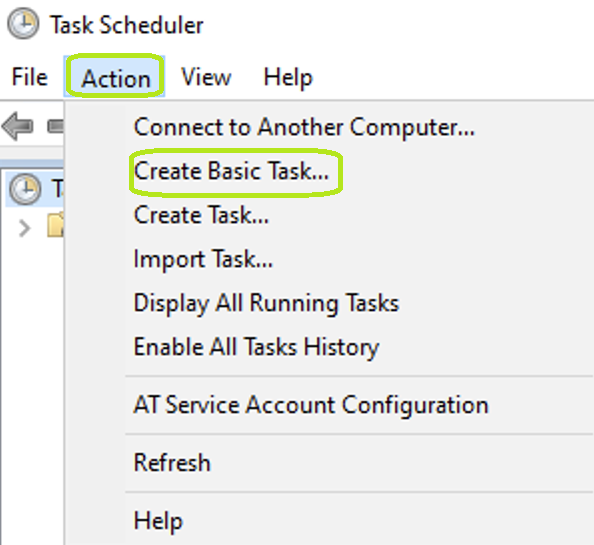
The "Create Basic Task" option is under the "Action" menu item.
The following window will open:
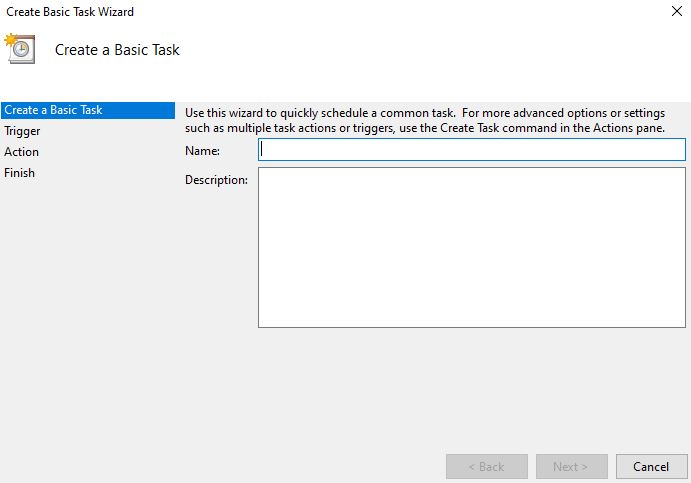
The "Create Basic Task Wizard" window.
The "Create Basic Task Wizard" will guide you through setting up automated tasks. There are four steps to be completed:
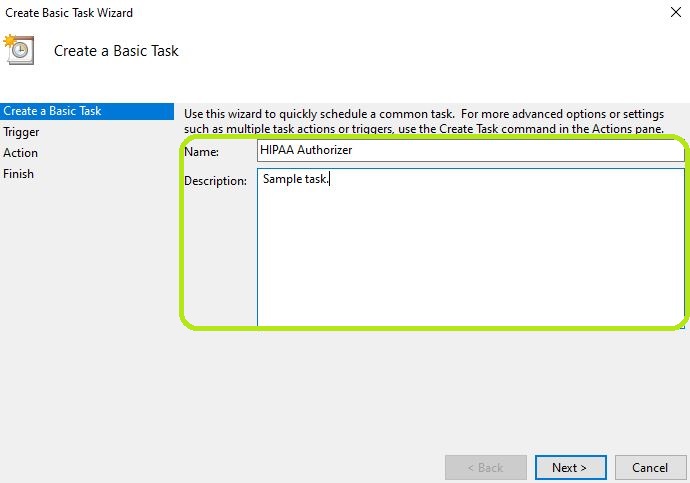
Fill in the "Name" and "Description" text boxes.
In this first step, you can name the task and add a description, though the latter is not mandatory. Then, click "Next."
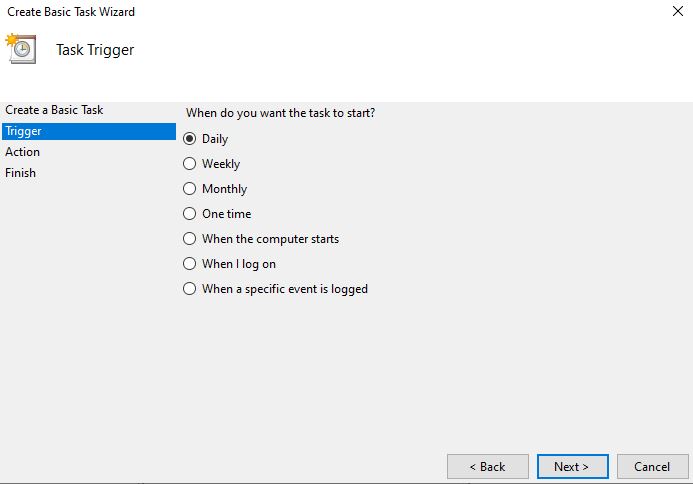
Determine the type of trigger that will start your task.
In the second step, you can choose when the task will be triggered to start. For this example, we selected the "Daily" option. For this, select a starting date, the time of day you want it to run, and how often you want this task to be completed. Then, click "Next."
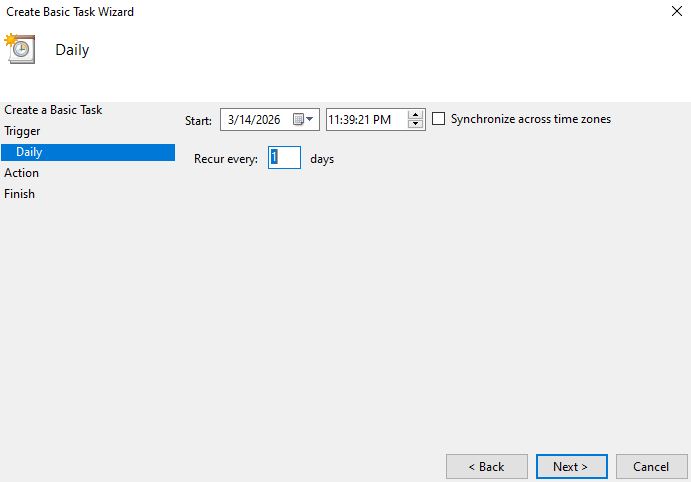
Determine a starting date, the time of day you want it to run, and how often you want this task to be completed.
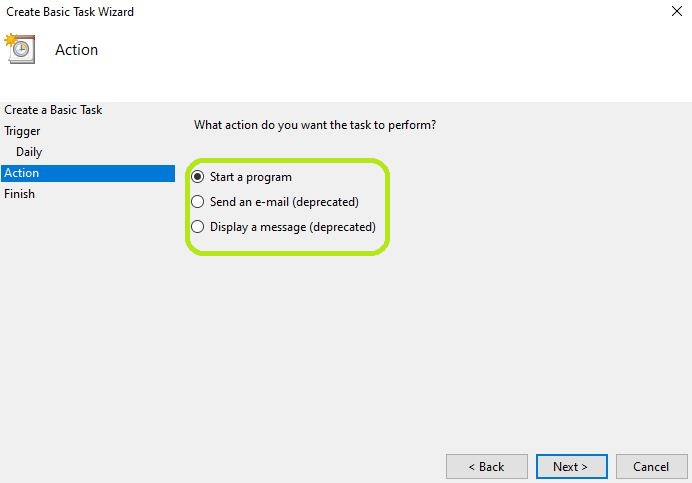
Select the first action the task will take.
In the third step, you can select one of the three initial actions. In this case, we chose "Start a program," which will prompt us to search for the application location. The usual path to search for the HIPAA Authorizer application is as shown below:
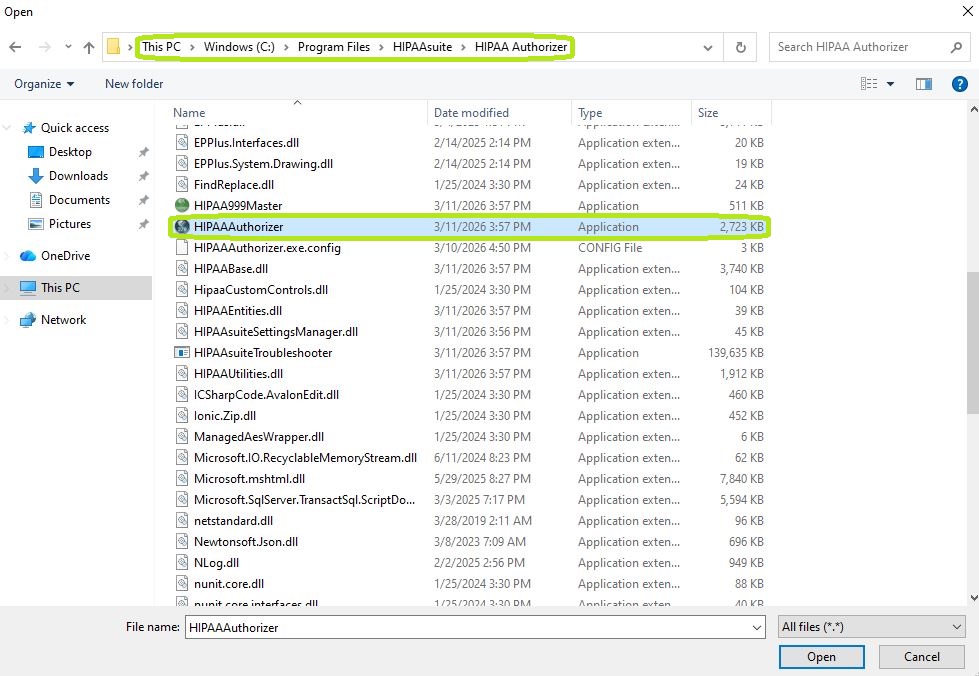
The path to the HIPAA Claim Status Checker application folder.
Select the HIPAA Authorizer Application, then click "Open," which will populate the pathway in the "Program/Script" box.
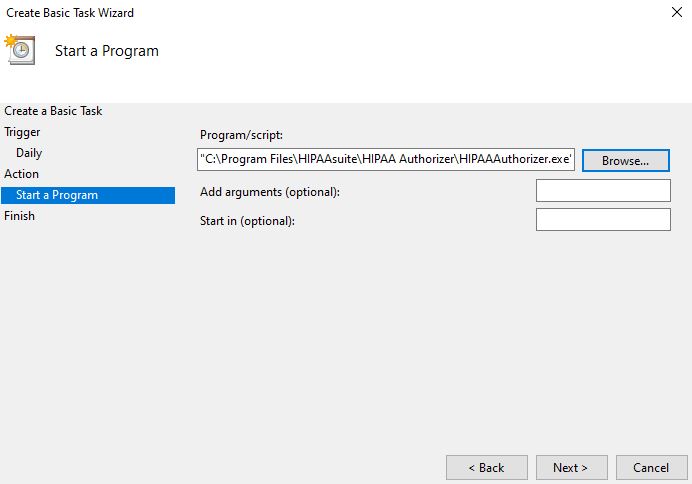
The "Add argument (optional)" box.
In the "Add argument (optional)" box, you can include the command line arguments or after creating a task, which we will describe below.
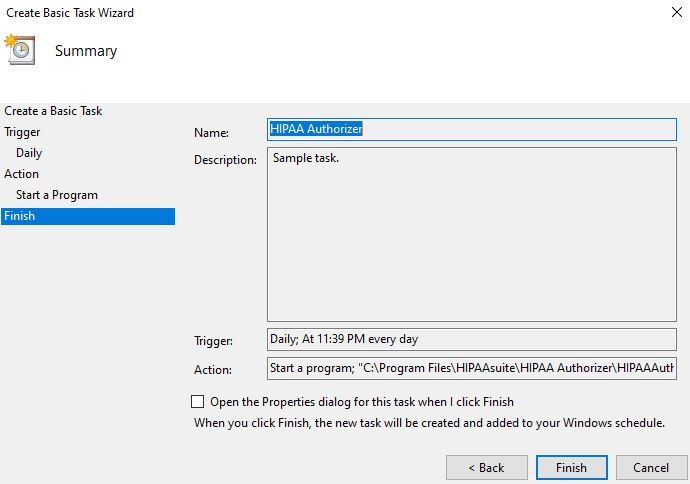
Review your settings in the "Finish" step.
In this final step, the "Create Basic Task Wizard" will display all the settings from the previous steps for you to review before completing creating the task. If everything is correct, click "Finish."
After creating the task, you can see it under the "Active Tasks" section of the "Task Scheduler" window.
To edit a task, look for it in the "Active Tasks" section of the "Task Scheduler" window, then double-click it. This will open a new panel showing all tasks and an overview of their current settings.
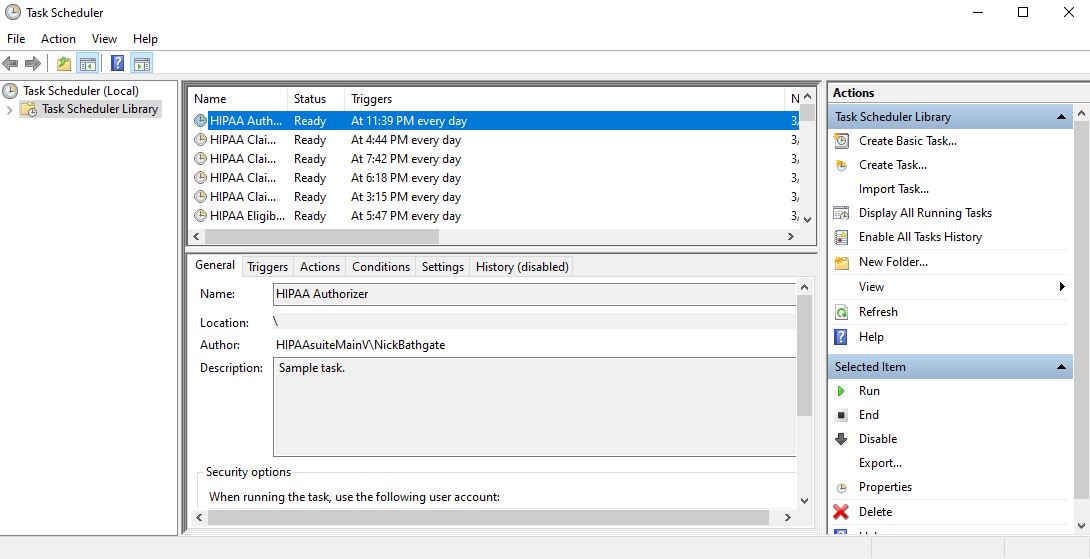
The new panel shows after double-clicking the task.
Right-click the task you created in the previous section, then select "Properties" from the drop-down menu.
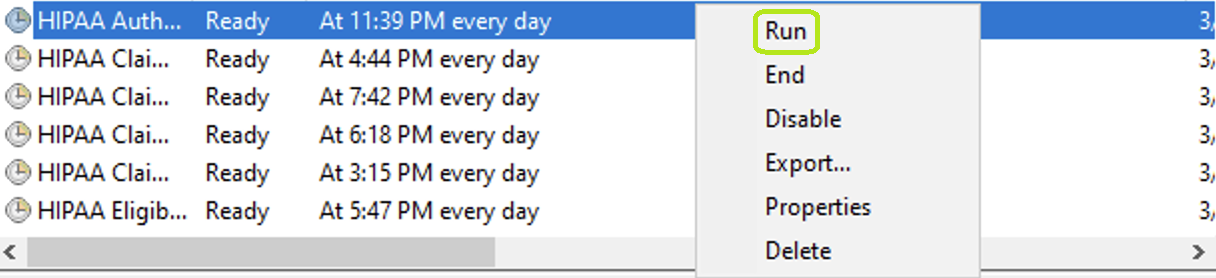
The "Run" option is under the task's drop-down menu.
The "HIPAA Authorizer Properties (Local Computer)" window will open. You will see the following tabs where you may modify the initial settings when you created the task:
oGeneral
oTriggers
oActions
oConditions
oSettings
oHistory (disabled)
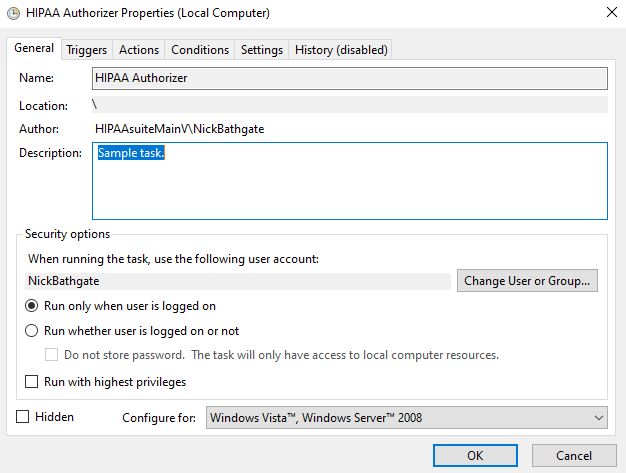
The "HIPAA Authorizer Properties (Local Computer)" window.
You can add arguments to the task by selecting the "Actions" tab and clicking the "New..." button.
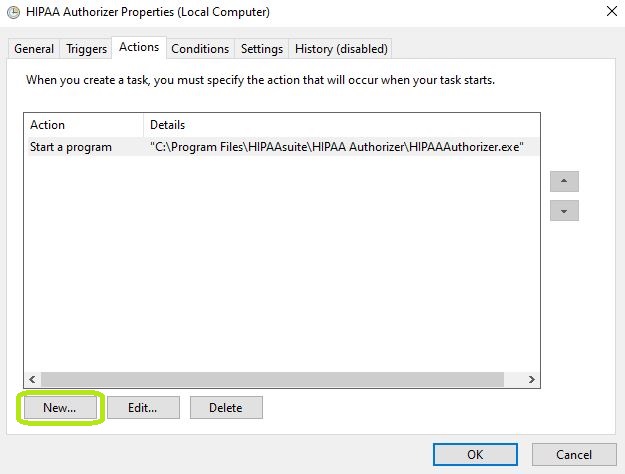
The "New..." button.
The "New Action" window will open. You can write your arguments in the "Add arguments (optional)" text box. Once you are done, click "OK."
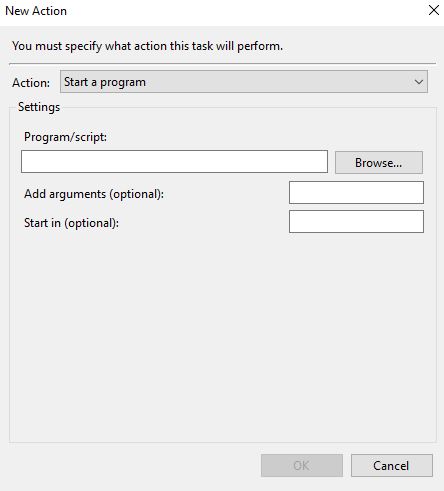
The “New Action” window.
To delete a task, right-click the task you want, then select the "Delete" option. You will be asked to confirm if you want to delete the task. If so, click "Yes."
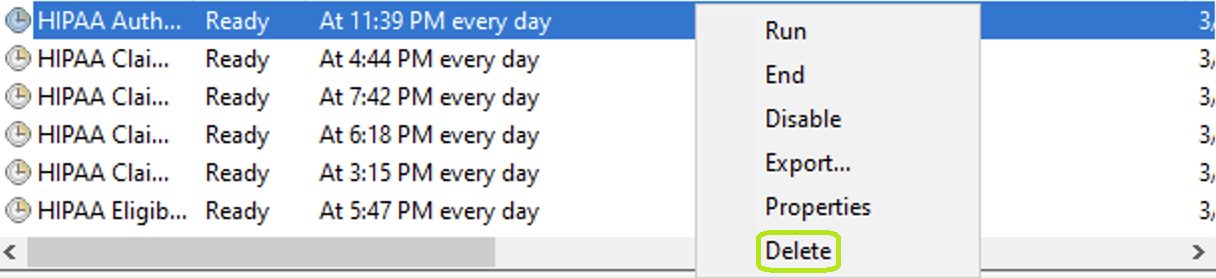
The “Delete” option is under the task’s drop-down menu.
Note: Logs may be helpful when running the application automatically through the scheduler. See Accessing Daily File Logs.