|
<< Click to Display Table of Contents >> Trials, Licensing, and Activating EDI Exchange |
  
|
|
<< Click to Display Table of Contents >> Trials, Licensing, and Activating EDI Exchange |
|
HIPAAsuite uses a licensing module system. Licenses are generally per machine; that means multiple users can log into a computer, though not simultaneously, unless they have one with additional licenses embedded. If you move your application to another machine, contact us to provide a different key.
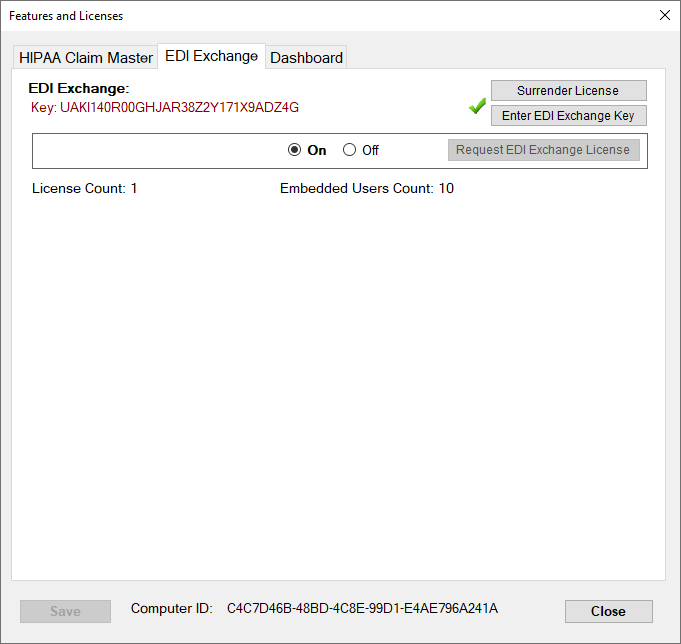
The "EDI Exchange" tab is in the "Features and Licenses" window.
We understand the importance of selecting the right tools for your needs. Though we are convinced of the great advantages HIPAAsuite may bring to your business, we have enabled the option of a 15-day trial. Once the trial is over, the following message will open:
The license expired pop-up window.
There are three ways you can activate license keys. You can go to the following locations from the main menu window:
oHelp > Features and Licenses
oEDI Exchange > EDI Exchange License Information
oA trial "Registration" Form window
To access EDI Exchange, follow the steps below to activate a license key:
1.To directly request a license key you can go to EDI Exchange > Request EDI Exchange License or go to EDI Exchange > Features and Licenses, then click the "Request License" button. We will go through the steps using the HIPAA Claim Master application.
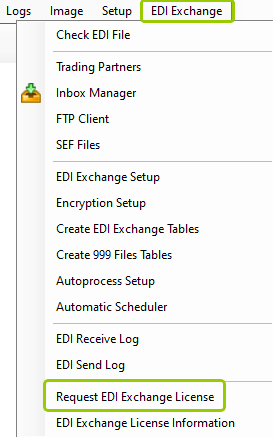
The "Request EDI Exchange License" option is under the "EDI Exchange" tab.
2.Either option will prompt your default email application to open a message. In this example, Microsoft Outlook will open with a pre-populated message to our support team.
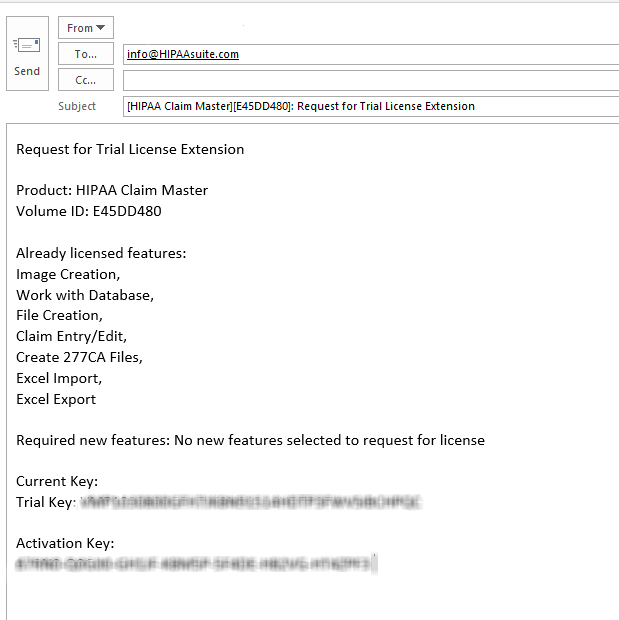
The pre-populated email window.
3.Once you receive the response with the key for EDI Exchange, be it a trial or final product key, go to EDI Exchange > EDI Exchange License Information, then click "Activate License."
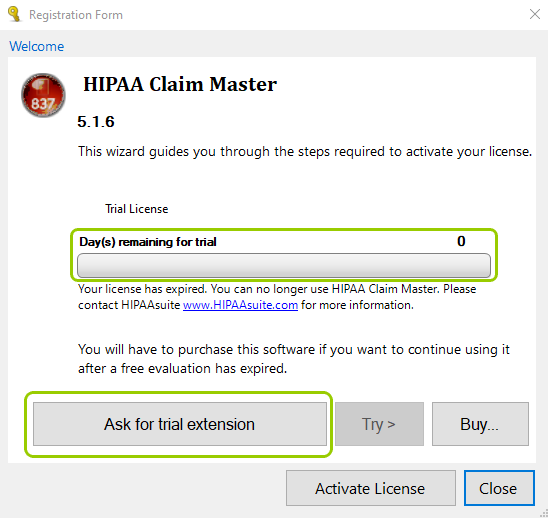
The "Registration Form" window.
4.You will be presented with three options:
oActivate my license — This option begins the activation process.
oValidate my license — This option checks modules active in your license.
oDeactivate my license — This option deactivates a registered product; this will not uninstall the respective application.
In this case, select "Activate my license." Then, click "Next."
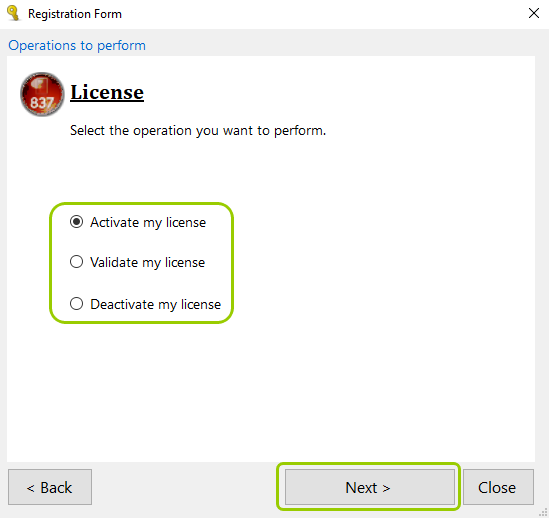
The activation options.
5.You can activate the license with an Internet connection (Online) or without a connection (offline). For the latter, contact HIPAAsuite support to finish the process. Once you make your selection, click on "Next."
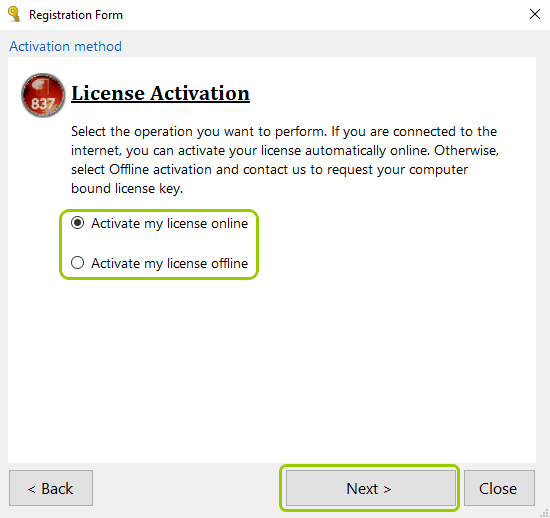
The "Online Activation" and "Offline Activation" windows.
6.Once you select an activation method, enter the key you received by email into the "Activation Key" text box. Then, click "Activate."
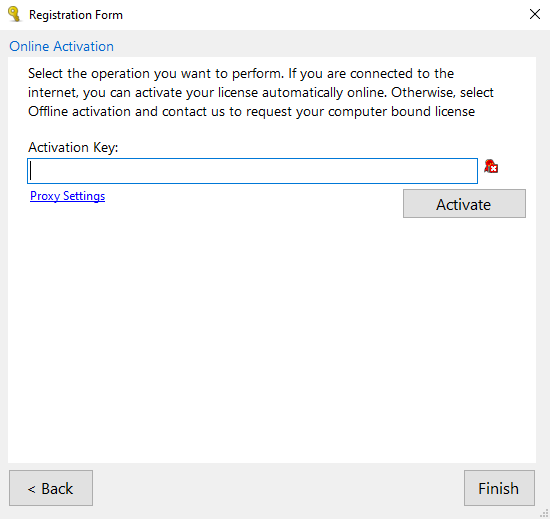
The "Activation Key" box for the Online Activation.
7.If the key was entered correctly, a message will pop up, confirming that the activation was successful. After this, you may click "Finish" to close the window. Now, the EDI Exchange module is functional and you may start using it.
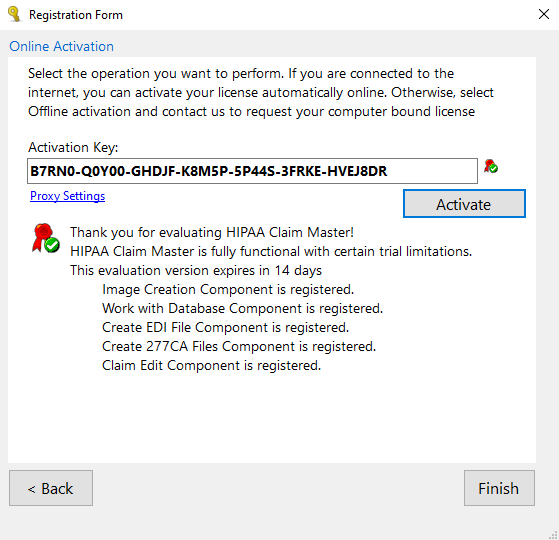
Message after the key was successfully activated.