|
<< Click to Display Table of Contents >> Setting up Encryption |
  
|
|
<< Click to Display Table of Contents >> Setting up Encryption |
|
EDI Exchange allows you to set up the encryption for your EDI files, which ensures a higher level of security when moving EDI files. Follow the steps below to complete the setup:
1.Go to EDI Exchange > Encryption Setup in the main menu window.
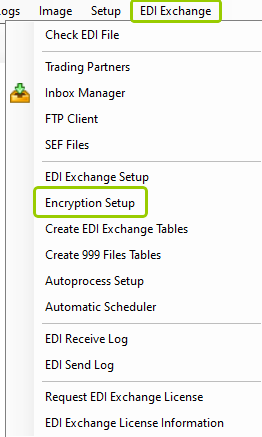
The "Encryption Setup" option is under the "EDI Exchange" tab.
The following window will open:
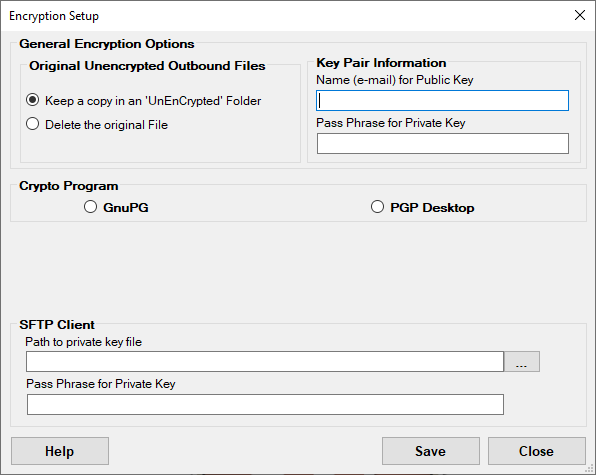
The "Encryption Setup" window.
2.Within this window, you can configure your encryption settings. Once you are done, click "Save" to keep all changes.
There are three sections of configurations. See the details of each specific option below:
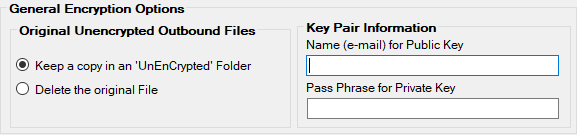
The "General Encryption Options" box.
Within the "General Encryption Options" box, you will find two settings:
Original Unencrypted Outbound Files
oKeep a copy in an 'UnEncrypted' Folder — When an EDI file is created for a Trading Partner with encryption, you can keep an unencrypted copy in the "This PC/New Volume (D:)/Outbox/[trading partner]/UnEnCrypted" folder. This is useful if you need to review a file for issues in the future.
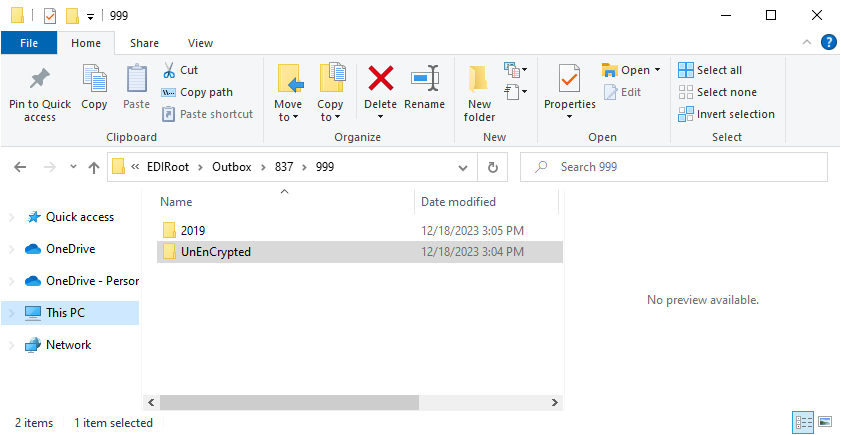
The unencrypted file path.
oDelete the original File — If you do not want to keep the unencrypted copy, select this option.
Note: Once you encrypt a file with the public key of your Trading Partner, you will not be able to open it again. Only the owner of the private key can decrypt it and read it.
Key Pair Information
oName (e-mail) for Public Key — Enter the name or e-mail that your Trading Partners will use to encrypt your files.
oPass Phrase for Private Key — Enter a passphrase here to decrypt files encrypted previously with the passphrase.
Note: Keys are identified by the email address of their owner.

The "Crypto Program" box.
oGnuPG — Select this option if you have already installed the GnuPG software and want to use it. To connect GnuPG, click the "..." box to browse for the location of gpg.exe
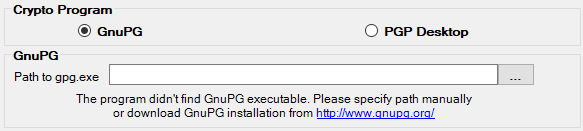
The "GnuPG" box.
oPGP Desktop — Select this option if you have already installed the PGP Desktop program and want to use it. You will see a different lower half of the window, where you can indicate the location of the keys. PGP Desktop uses "key rings," encrypted folders that contain all your keys. The location of these two files is important for PGP Desktop. You do not have to establish the folder location when you install PGP Desktop as it is done by default.
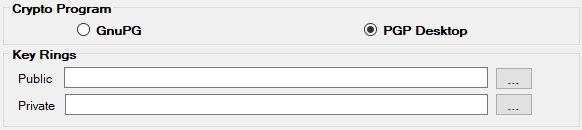
The "PGP Desktop" box.

The "SFTP Client" box.
oPath to private key file — The file directory that stores the private key files.
oPass Phrase for Private Key — The credential that enables access to the private key files.