|
<< Click to Display Table of Contents >> Stored Providers |
  
|
|
<< Click to Display Table of Contents >> Stored Providers |
|
1.To access all currently stored Providers, go to Database > Stored Providers in the main menu window.
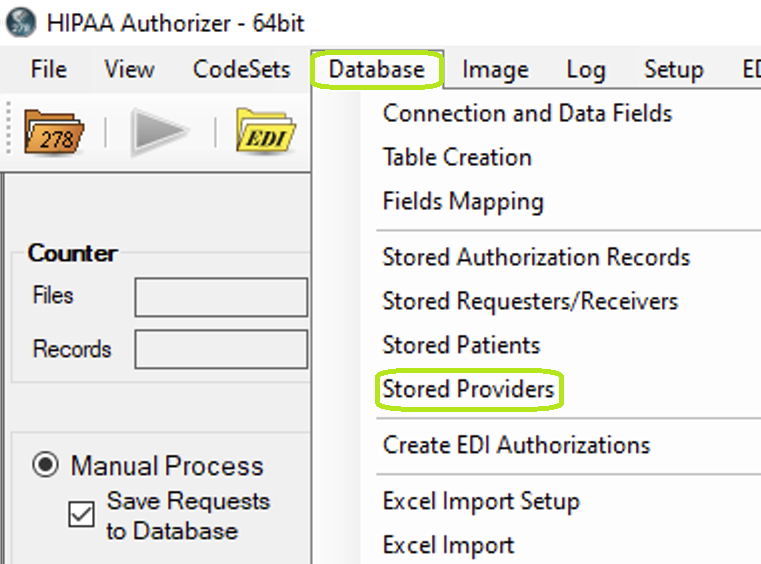
"Stored Providers" under "Manual Entry" in the main menu.
2.Clicking Database > Stored Providers will open the "Stored Providers" editing window, where all providers stored in the database are available for editing. Providers can also be added or removed from the database.
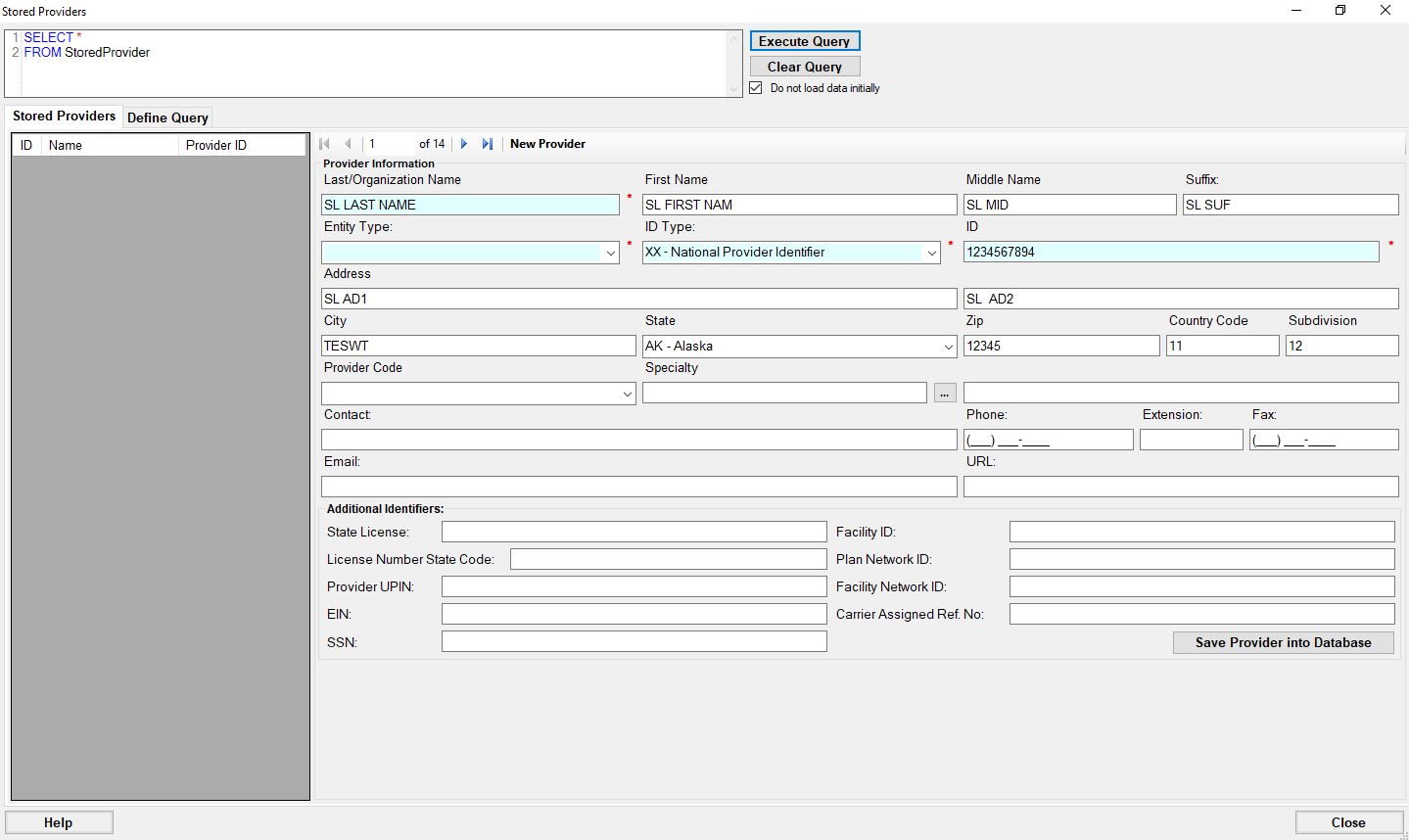
"Stored Provider" window.
3.To add a new provider, click the "New Provider" button on the navigation bar.

Adding a new provider option.
4.The Provider fields will be cleared. Fill in at minimum the required fields marked by a red asterisk. To save the new provider to the database, click the Save Provider into database button.
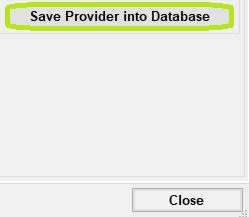
"Save Provider into Database" option.
The new provider will now appear in the list of providers to the left of the screen.