|
<< Click to Display Table of Contents >> Setting Up Email Configurations |
  
|
|
<< Click to Display Table of Contents >> Setting Up Email Configurations |
|
EDI Exchange can send notification emails to operators and Trading Partners about files and processing results. For this feature to work properly, you must set up an email server that communicates with EDI Exchange. To configure your email, follow the steps below.
1.Go to EDI Exchange > EDI Exchange Setup in the main menu window.
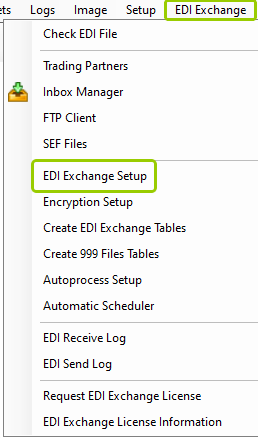
The "EDI Exchange Setup" option is under the "EDI Exchange" tab.
The following window will open:
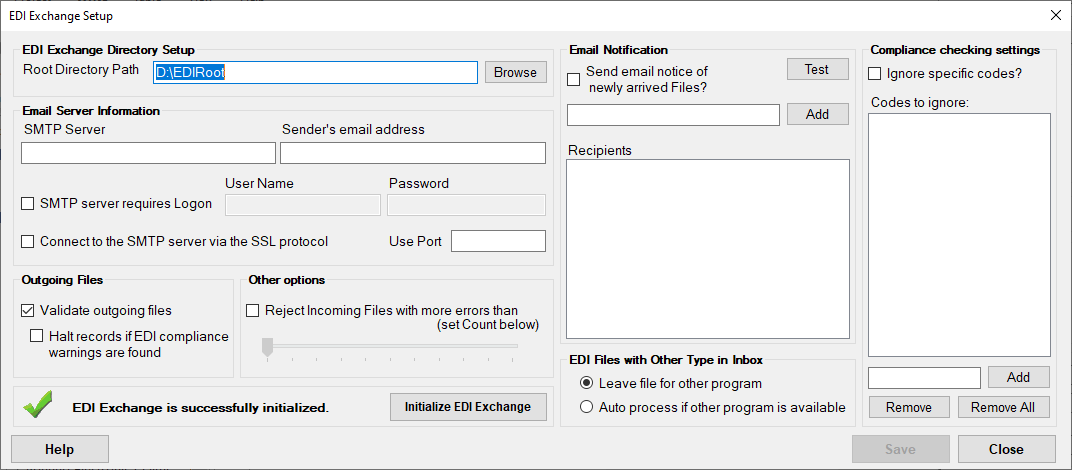
The "EDI Exchange Setup" window.
2.Within the "Email Server Information" Specify the following email settings to configure:
oSMTP server
oSender's email address
oSMTP server requires logon
oUsername / Password
oConnect to the SMTP server via the SSL protocol
oUse port
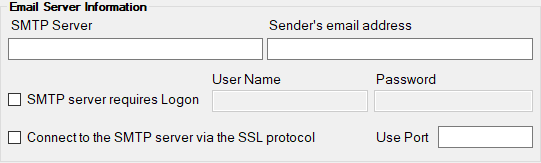
The "Email Server Information" box.
Note: If you do not have this information, please ask your administrator to set this up for you.
3.Once you have filled the email server information, you can continue with the email notification configurations:
oSend email notice of newly arrived files? — Use this check box to define if you want to send an email notice once new files have arrived.
oRecipients — You can add your staff's email addresses and the processing messages will be sent to these emails. Type the email address in the field above the "Recipient" box, then click the "Add" button. The email will then appear listed.
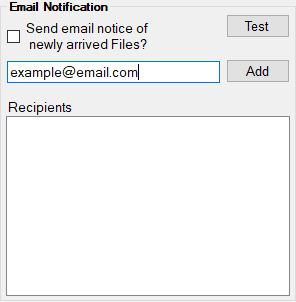
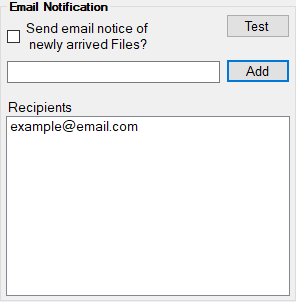
Adding an email to the "Recipient" list.
4.After adding the recipients you want, click the "Test" button to check that the configurations work properly. If everything is correct, click "Save" to keep your changes.
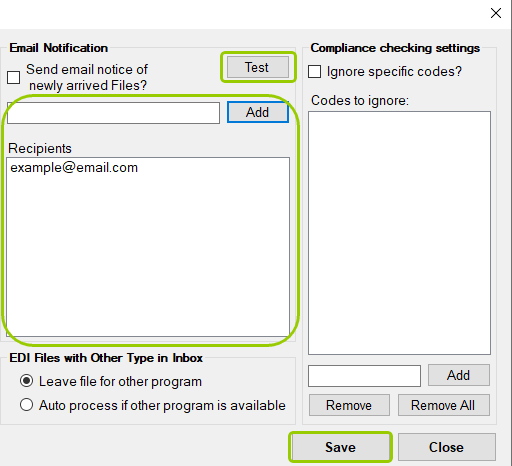
The "Save" button to keep your email configurations.
If the email configuration fails to be completed, review that the previous settings were set up correctly. Sometimes, however, even after ensuring everything is correct, you could still see the following message pop up if the server does not respond:
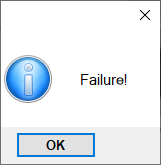
A test failure message.
If you cannot set up the email server, contact your administrator for assistance. They should know the specific values necessary and how to test the settings.
After acknowledging the failure, you get a more detailed error message in a new window:
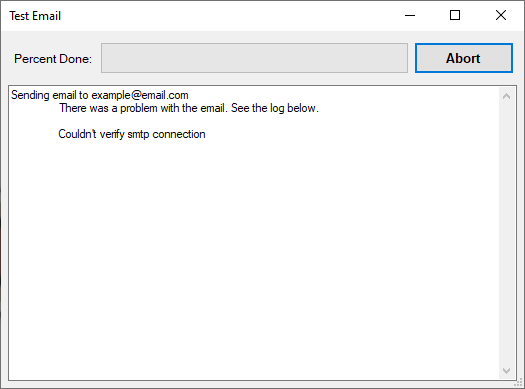
The "Processing Results" window will show a detailed error message.