Setting up a Database Connection |
  
|
Setting up a Database Connection |
|
To complete the database connection setup, select Data Base > Connection Setup in the main menu window.
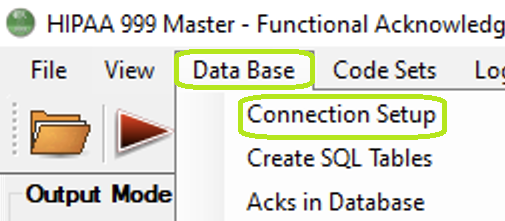
The "Connection Setup" option is under the "Data Base" tab.
There are two methods to setup the database connection: Database Connection Wizard or Manually
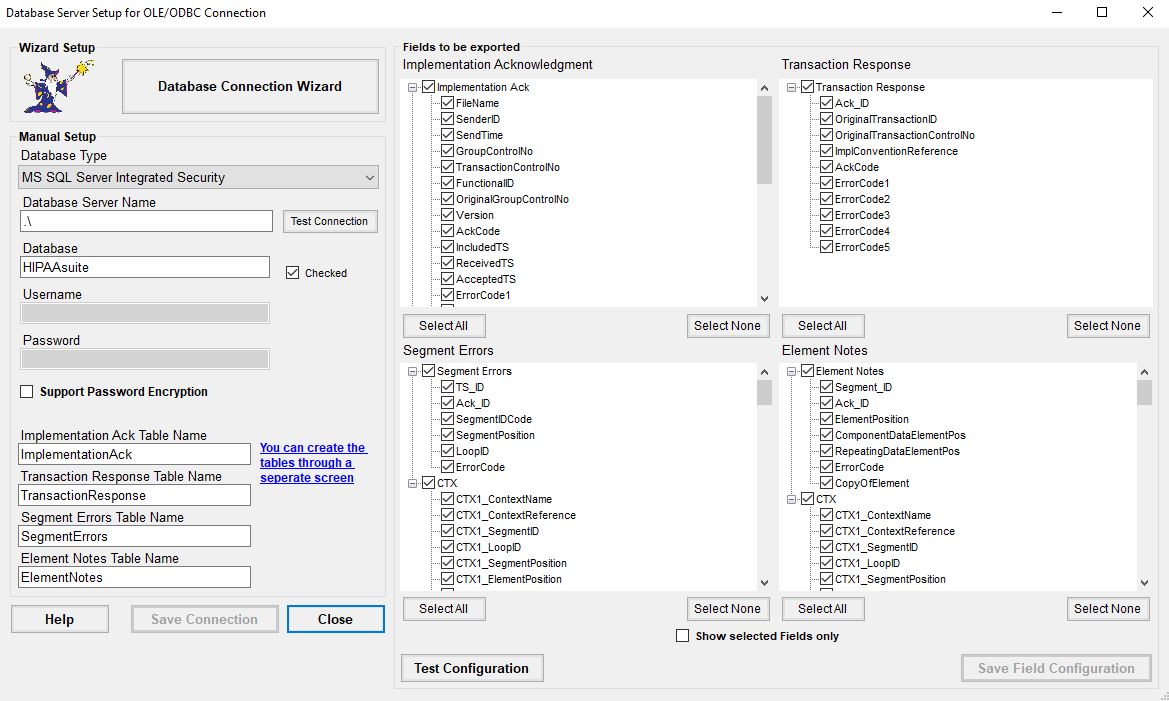
The "Database Server Setup for OLE/ODBC Connection" window.
There are three sections with settings you may configure to suit your needs. See more details in each setting below:
The "Database Connection Wizard" button.
The "Database Connection Wizard" button will guide you through the steps to configure the database connection.
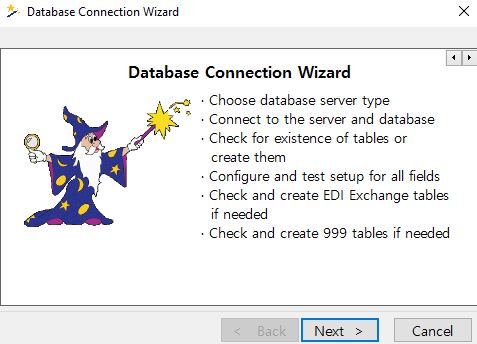
The "Database Connection Wizard" window guides users step by step in establishing the connection.
If the user prefers setting up the connection manually, they may fill out the information themselves.
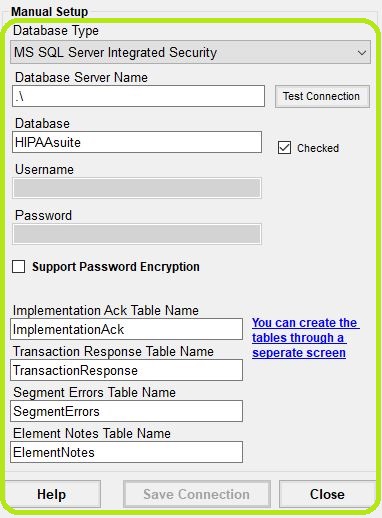
The "Manual Setup" box.

These are the option buttons to conclude the setup.
Once the connection parameters have been entered, click the "Save Connection Information" button to save the settings. If you wish to exit the window, click on "Close." Beware that any unsaved changes will be lost if the window is closed before saving. If you need further assistance, click the "Help" button, which will open a new window with the user's manual chapter about setting up the database connection.
After the database connection is defined and tested, you can enter the table names. If you need to create the tables first, then see Creating Tables.